Playwrights Advance browsing operation


Mouse Actions


Learning Outcome
4
Automate web elements that require mouse interaction.
3
Use mouse movement and drag-and-drop operations.
2
Perform click, double-click, right-click, and hover actions.
1
Understand mouse actions in Playwright.
5
Apply mouse actions in real-world UI testing scenarios.
Recall
Learners should understand Playwright basics.
They should know how to locate web elements.
They should know basic web element actions.
They should understand CSS selectors.
They should have basic Java knowledge

They should understand basic HTML elements.
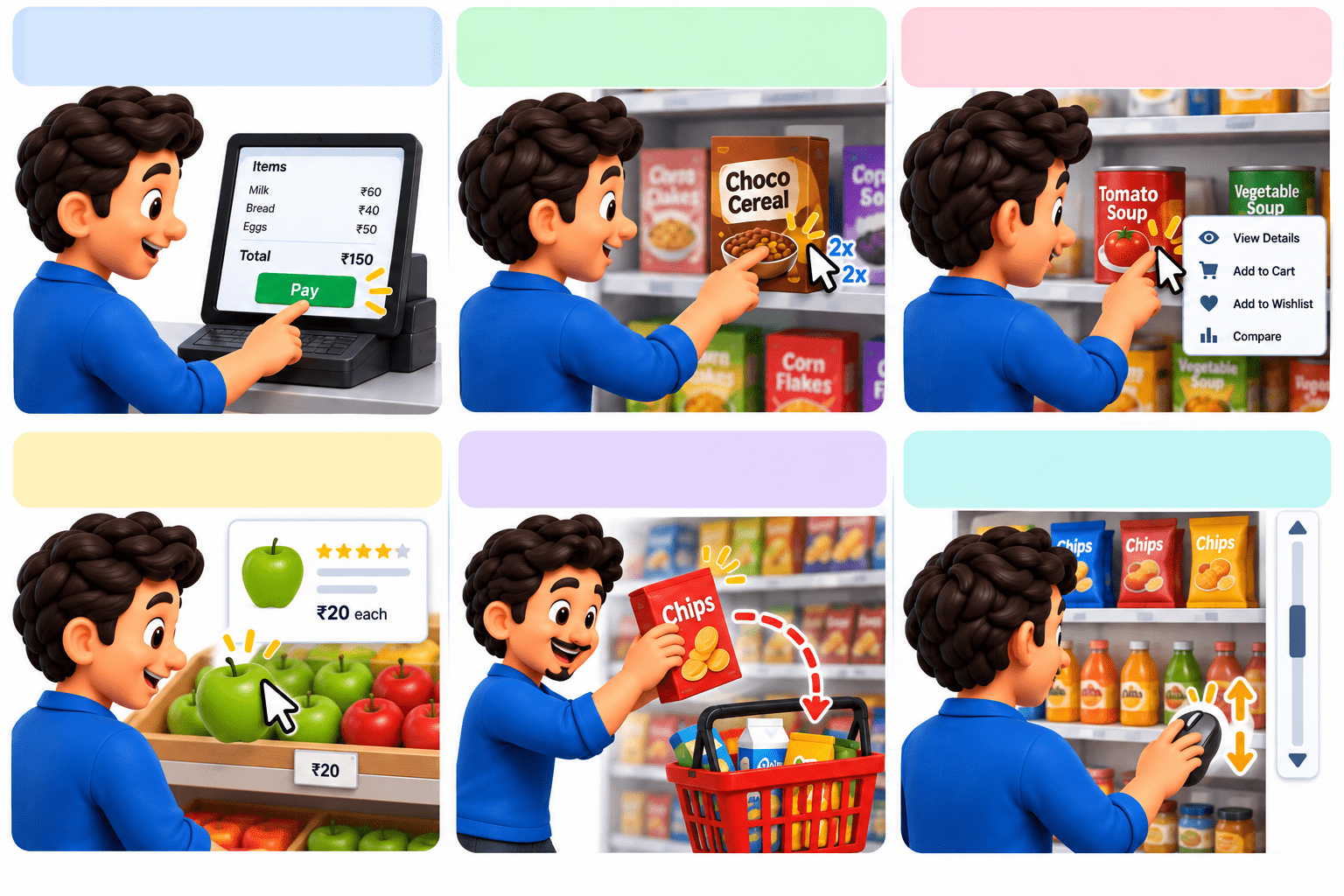
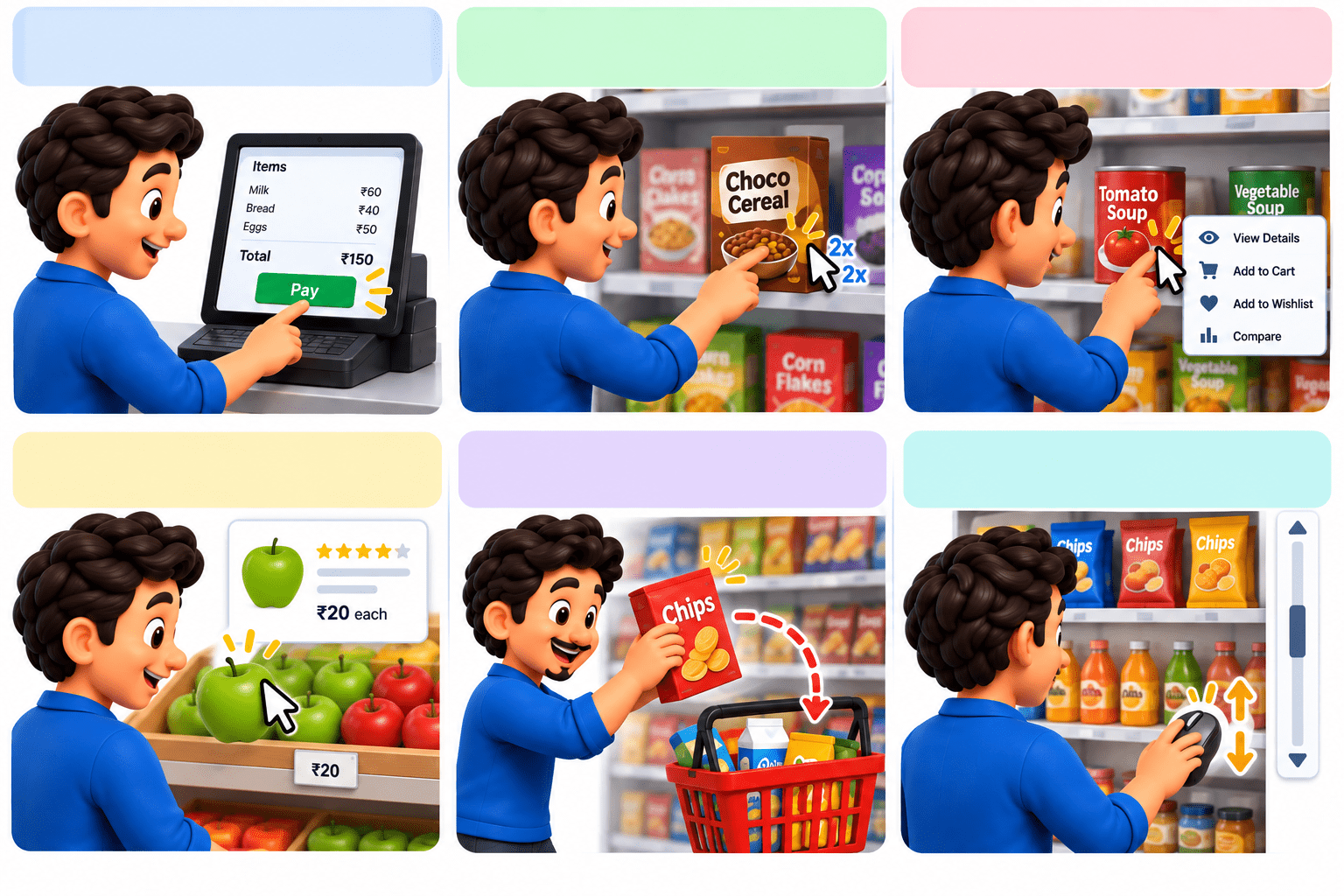
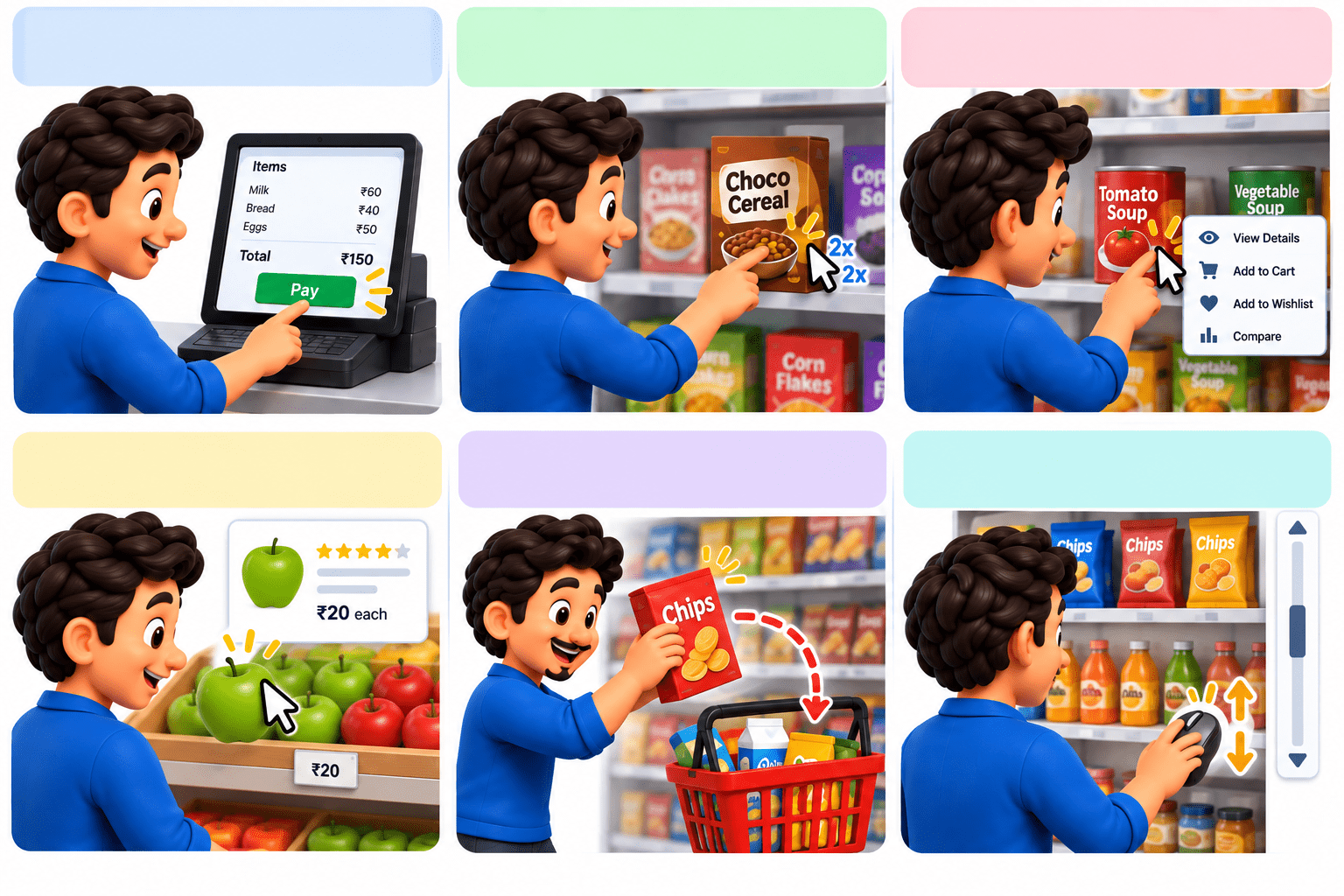
Imagine you are shopping in a supermarket and using your hand to interact with different things.
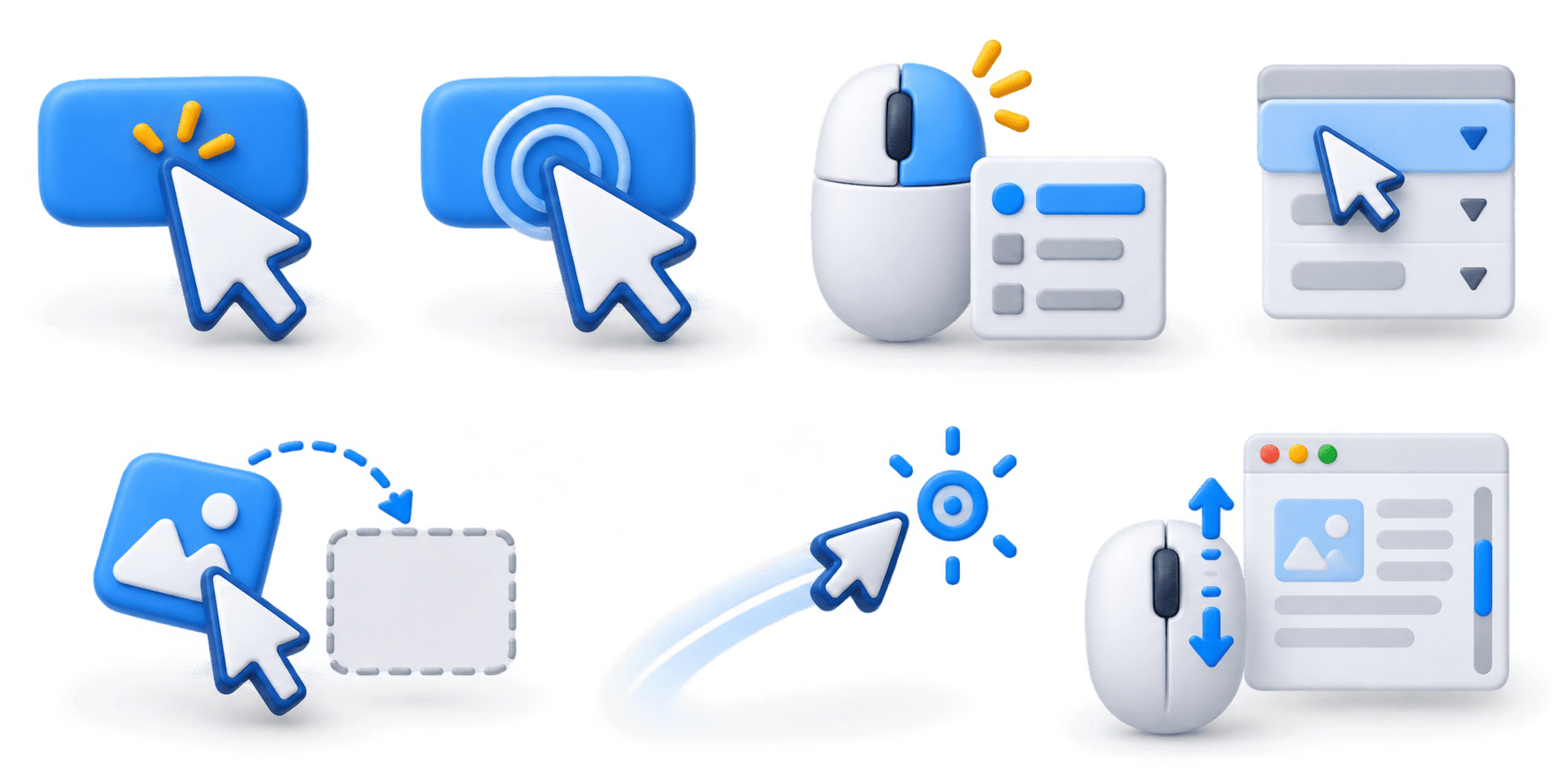
Click
Press the button on a billing machine
Double - Click
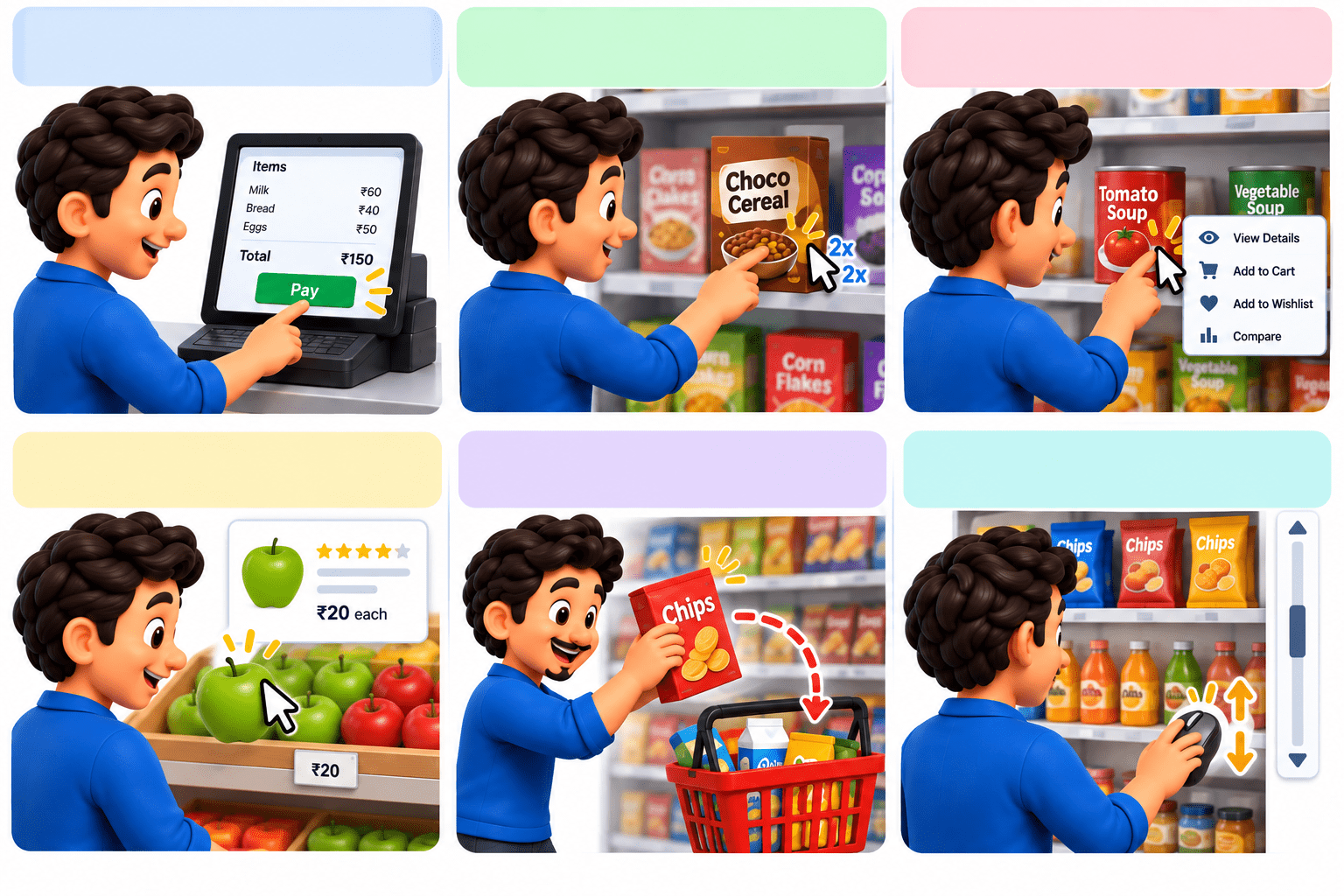
Tap an item twice to open it
Right - Click
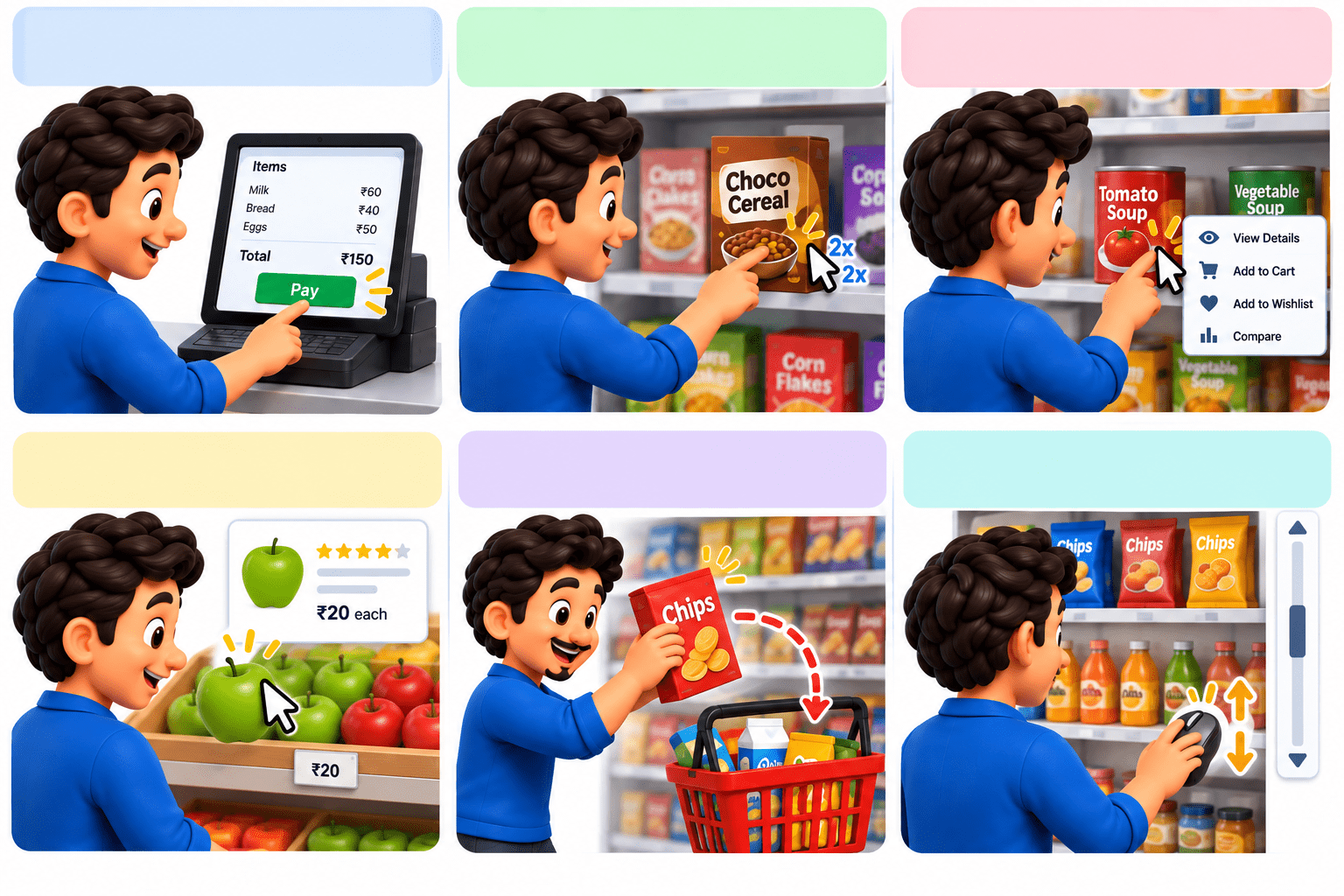
Open an additional option menu for an item
Move your hand over a product to inspect it without selecting it.
Hover
Pick up a product and move it into your shopping basket.
Drag and Drop
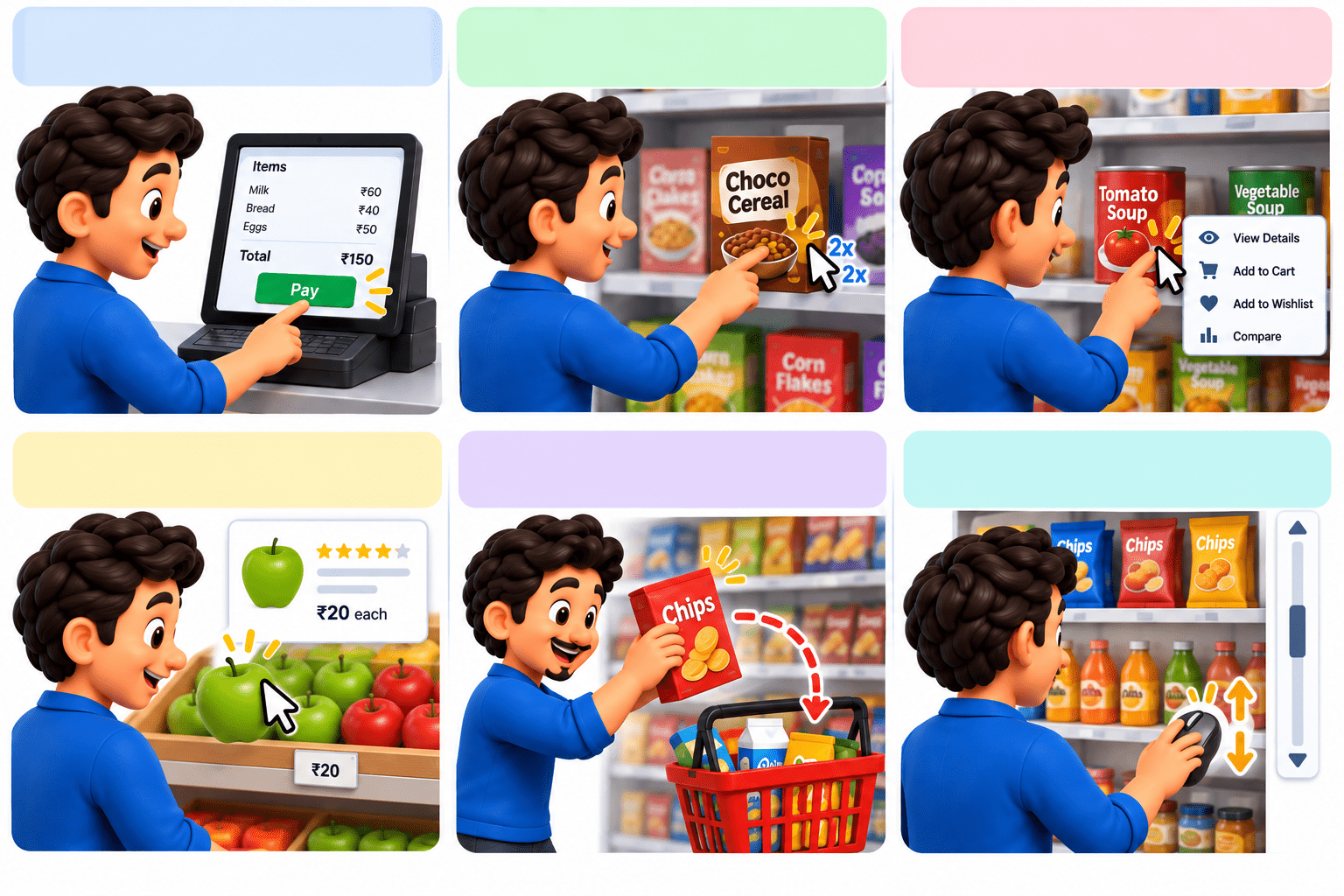
Move through a long list of products to see more items.
Scroll


Mouse Actions = Controlling a Shopping Cart in a Supermarket
Mouse Actions = Different ways a user interacts with a website using the mouse
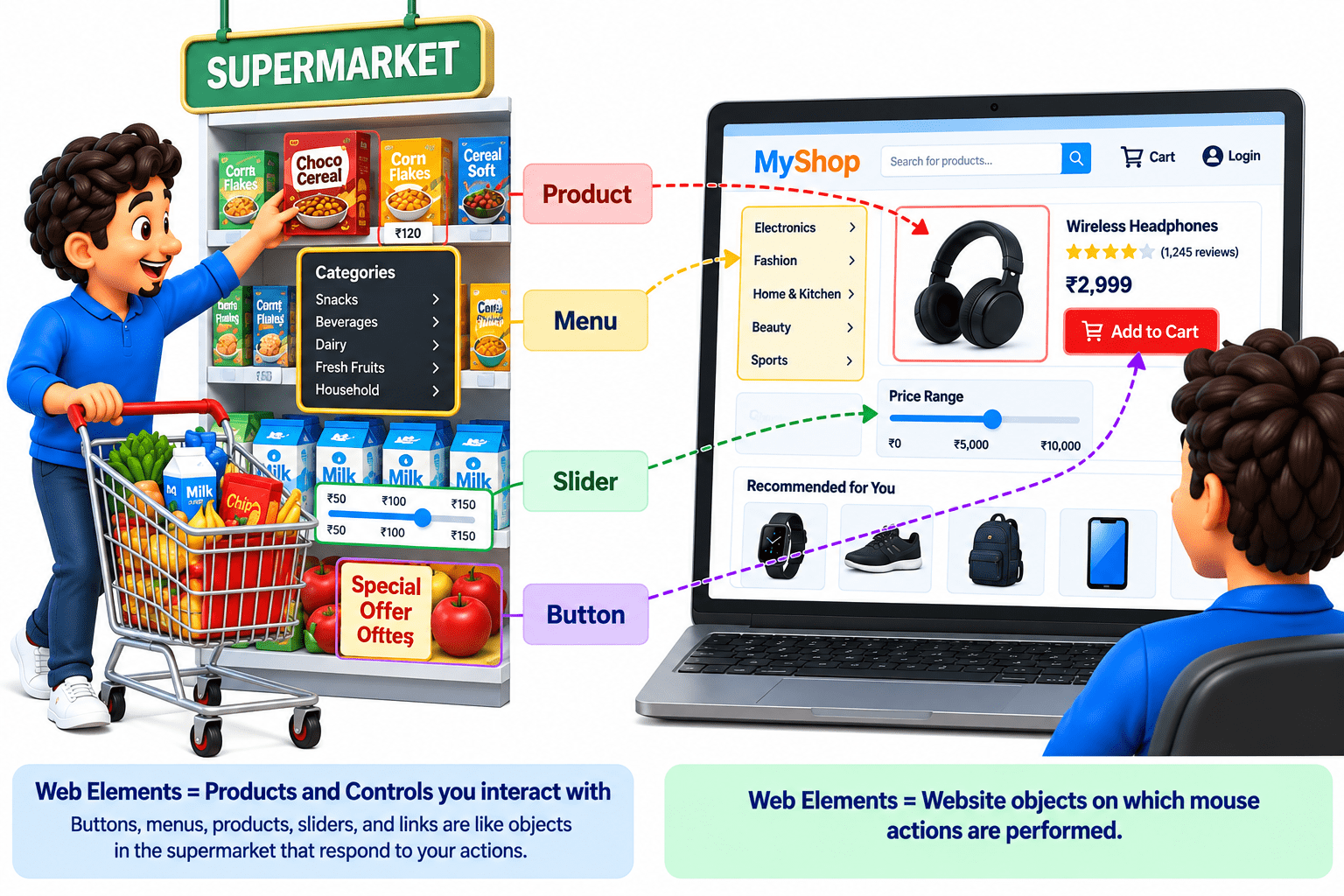
Web Elements = Products and Controls you interact with Buttons, menus, products, sliders, and links are like objects in the supermarket that respond to your actions.
Web Elements = Website objects on which mouse actions are performed.
Why Mouse Actions are Required?

Mouse actions are required in Playwright to automate the same interactions that a real user performs with a mouse on a webpage
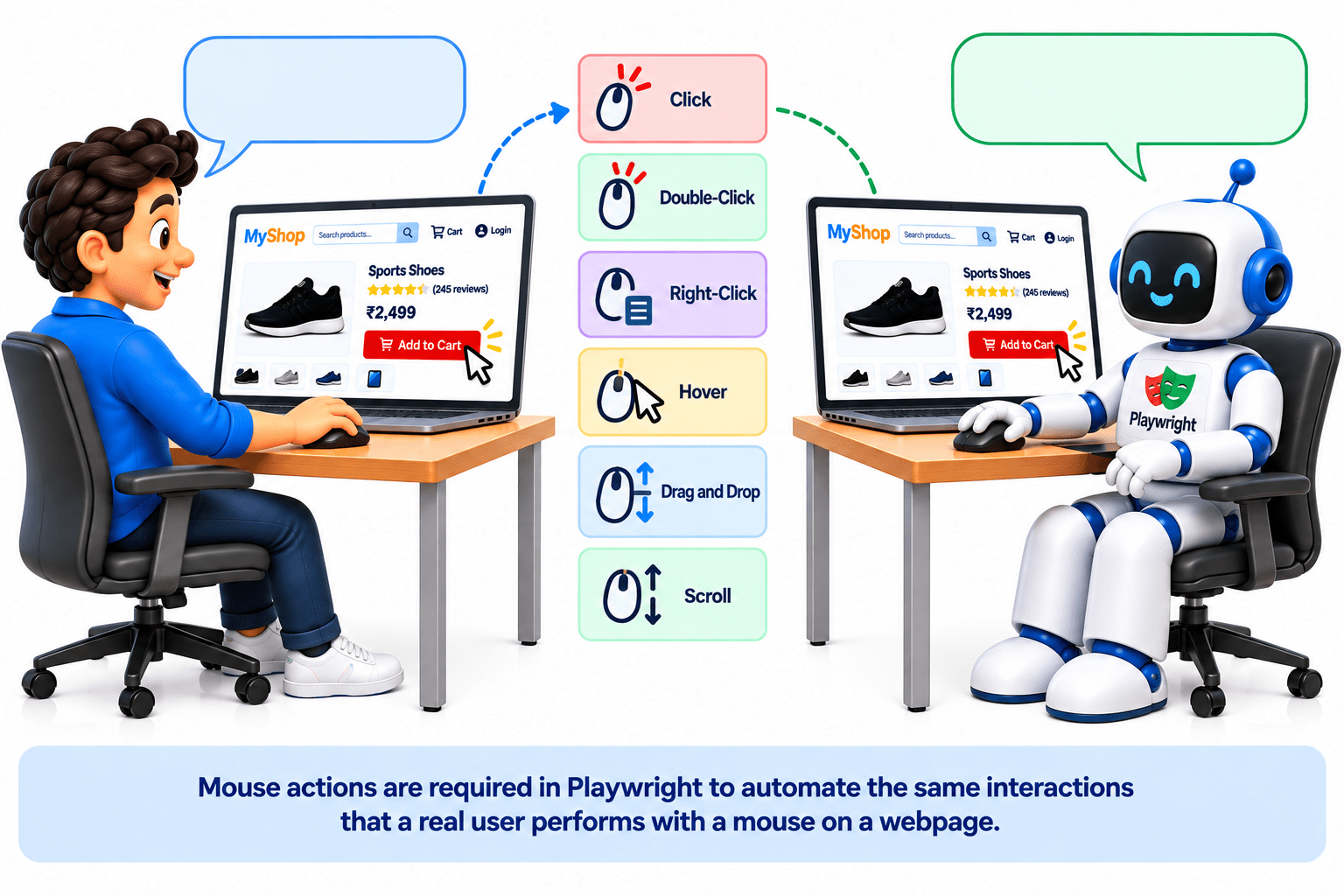
I use the mouse to interact with website
I automate the same mouse interaction using playwright
To click buttons, links, and controls
To open menus using hover
To perform right-click and double-click actions
To drag and drop elements
To move the mouse to specific locations
To scroll through webpages
To test interactive UI elements such as sliders, menus, and draggable components
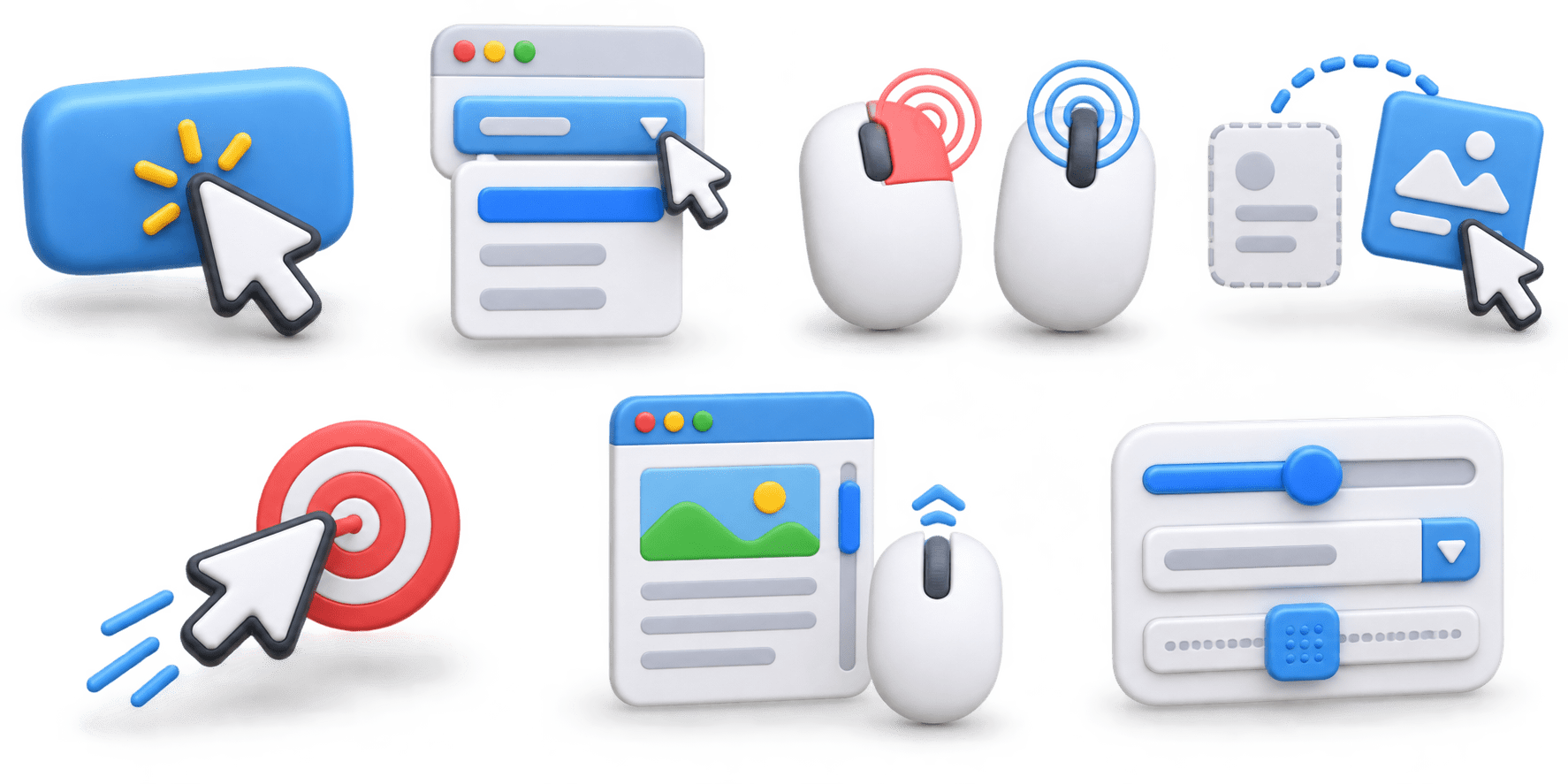
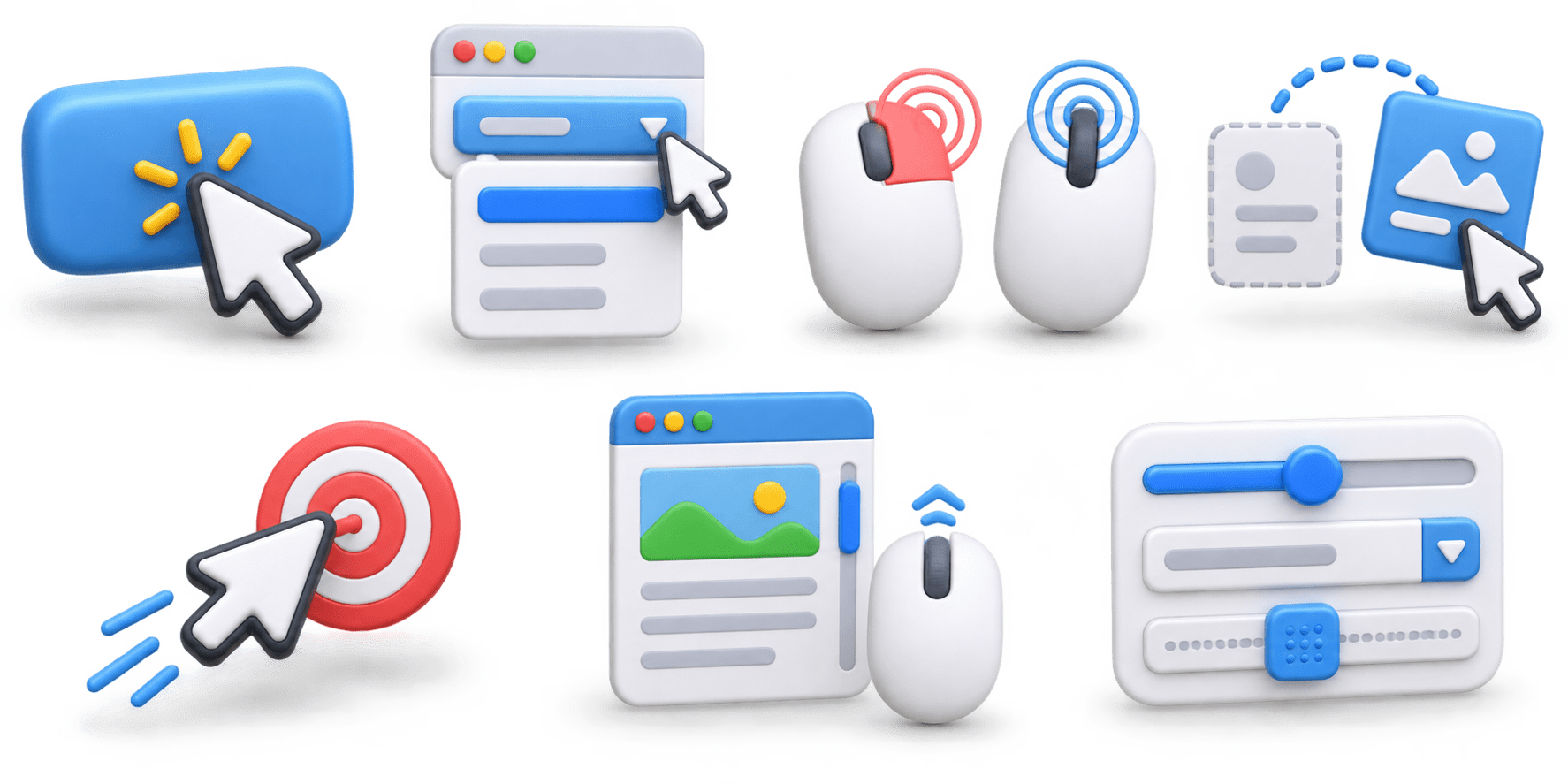
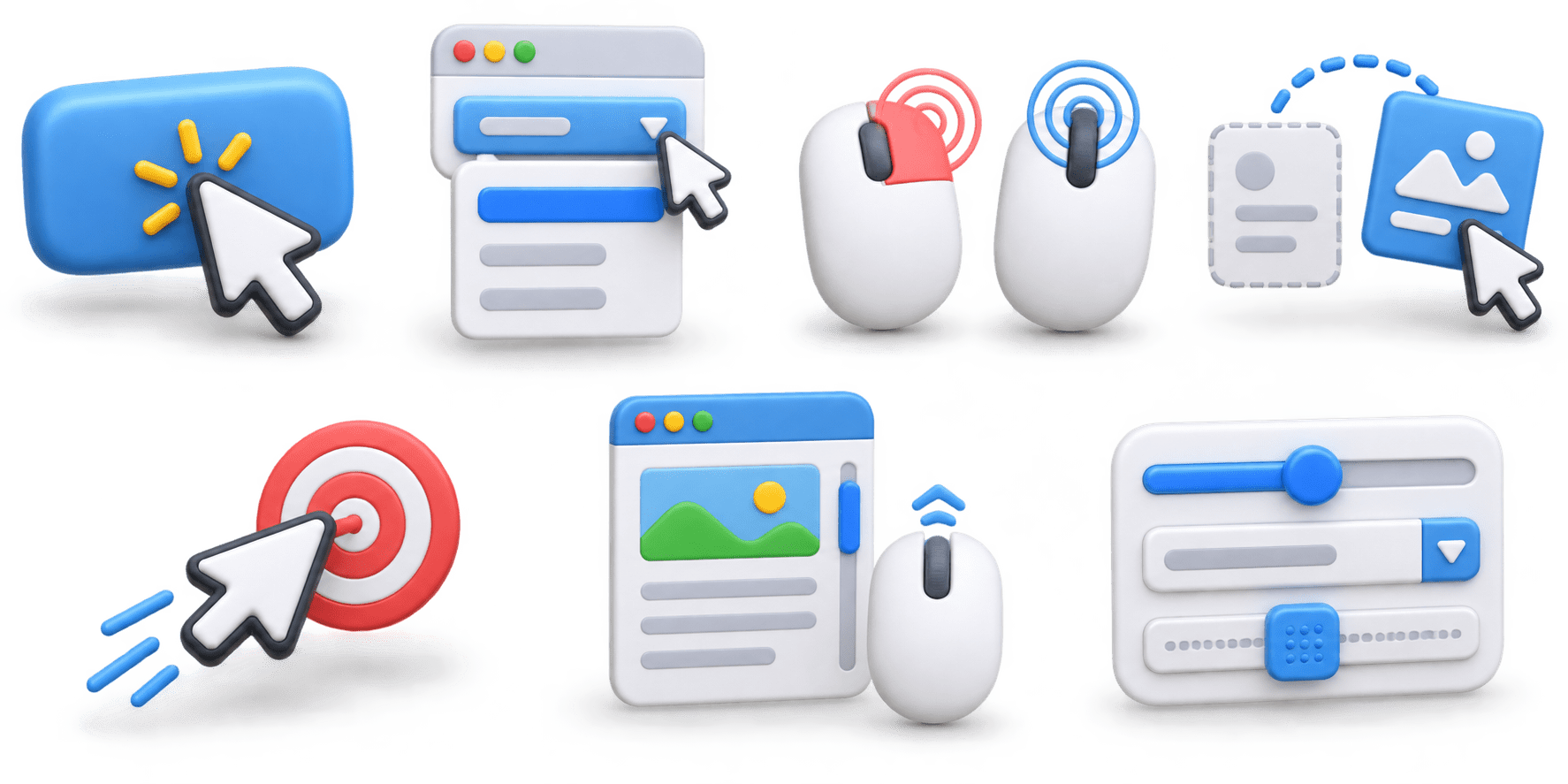
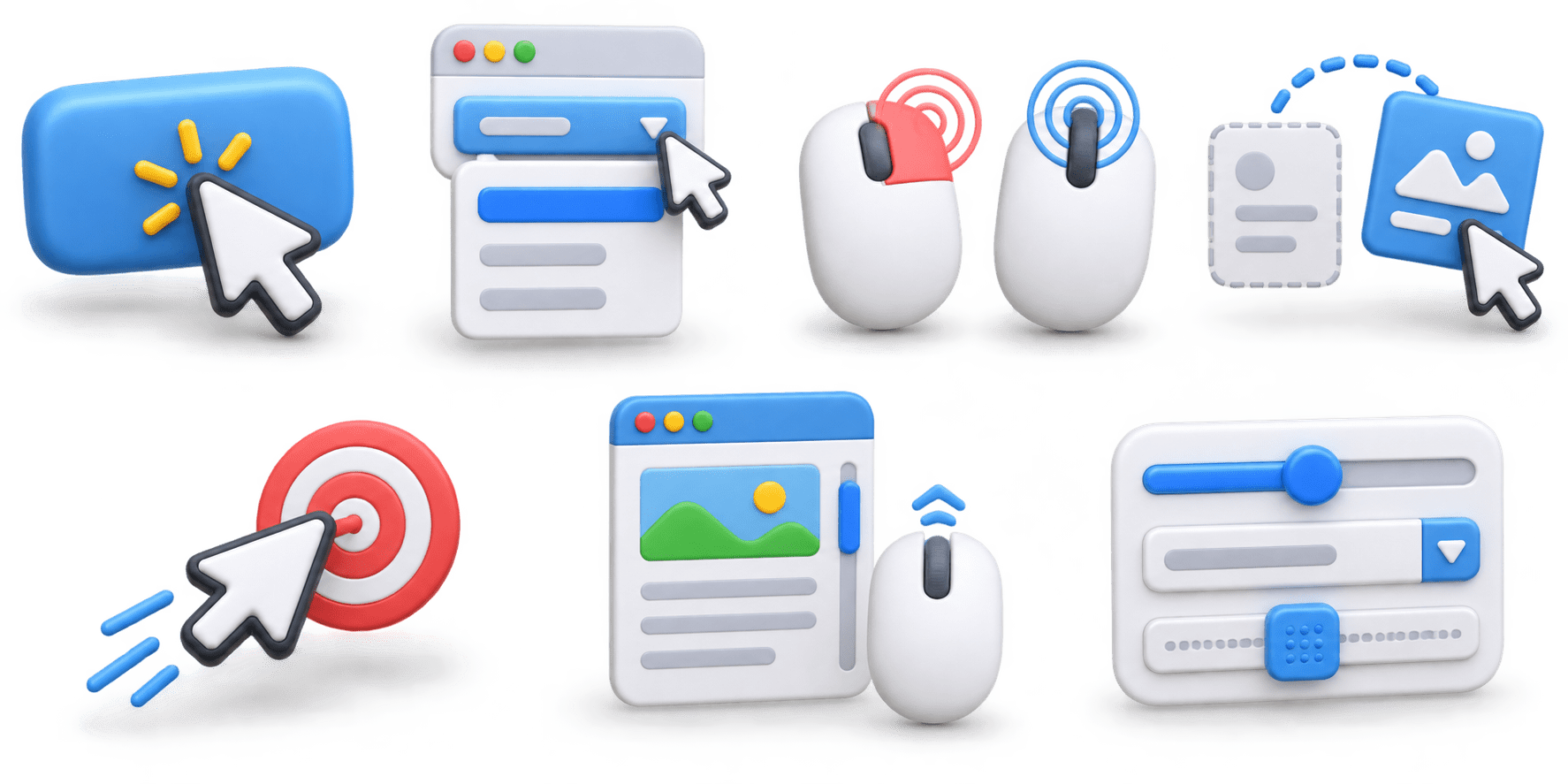
Example
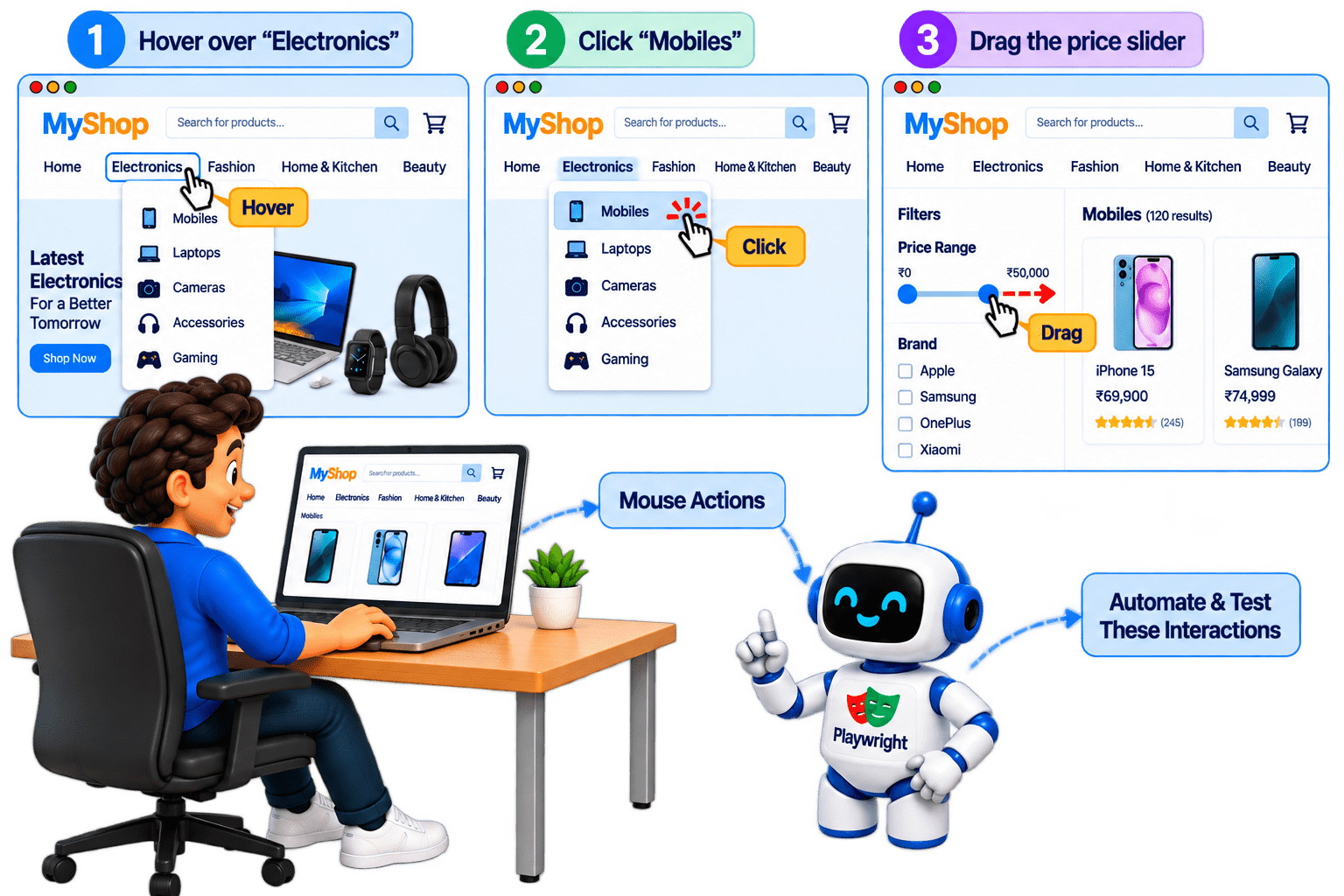
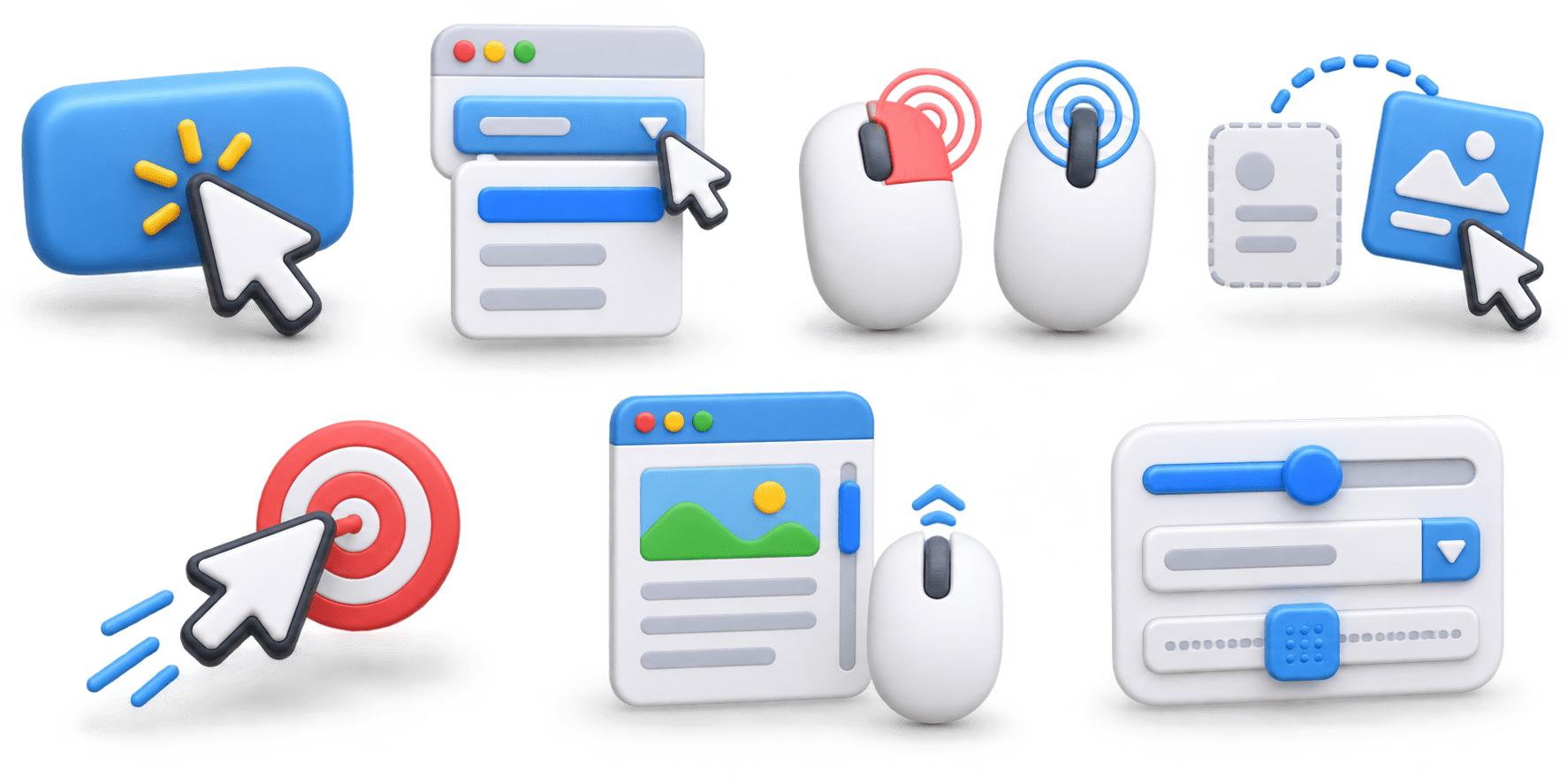
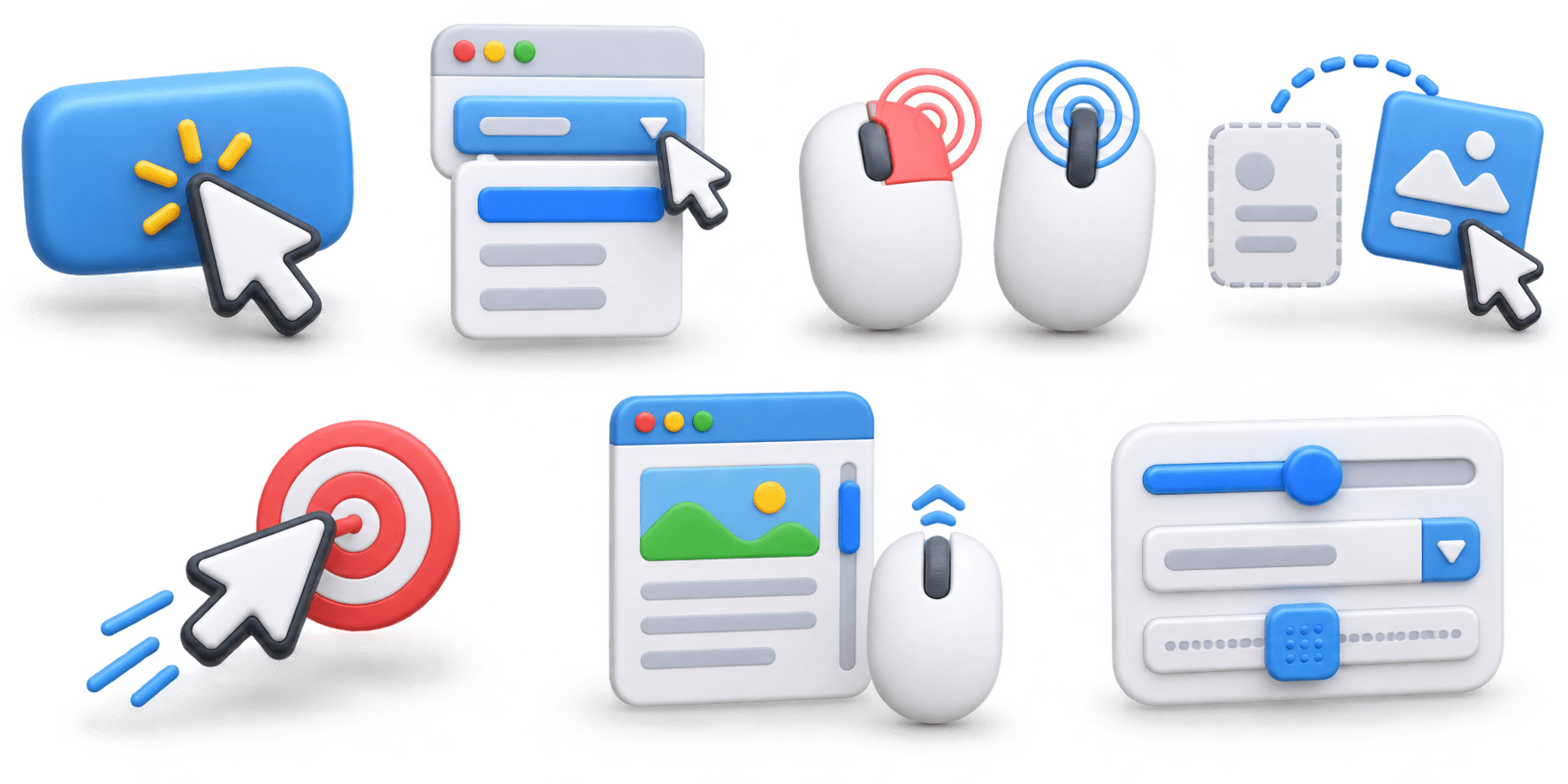
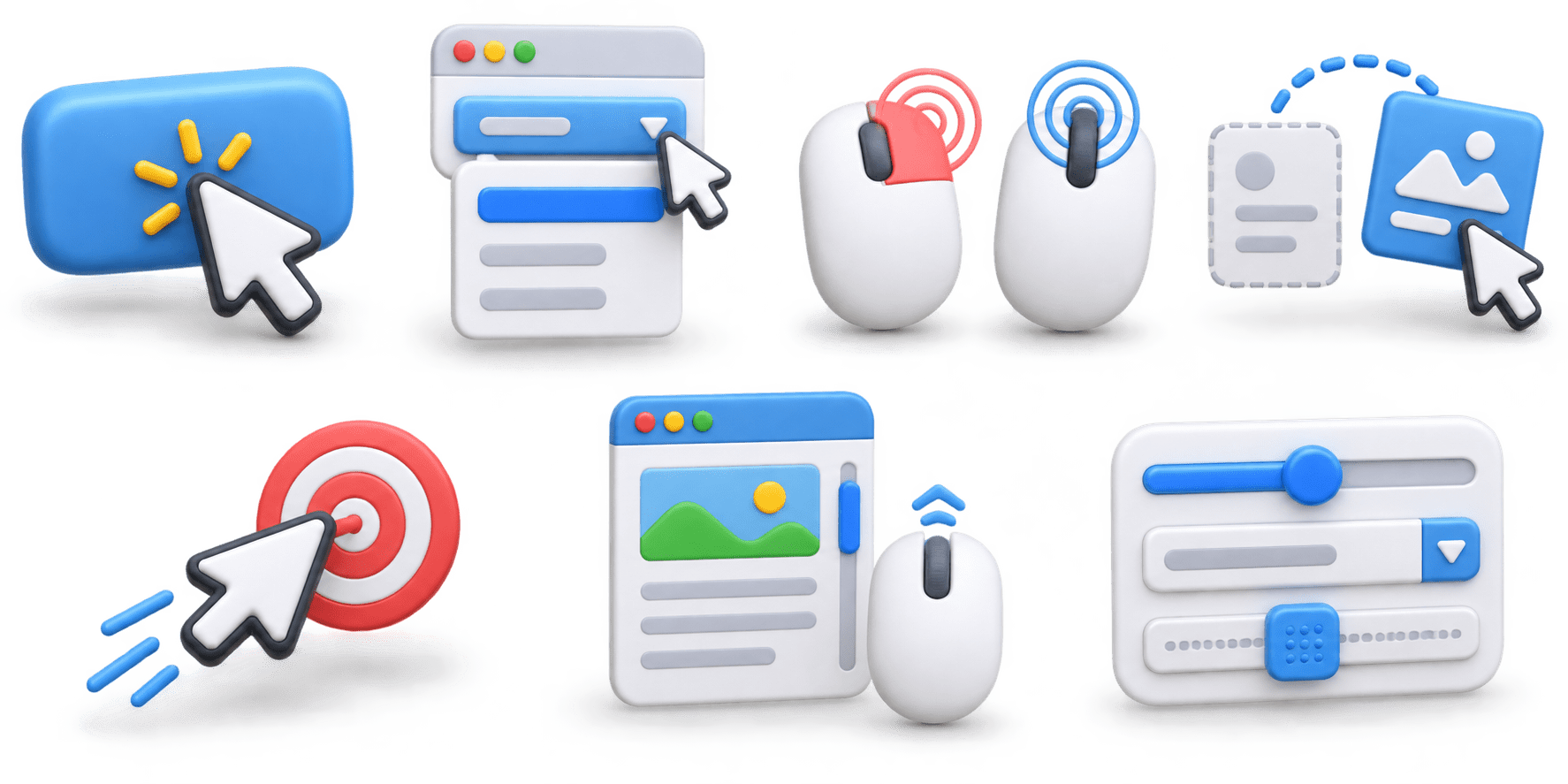
On an e-commerce website, a user may hover over “Electronics”, click “Mobiles”, and drag a price slider. Playwright uses mouse actions to automate and test these interactions.
What Are Mouse Actions?
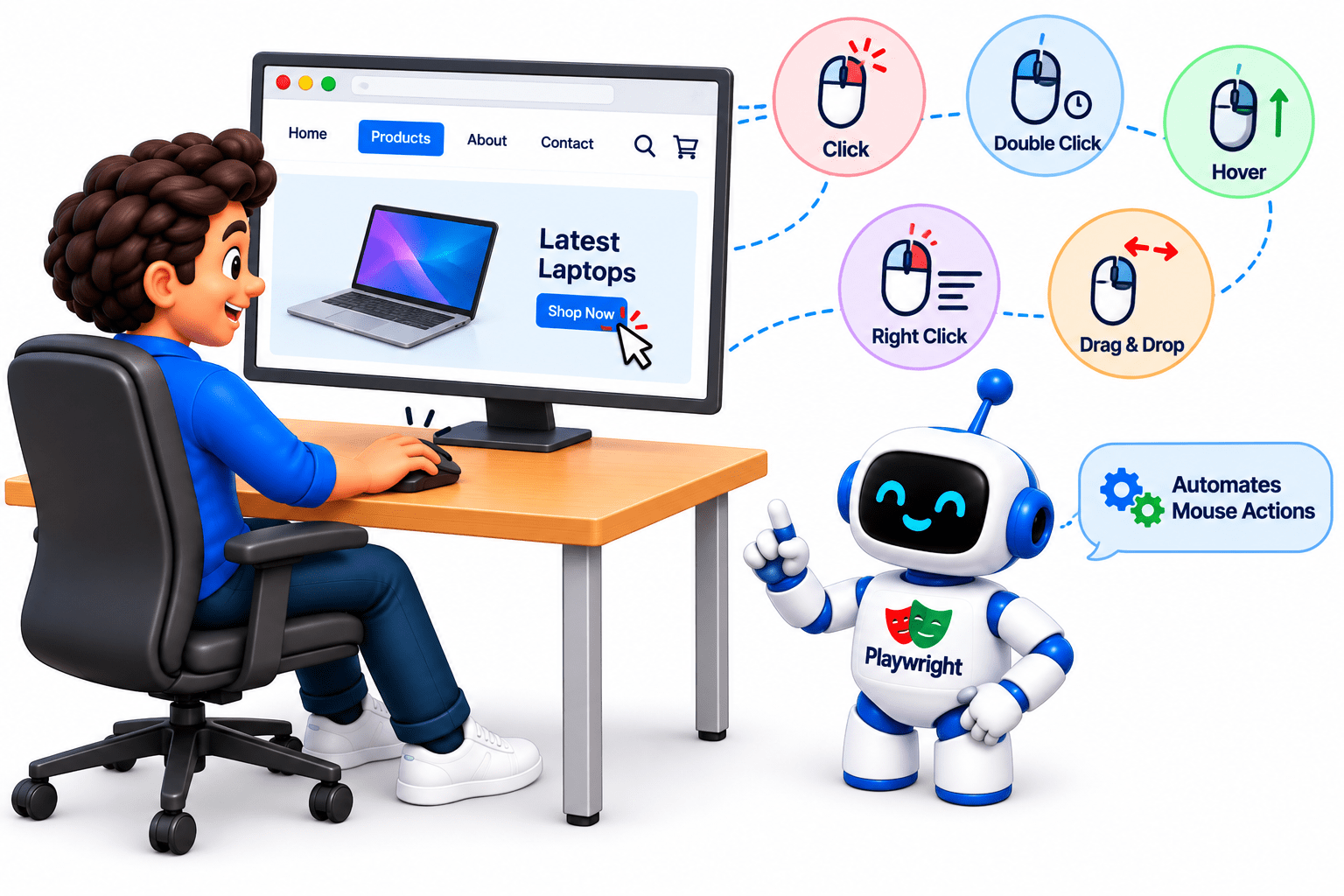
Mouse Actions are the actions performed using a mouse to interact with elements on a webpage. In Playwright, these actions are automated to simulate real user behavior.
Click - Click on a button, link, or element.
Double Click - Click an element twice
Right Click - Open a context menu
Hover - Move the mouse over an element.
Drag and Drop - Move an element from one place to another.
Mouse Move - Move the mouse to a specific position
Scroll - Move the page up or down using the mouse wheel.
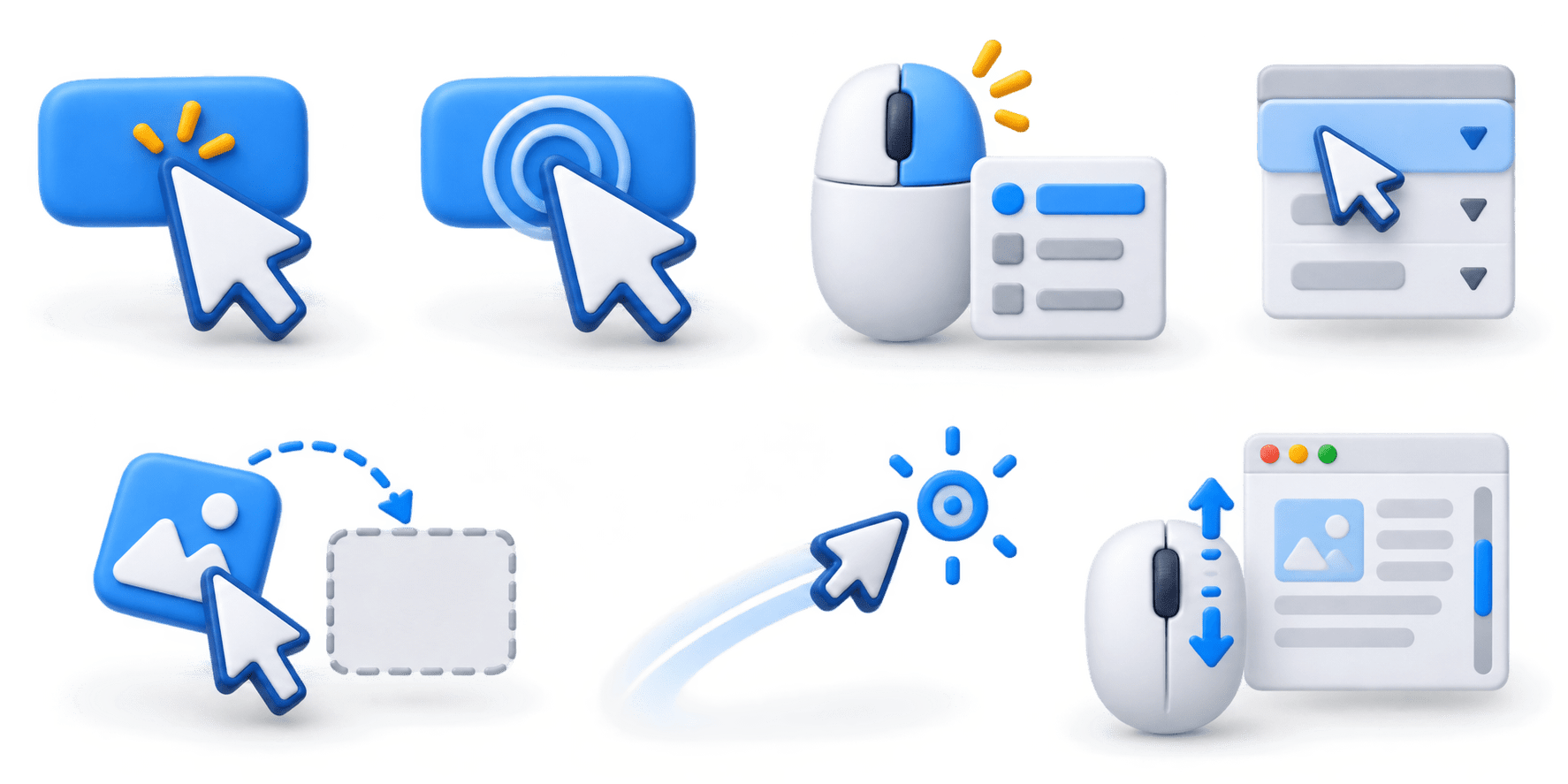
page.locator("#menu").hover();

page.locator("#submit").click();
Example :
Mouse Actions allow Playwright to imitate the way a real user uses a mouse on a webpage.
How to Handle Mouse Actions ?
In Playwright Java, mouse actions can be handled in two ways:
1.Using Locator Methods -
This is the most common approach when interacting with web elements.
// Click
page.locator("#login").click();

// Double-click
page.locator("#file").dblclick();

// Hover
page.locator("#menu").hover();

// Right-click
page.locator("#product").click(
    new Locator.ClickOptions().setButton(MouseButton.RIGHT)
);

// Drag and drop
page.locator("#source").dragTo(page.locator("#target"));
1.Using page.mouse() -
Use page.mouse() when you need to perform actions using specific screen coordinates.
// Move mouse
page.mouse().move(500, 300);

// Click at coordinates
page.mouse().click(500, 300);

// Double-click
page.mouse().dblclick(500, 300);

// Scroll
page.mouse().wheel(0, 500);
Suppose a website has a menu that appears when you move the mouse over Products:
page.locator("#products").hover();

page.locator("#mobile").click();
Example:
Validating Mouse Action Results
After performing a mouse action, validation is required to confirm that the application responded as expected.
Separate Document
Frame content is loaded as a separate HTML document.
1
Access Elements
Elements inside a frame need to be accessed through that specific frame
2

Frame Identification
The required frame must be identified before interacting with its elements.
3

What Are Mouse Actions?
Browser & Context
BROWSER
CONTEXT
Controls the browser application.
Launches the browser.
Can contain multiple contexts
Provides an isolated browser session.
Maintains isolated cookies and storage.
Useful for simulating multiple users
Playwright playwright = Playwright.create();
Browser browser = playwright.chromium().launch();
BrowserContext context = browser.newContext();
| Page |
Page represents a browser tab.
Page page = context.newPage();
page.navigate("https://www.google.com");
Relationship
Object
Represents
Example
Browser
Context
Page
Browser application
Isolated session
Browser tab
Chromium
Google tab
User 1 / User 2
| Practical Scenario |

Testing Two Users
This allows two independent user sessions to run inside one browser
Summary
5
Mouse actions enable drag-and-drop interactions.
4
Mouse actions support right-clicking elements.
3
Mouse actions allow double-clicking elements.
2
Mouse actions support hovering over elements.
1
Mouse actions enable clicking elements.
Quiz
Which Playwright method is most suitable for moving an element from one location to another?
A. click()
B. hover()
C. dragTo()
D. dblclick()

Quiz-Answer
Which Playwright method is most suitable for moving an element from one location to another?
A. click()
B. hover()
C. dragTo()
D. dblclick()