
Content ITV PRO
This is Itvedant Content department
Building Visual Identity: Logos, Fonts & UI Enhancements
Business Scenario
Welcome Back, Developer!
In the previous lab, you successfully styled your
navigation bar using CSS.
Your website now looks structured
Navigation is clear and visually appealing
Users can easily move between pages… and it feels much better
Users can easily move between pages… and it feels much better
But now, your website is ready to go one step further…
It’s time to make it more engaging, visually rich, and interactive.
Pre-Lab Preparation
CSS Fundamentals: From Boxes to Floating Fun
Unlocking CSS' Creative Toolbox
git pull origin branchNameGit Pull
Task 1: Add logo using canva ai logo maker
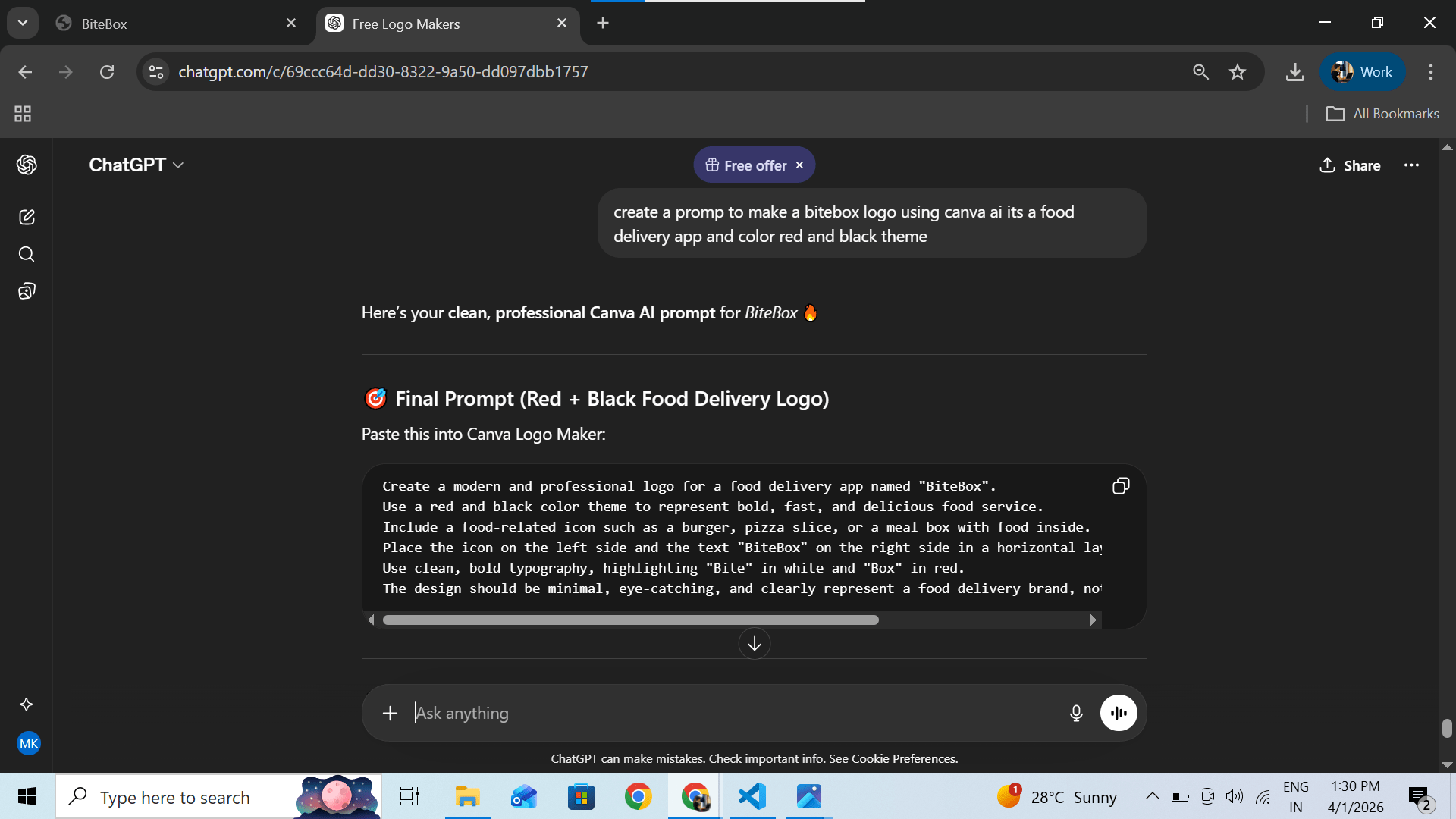
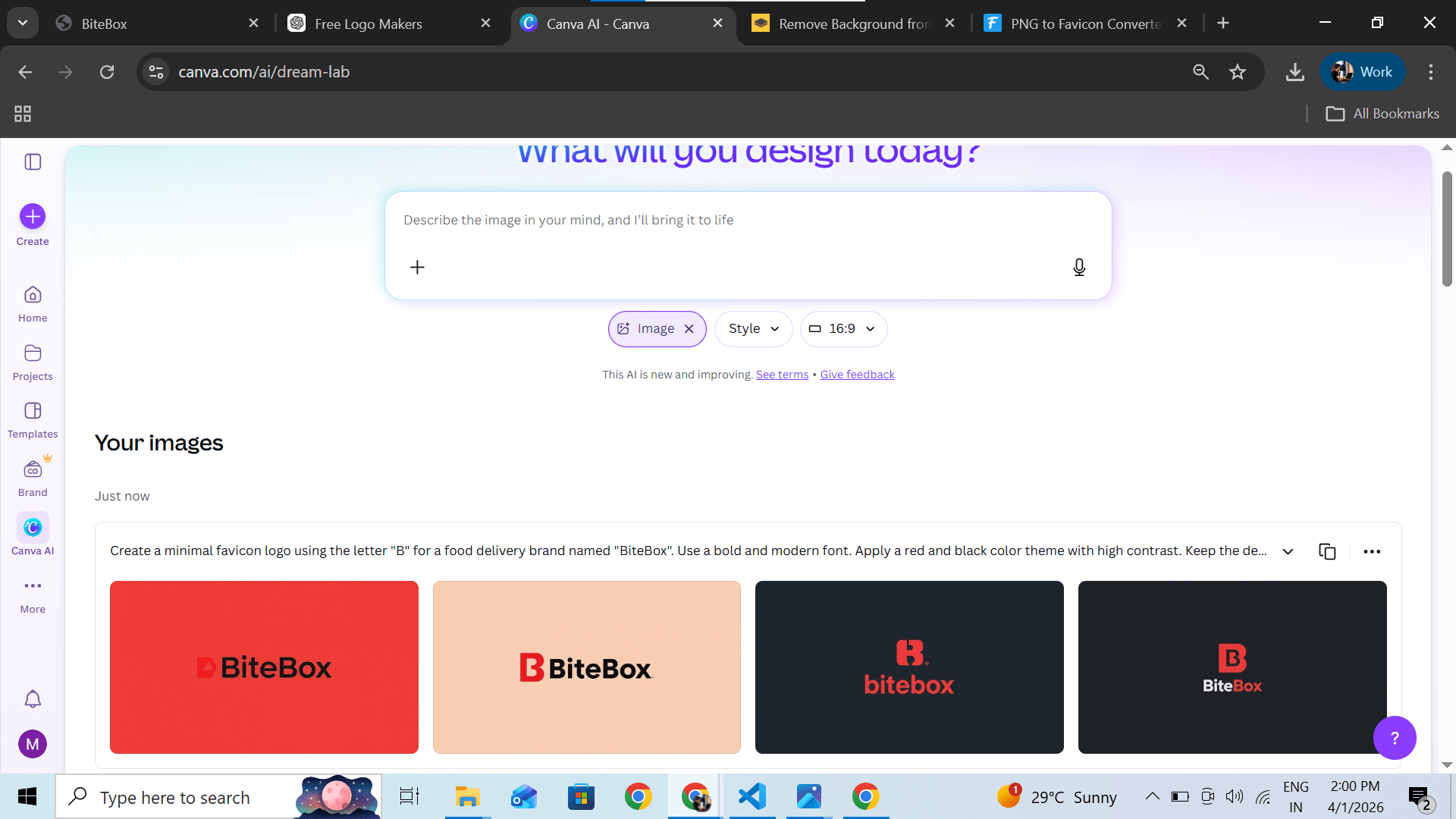
create prompt according the business and theme for canva ai logo maker
using chatgpt or any ai tool
1
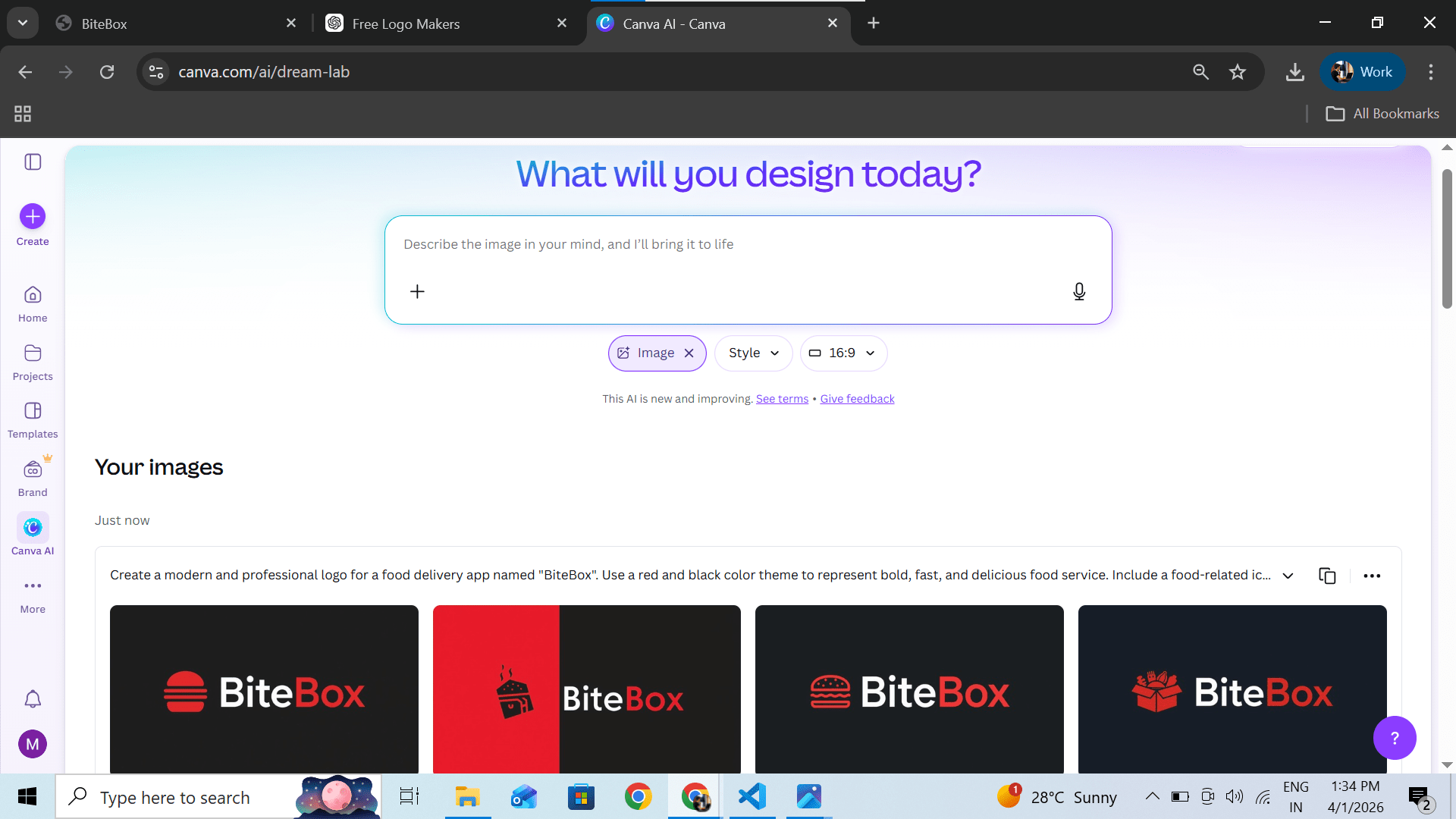
open canva logo maker ai and paste prompt generated by chatgpt
2
Choose any one and download it
3
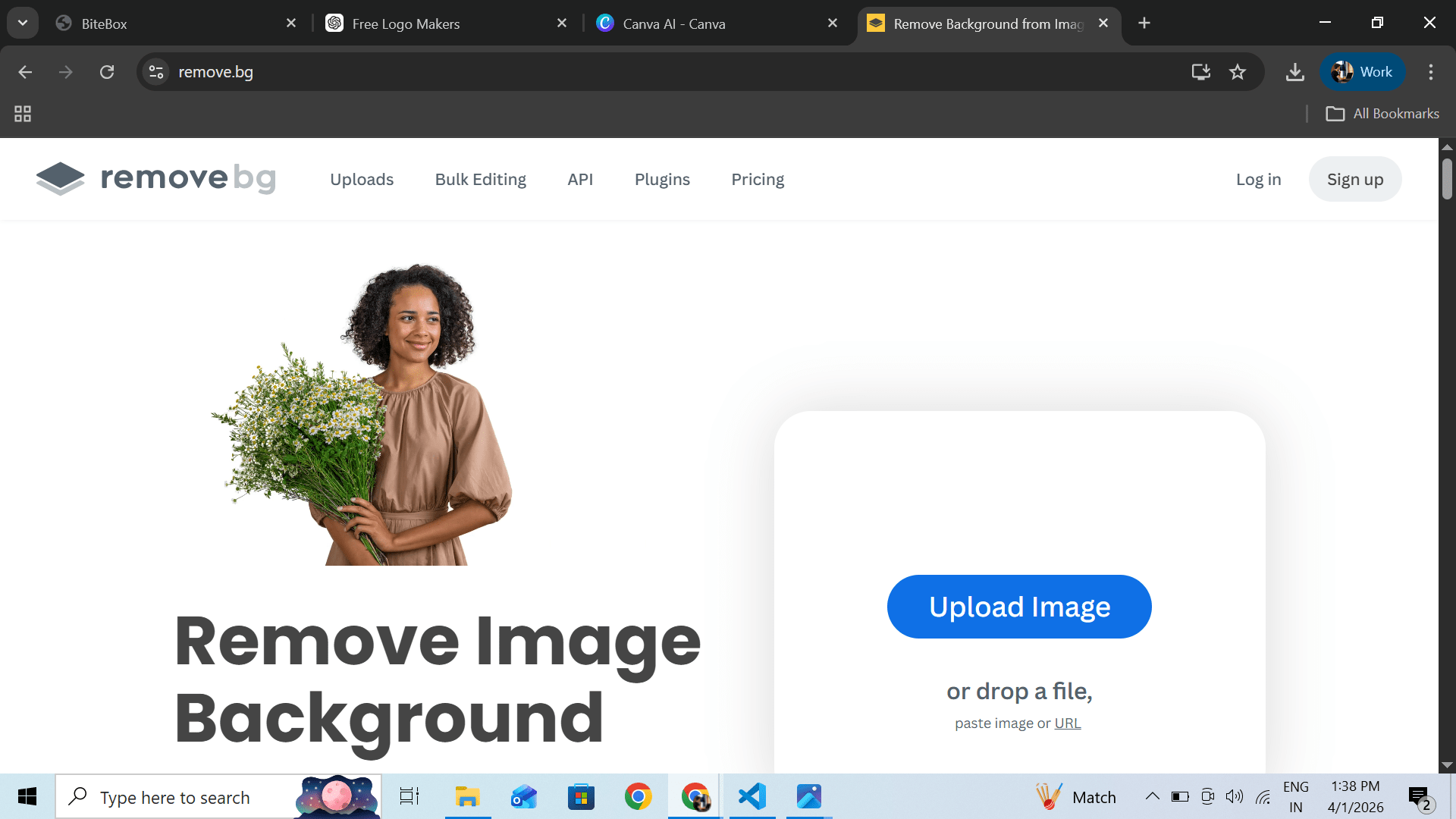
upload downloaded logo and remove background using removebg ai
4
Link : https://www.remove.bg/
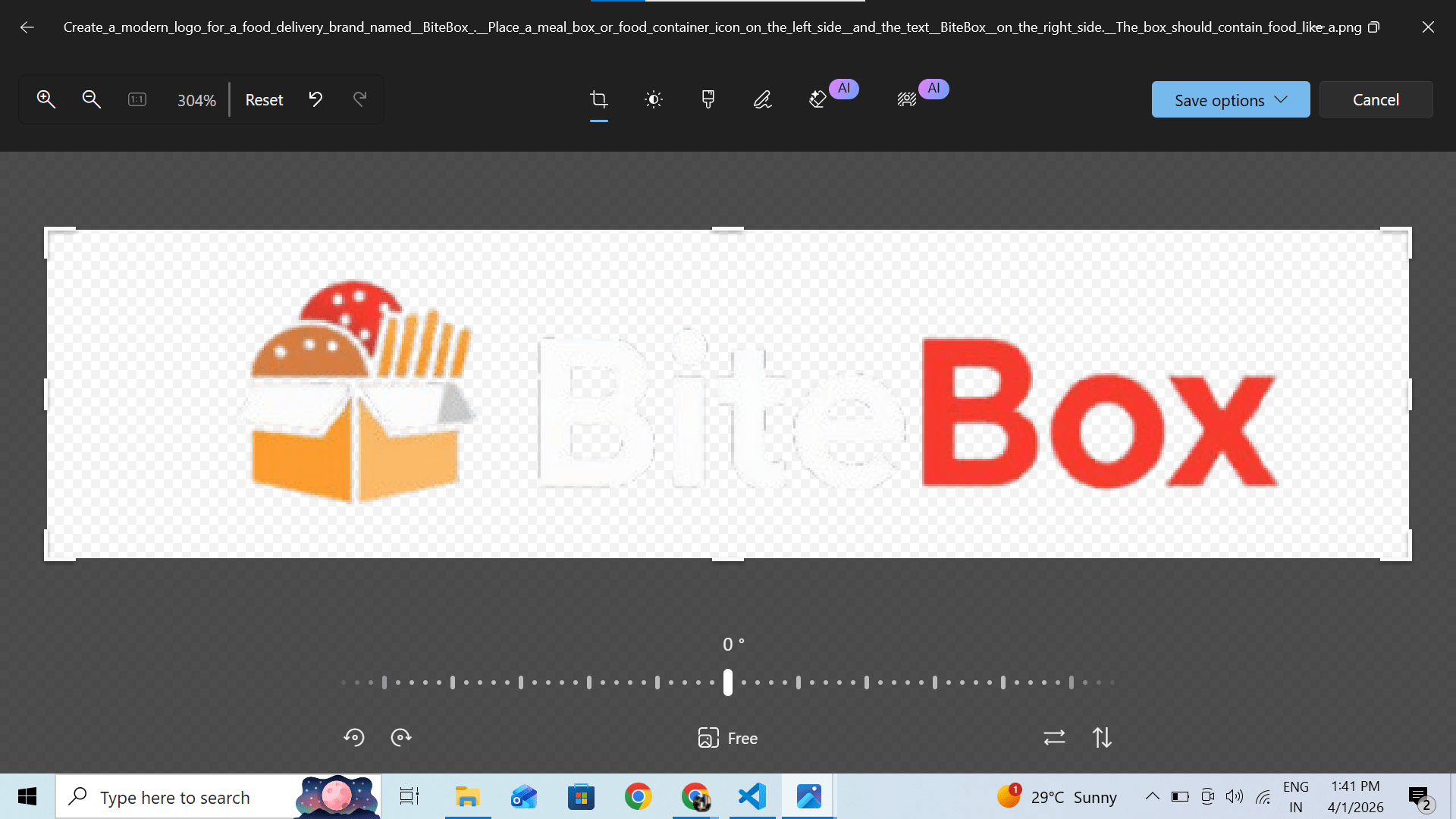
crop logo according to the requirement
5
Save the generated logo as logo.png or logo.jpg , then, drag and drop the file into the images folder inside your project directory in VS Code.
6
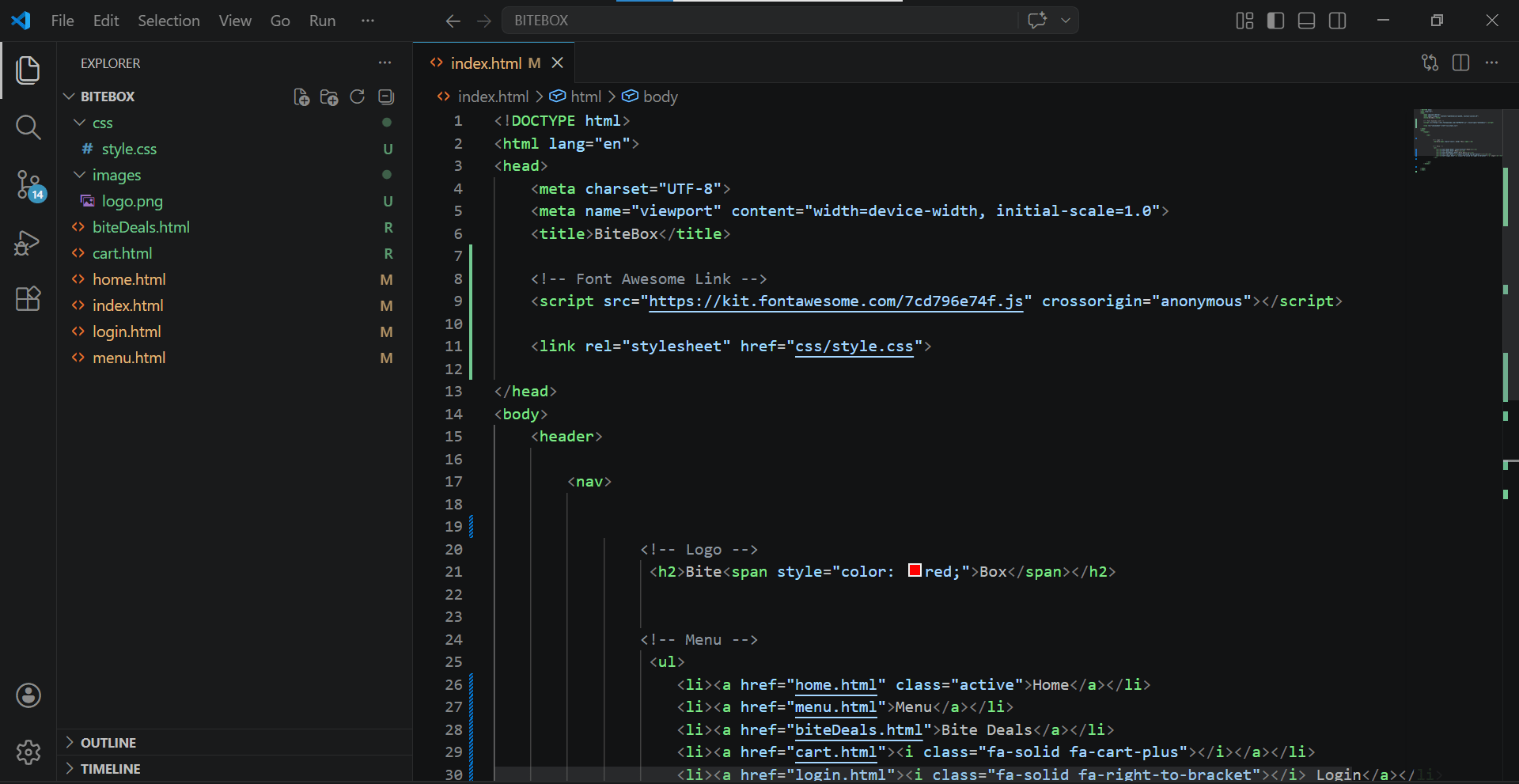
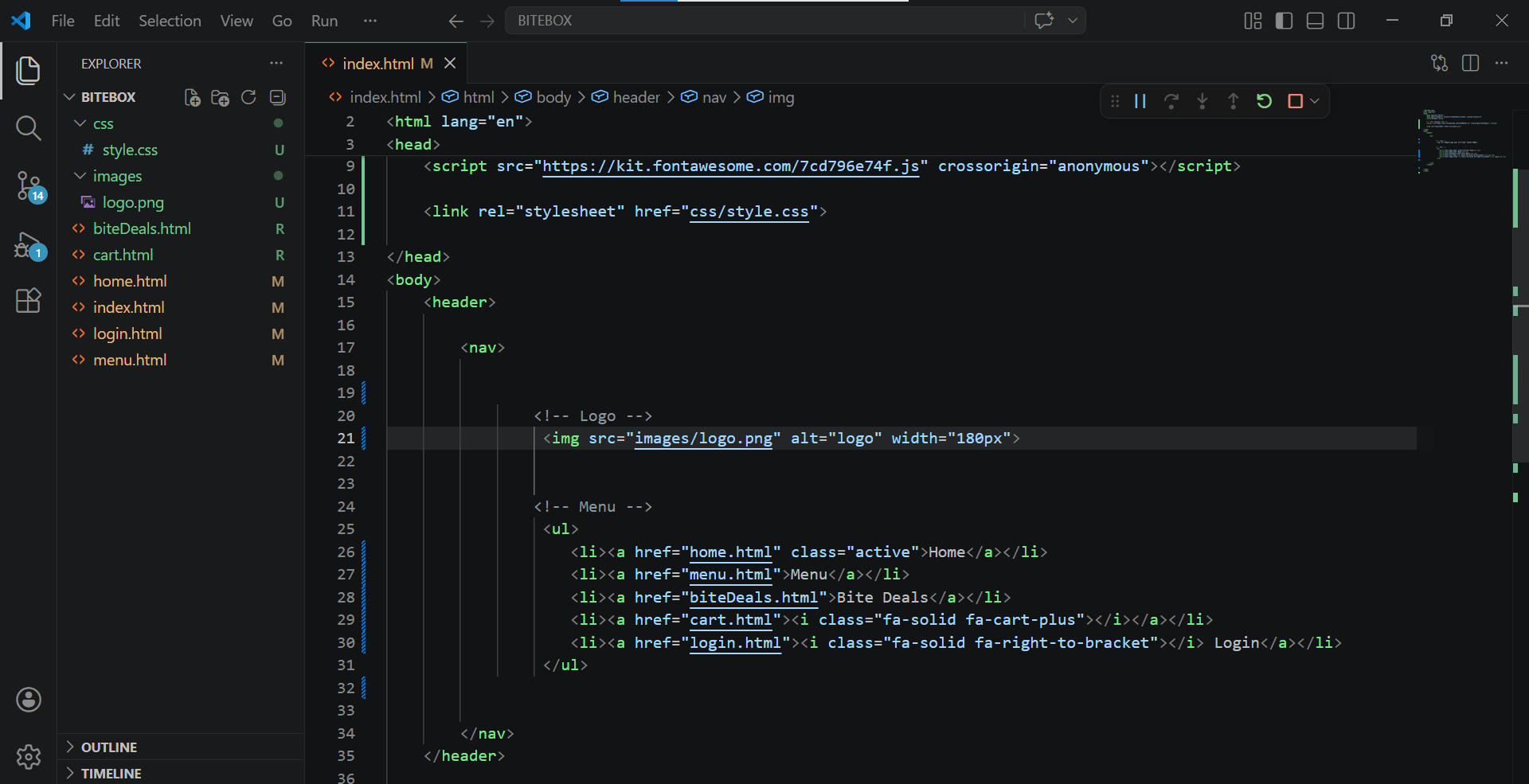
replace text logo to image logo using img tag
7
Task 2: Add Favicon
Generate Design (AI Prompt)
Go to Canva Logo Maker
Paste this prompt / create your own according requirements
1
Create a minimal icon using only the letter "B".
Do not create a full logo or include the word BiteBox.
Do not add any icons like burger, pizza, or box.
Use a bold, thick, modern font for the letter "B".
Apply a red color for the "B" on a black or transparent background.
Keep the design extremely simple, centered, and suitable for a favicon (small size).
Avoid any extra elements, text, or decorations.
2
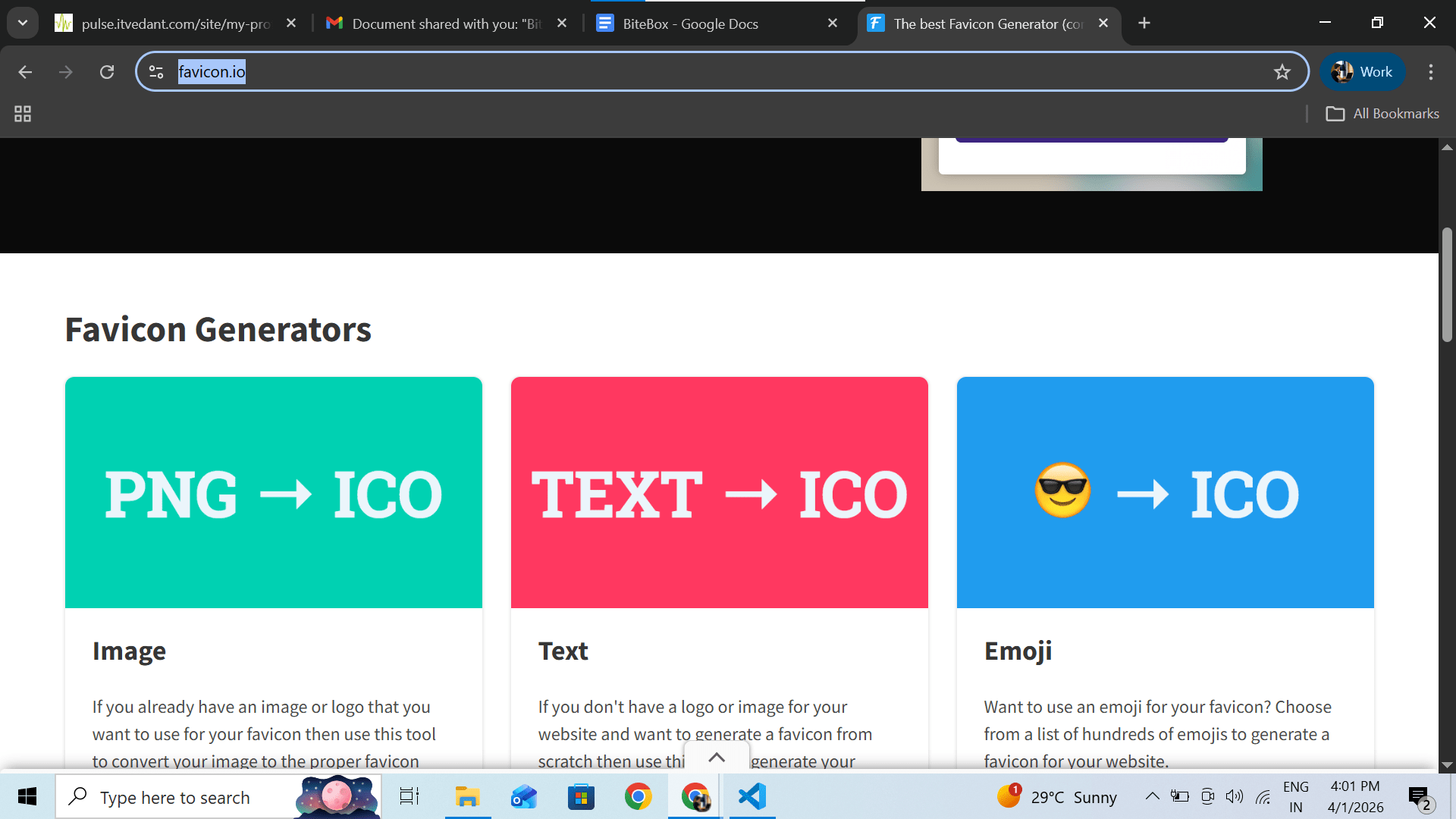
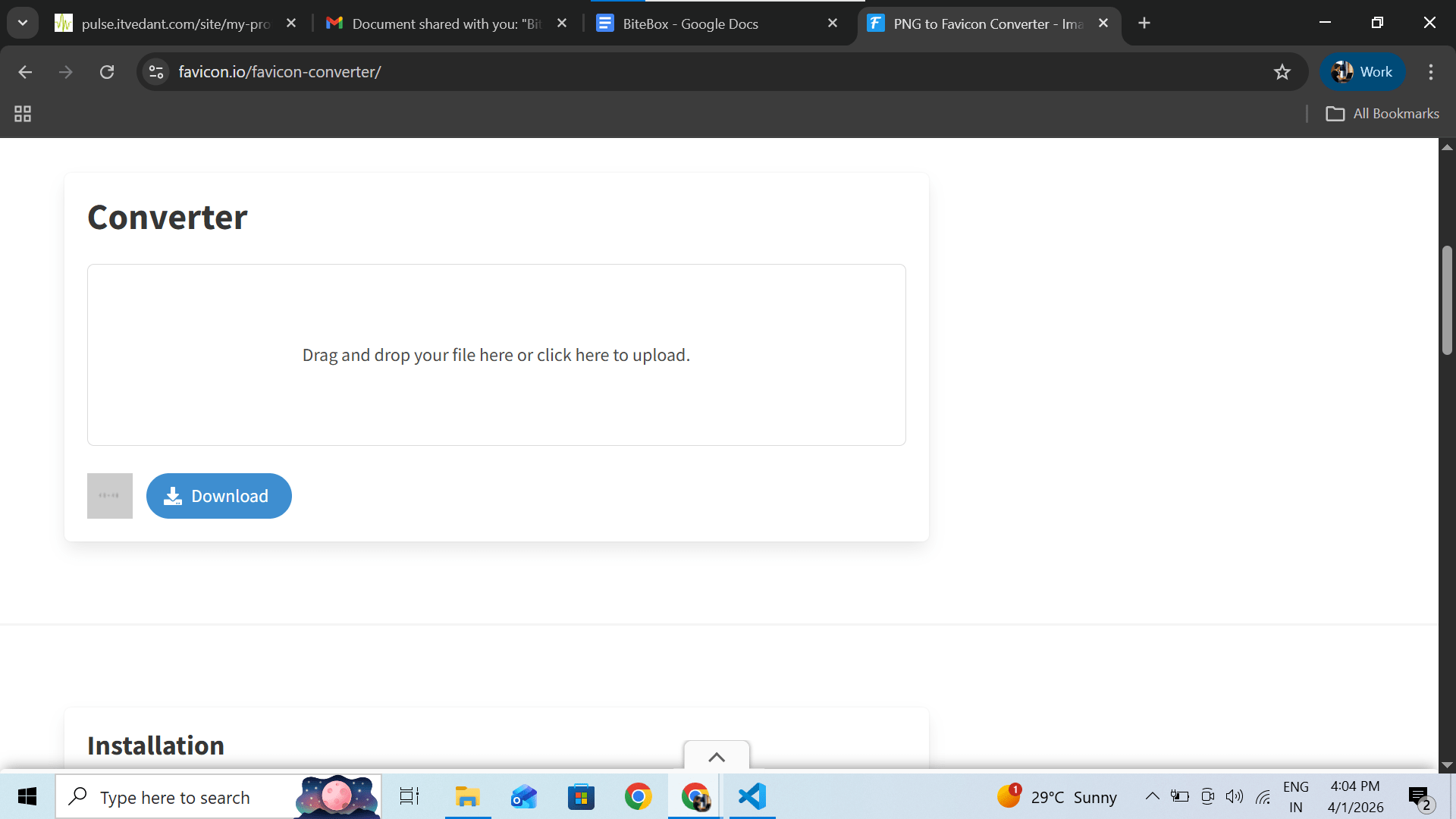
Convert png to icon
2.1
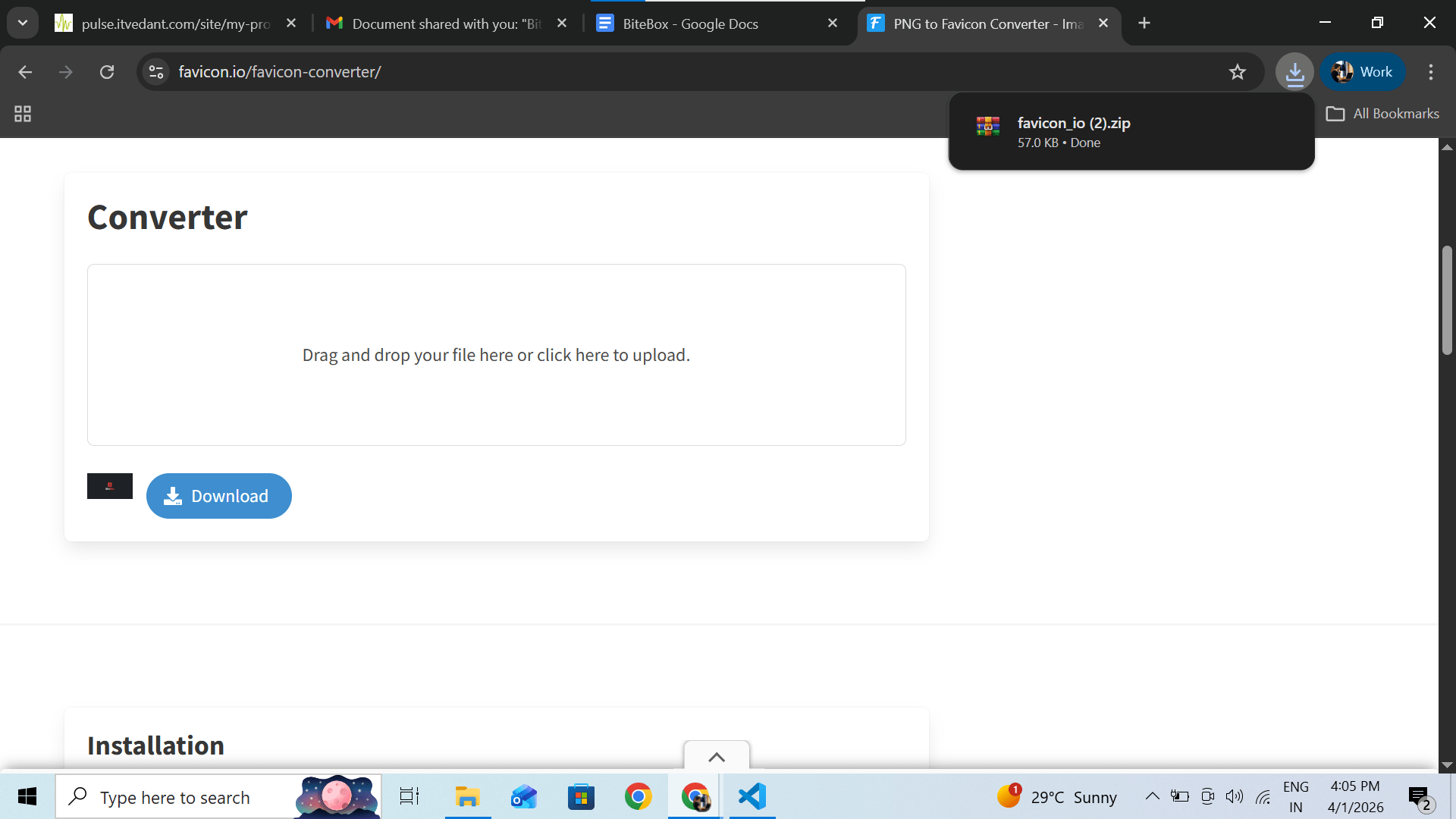
Download (it will download as a zip)
2.2
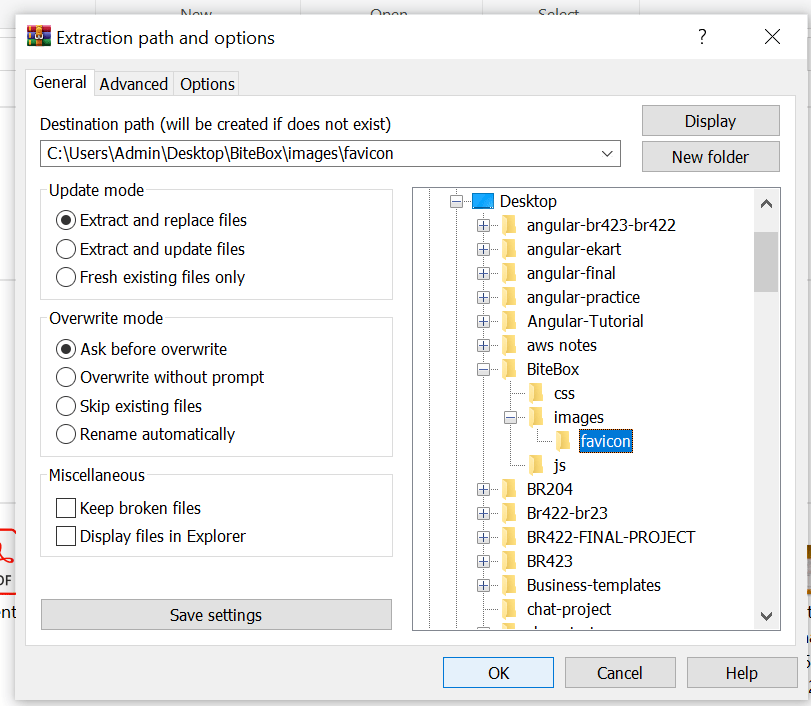
create a new folder favicon inside images folder Extract files in your favicon folder
3
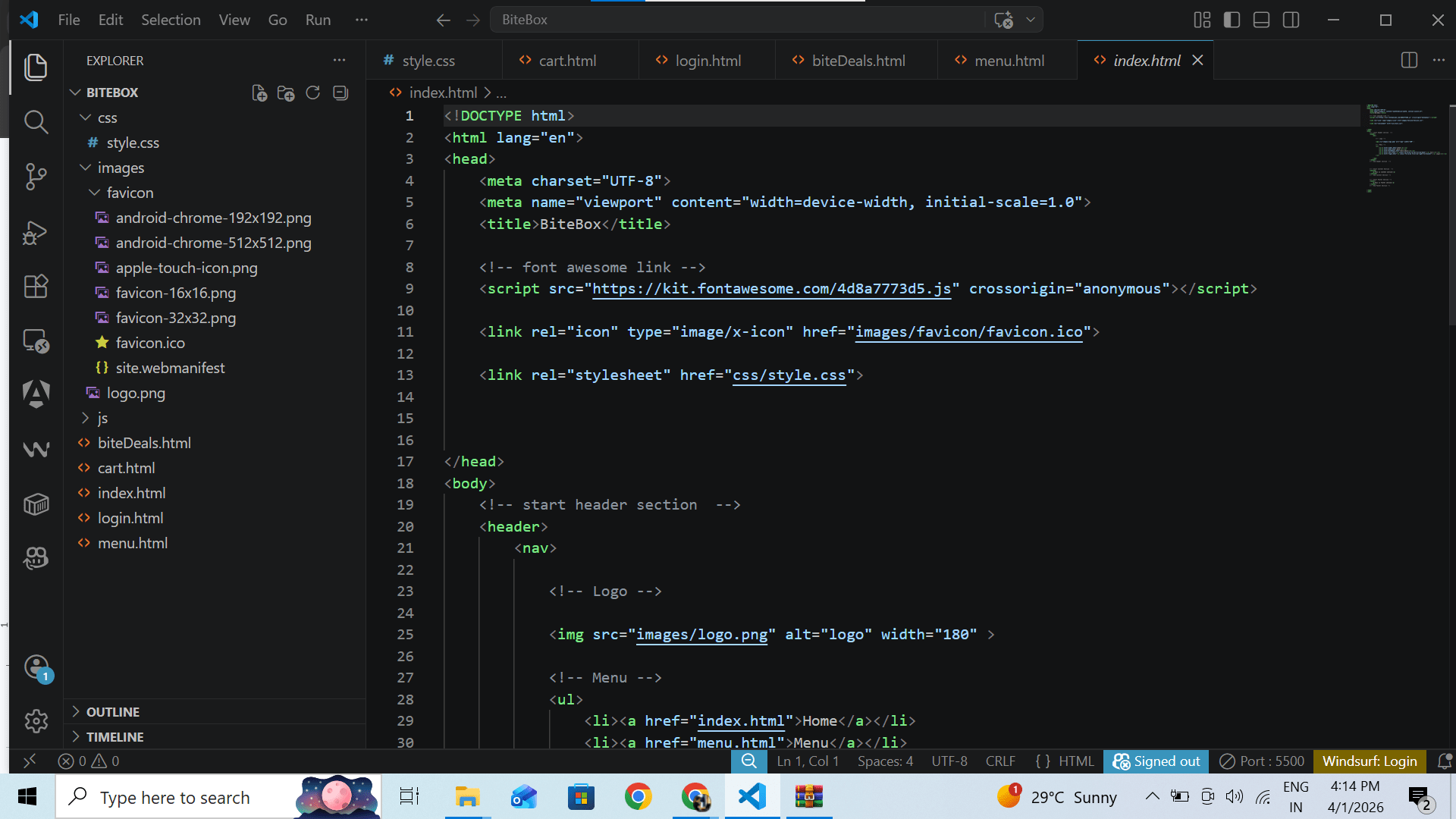
Add favicon link in your index.html head section
4
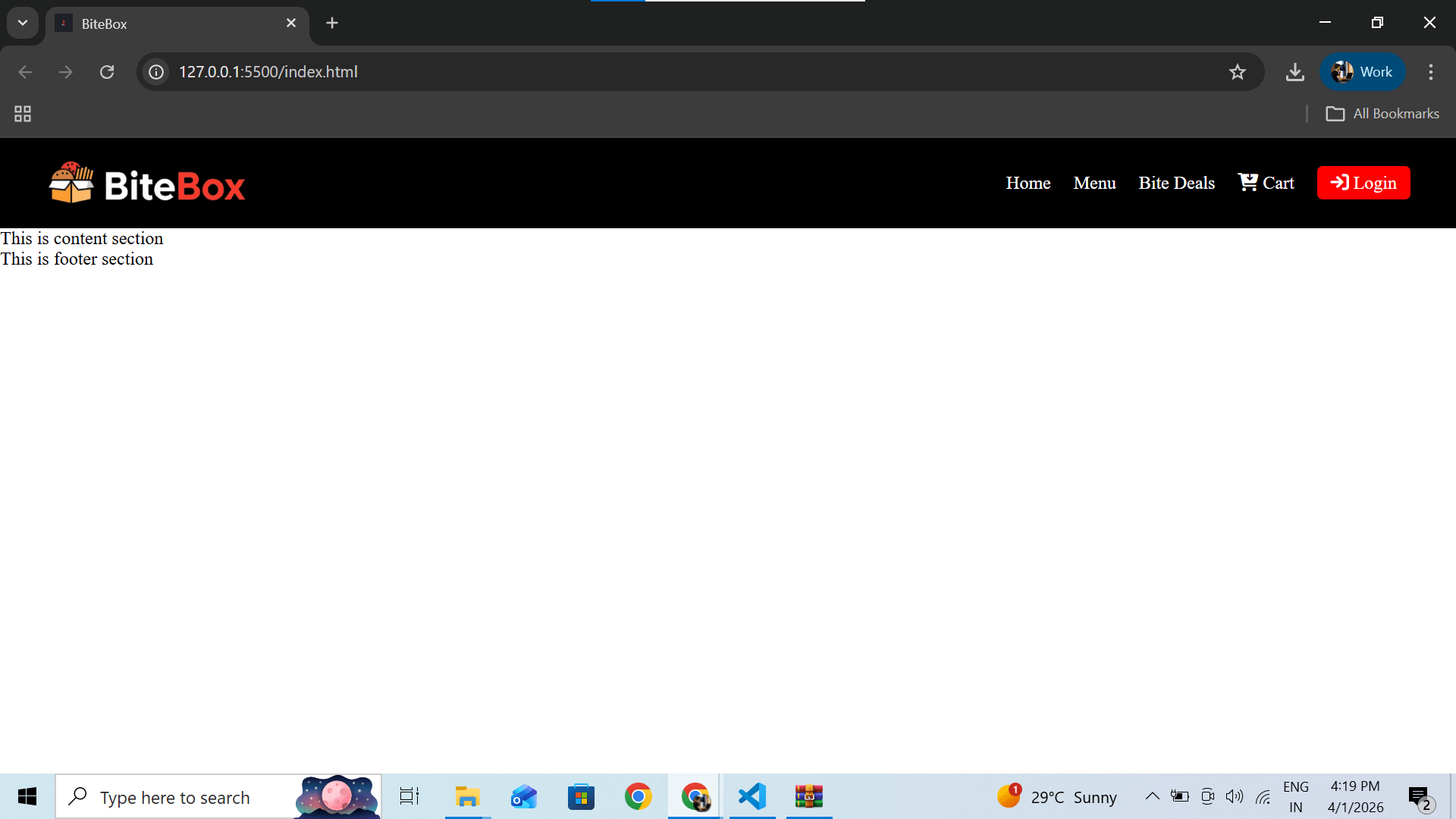
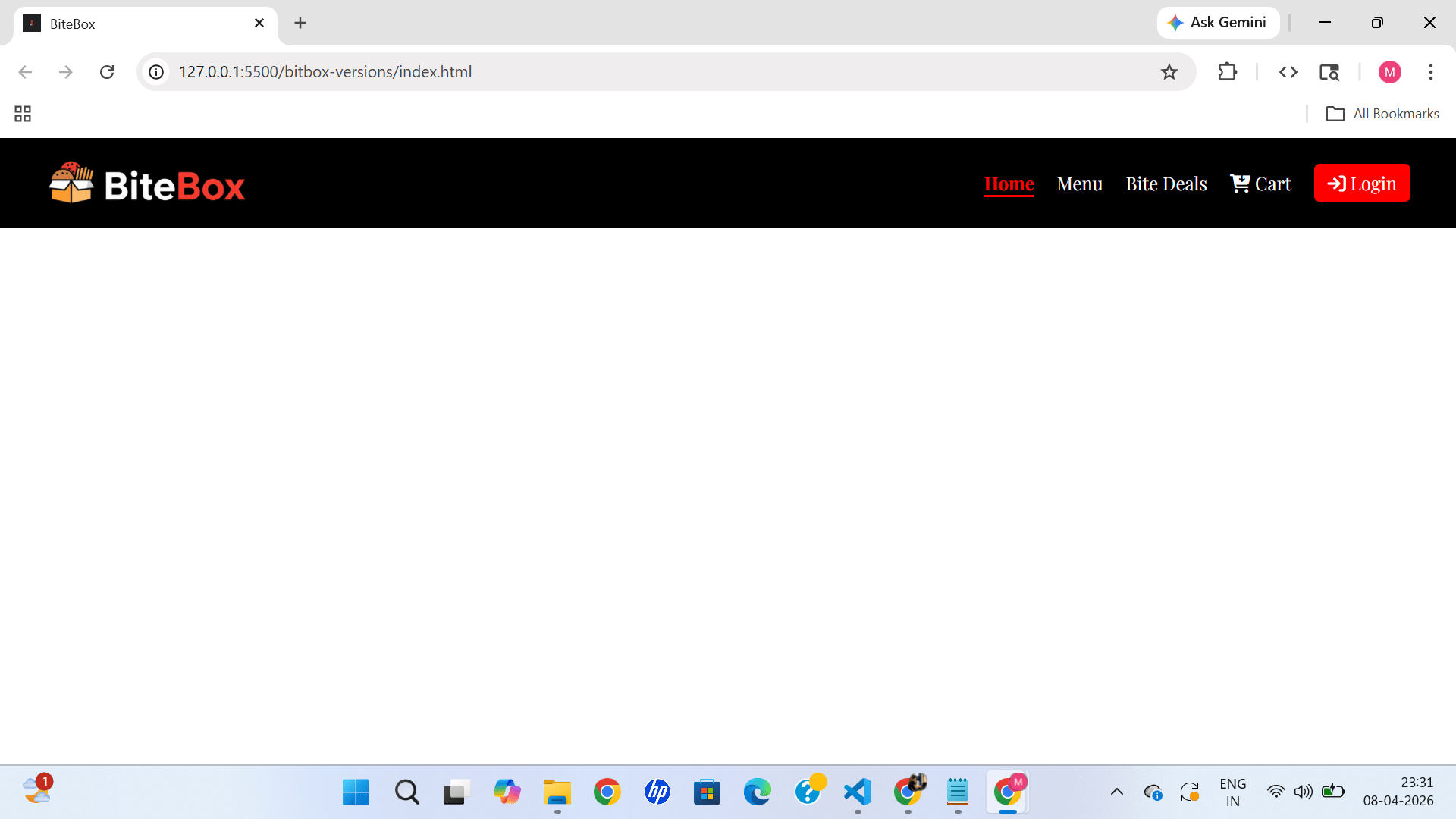
Output
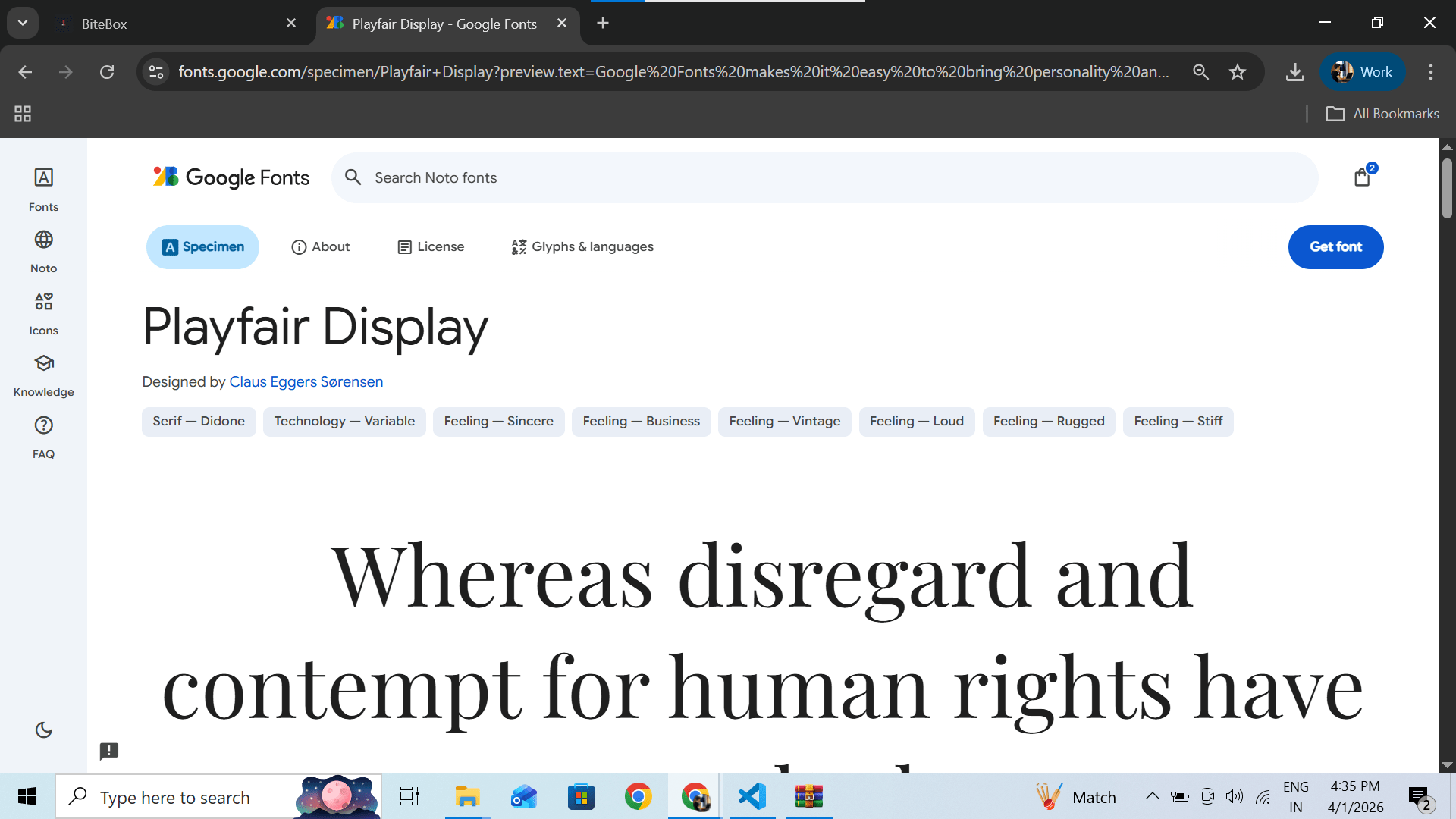
Task 3: Add Google Fonts
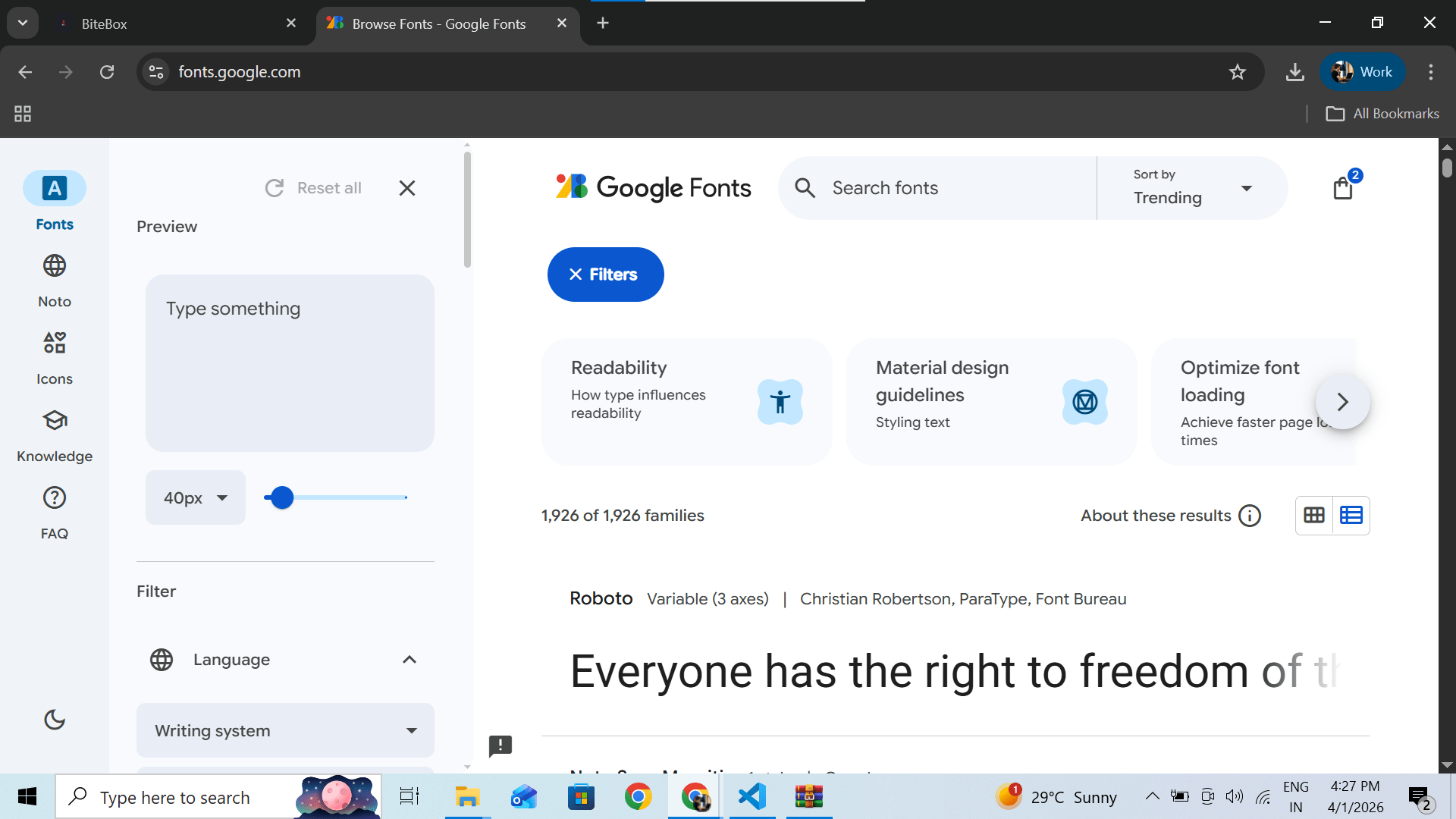
Go to Google Fonts
Link - https://fonts.google.com/
1
Choose a Font and click on get Font For a food website, good options:
Poppins (modern clean)
Roboto (simple & readable)
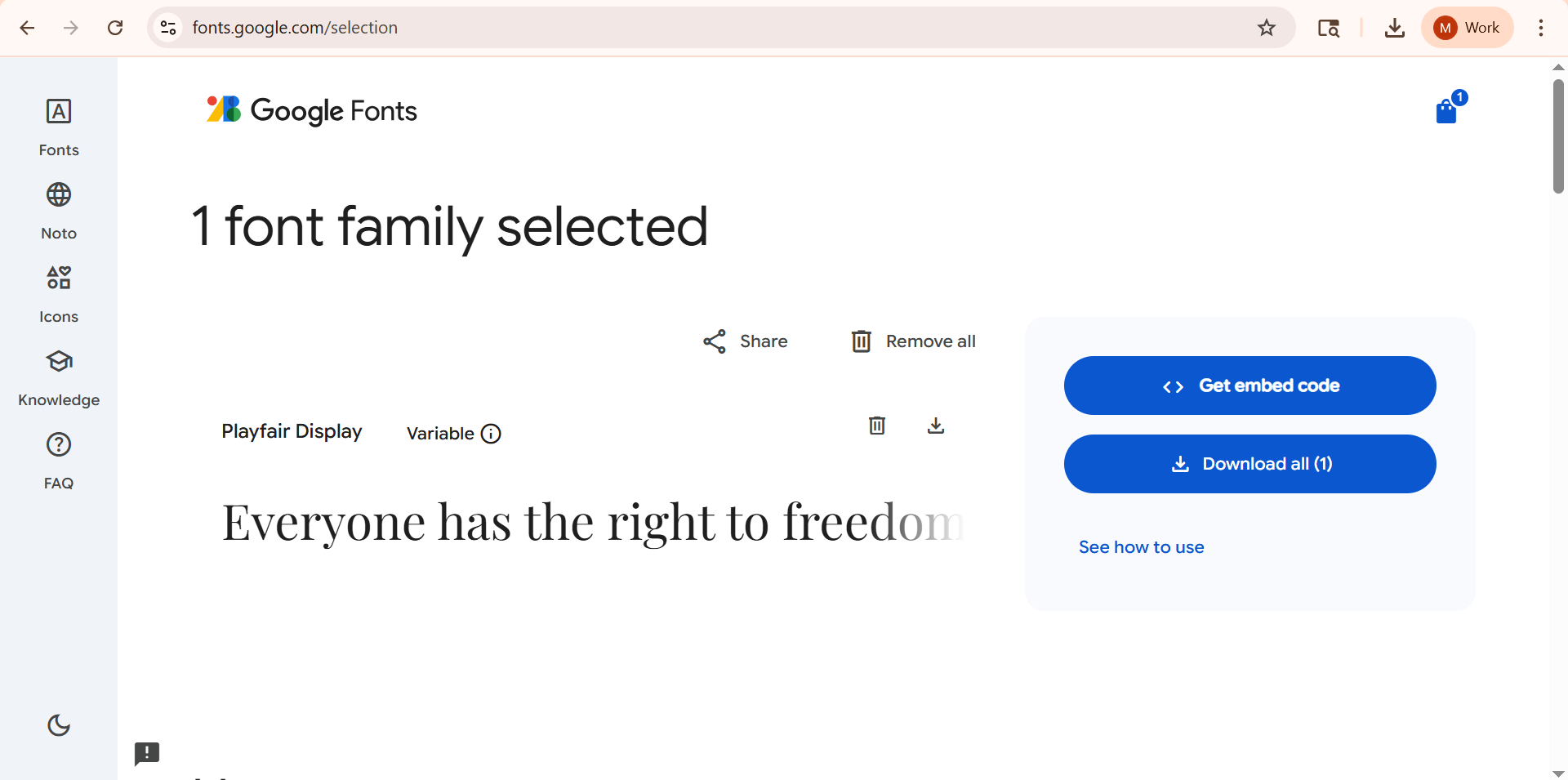
2
Click on get embed code
3
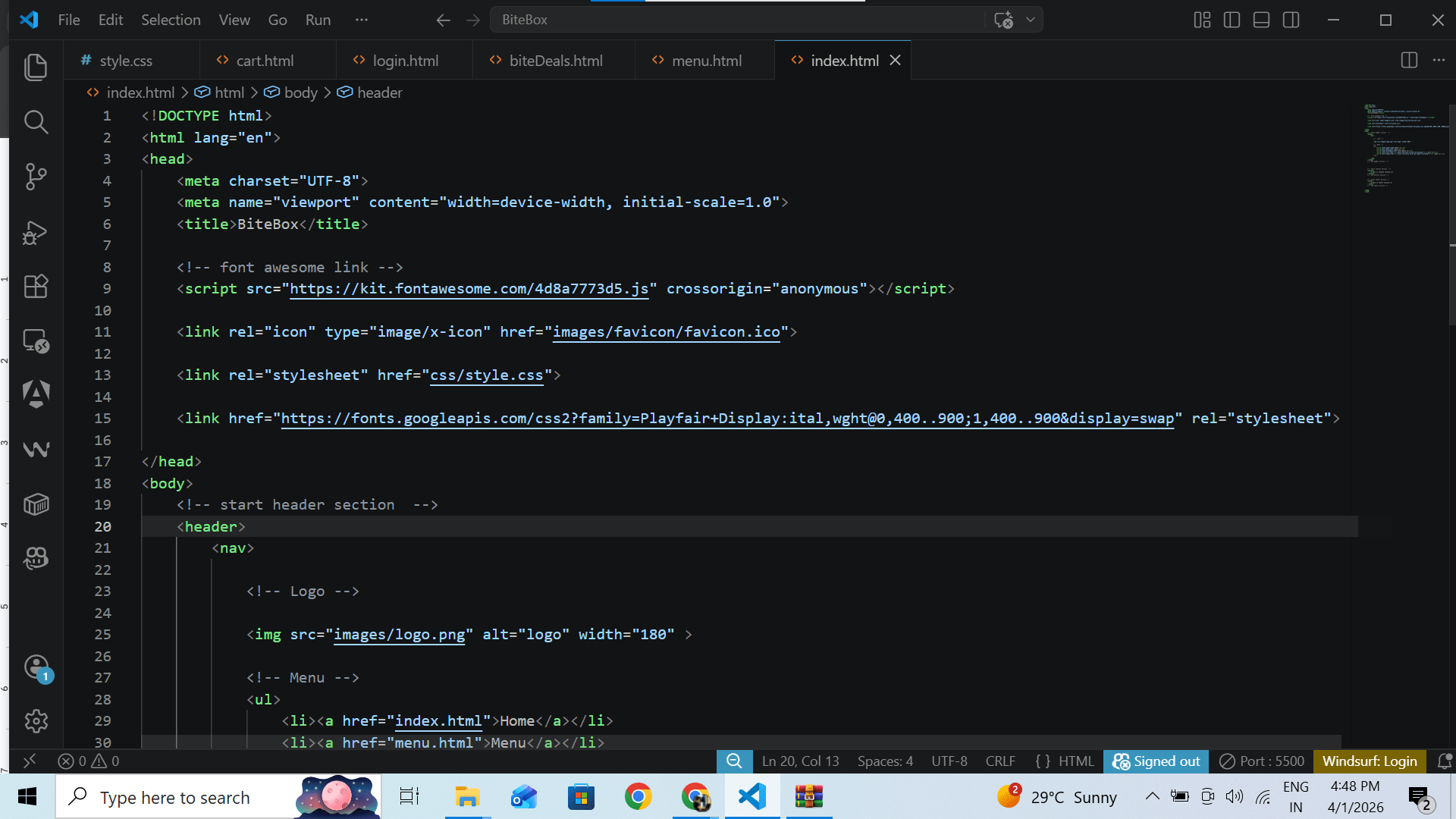
Copy the Link
4
Paste in <head> section
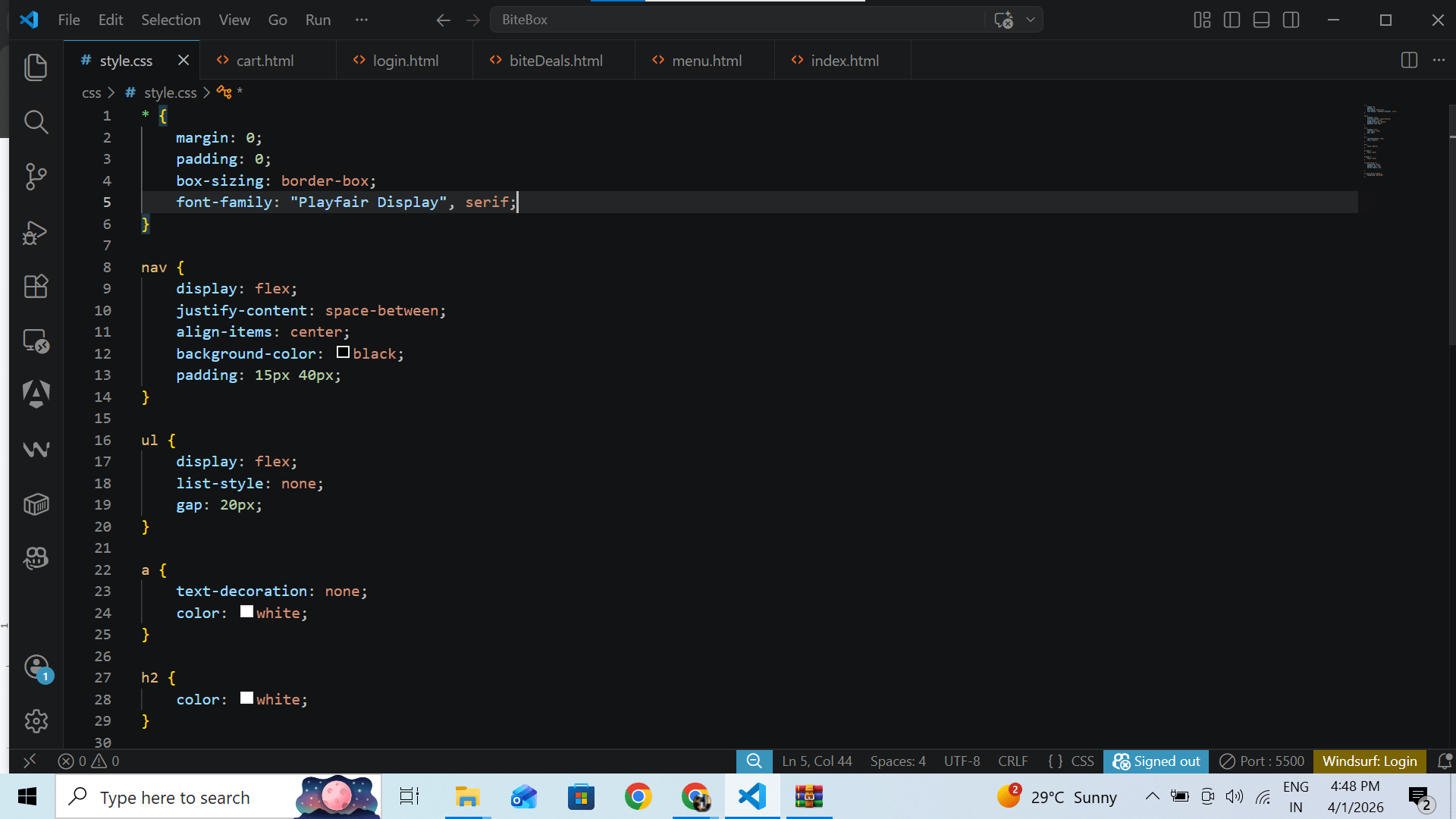
Apply Font in CSS
5
Output
entire page font style has been changed
Great job!
You’ve successfully enhanced your website with logos, fonts, and visual elements—making it more engaging, professional, and user-friendly.
Checkpoint
Next-Lab Preparation
Git Push
git push origin branchNameBefore starting the next lab, make sure you revise the following topics:
CSS Fundamentals: From Boxes to Floating Fun
By Content ITV