









Content ITV PRO
This is Itvedant Content department
Use this slide if there is no Heading
Note - Create Content inside Red Layout
[Delete Red Outline After creating slide]
Learning Outcome
5
Run a basic Selenium WebDriver test successfully
4
Use Maven to manage Selenium dependencies
3
Set up an IDE for Selenium development
2
Install Java (JDK) and configure JAVA_HOME
1
Understand the importance of proper Selenium setup
Topic Name-Recall(Slide3)
Hook/Story/Analogy(Slide 4)
Transition from Analogy to Technical Concept(Slide 5)
Start Simple: Basic Locator Strategies
Locator Type
Id
Name
Class
Link Text
Best For
Unique elements
Form fields
Styled elements
Navigation links
Example
By.id("email")
By.name("username")
By.className("btn- primary")
By.linkText("Login")
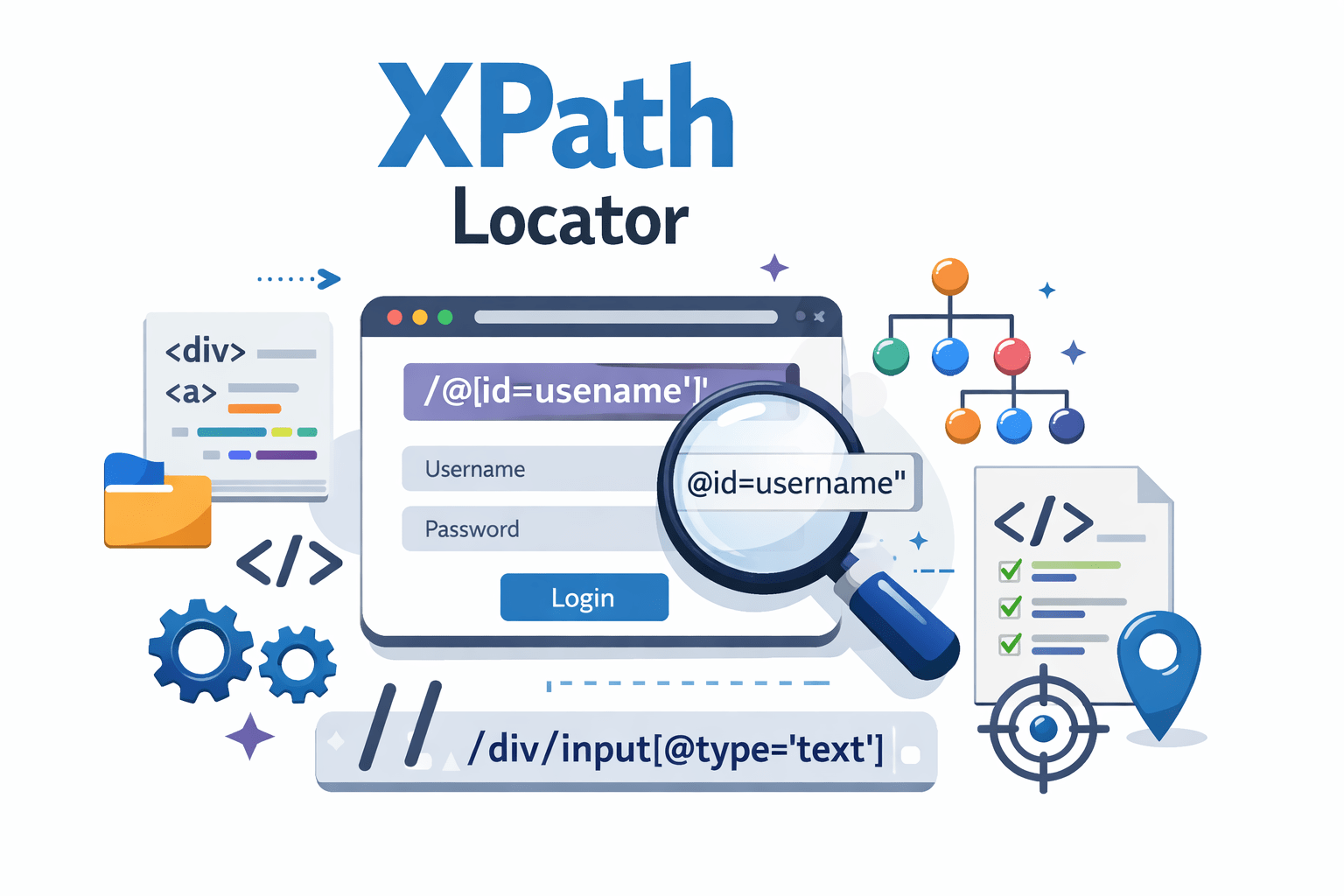
XPath Locator
XPath = //tagname[@attribute='value']
Types of XPath
Absolute Xpath
WebElement userName = driver.findElement(By.xpath("/html/body/div/div/form/input));WebElement username = driverfindElement(By.xpath("//input[@class='social-media']"));Relative XPath
CSS selectors
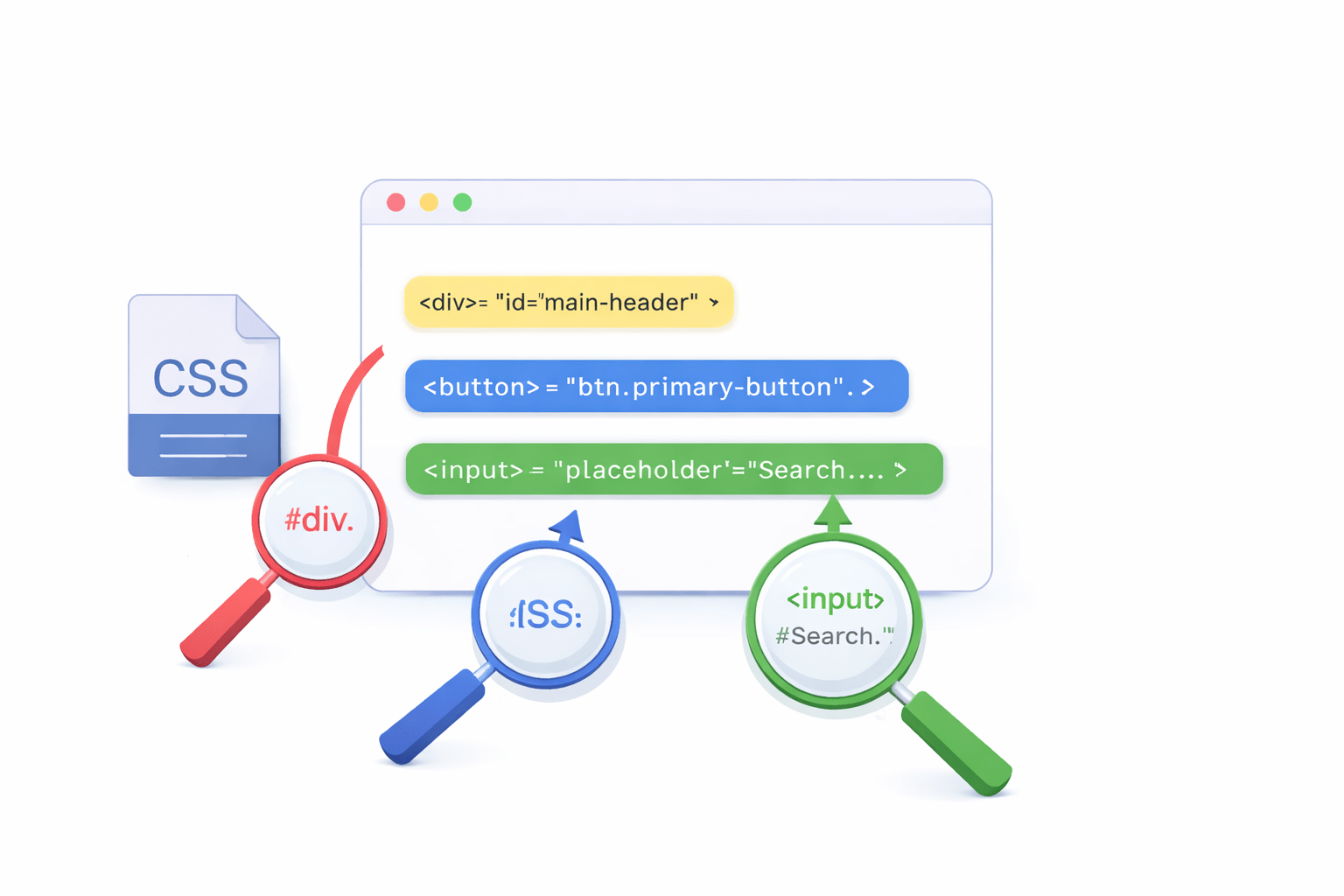
CSS Selectors are used to identify and locate HTML elements based on their attributes like ID, class, or other properties, They are commonly used in Selenium for fast and efficient element identification
Types of CSS Selectors
Selects an element using its id attribute
Syntax: #id
Example: #username
Selects elements with a specific class
Syntax: .class
Example: .login-btn
Combines multiple selectors for more precise selection
Example: div.login- form input#email
Selects elements based on an attribute value
Syntax: [attribute='value']
Example: input[type='text']
Attribute Selector
Combining Selectors
Class Selector
ID Selector
Finding Elements in Real Applications
Dynamic Elements
Use flexible locators for elements with changing attributes
Example: input[id^= ' user_'] matches user_123, user_456
Lists and Grids
Target specific items within collections
Example: .product-grid .item:nth- child(3)
Context-Based
Elements Find elements based on surrounding content
Example: //label[text()= 'Password']/following::input
Choose the Right Locator for the Job
ID & Name
Use when available
Custom Data Attributes
Add data-testid for testing
CSS Selectors
For most common scenarios
XPath
For complex relationships
Summary
5
Correct setup helps avoid common configuration errors
4
WebDriver enables browser automation through code
3
Maven helps manage libraries and dependencies easily
2
Java and IDE are required to write and run Selenium code
1
Selenium setup is the foundation of automation projects
Quiz
What is the main purpose of element locators in test automation?
A. To design UI
B. To find and interact with web elements
C. To create databases
D. To improve internet speed
Quiz-Answer
What is the main purpose of element locators in test automation?
A. To design UI
B. To find and interact with web elements
C. To create databases
D. To improve internet speed
By Content ITV