




































Content ITV PRO
This is Itvedant Content department
Learning Outcome
5
Visualize a basic AWS setup for beginner-level projects
4
Learn how these services work together in real architectures
3
Understand how EC2 runs apps, S3 stores data, and VPC secures networking
2
Explain EC2, S3, and VPC as core AWS building blocks
1
Understand why compute, storage, and networking are needed together
Earlier, we learned
Cloud provides online servers and storage
AWS provides these using EC2, S3, and VPC
Applications need compute, storage, and network
Let's Understand
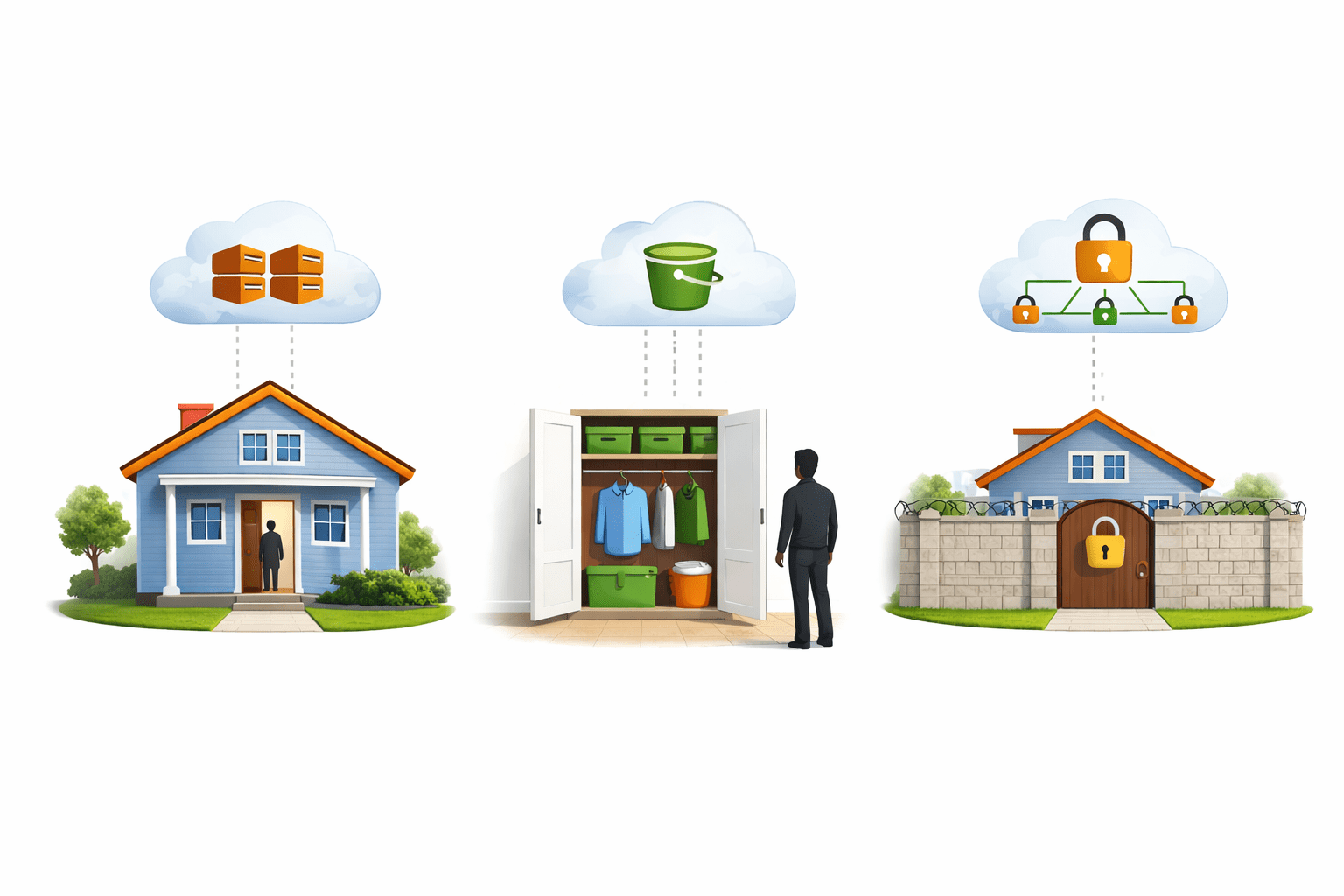
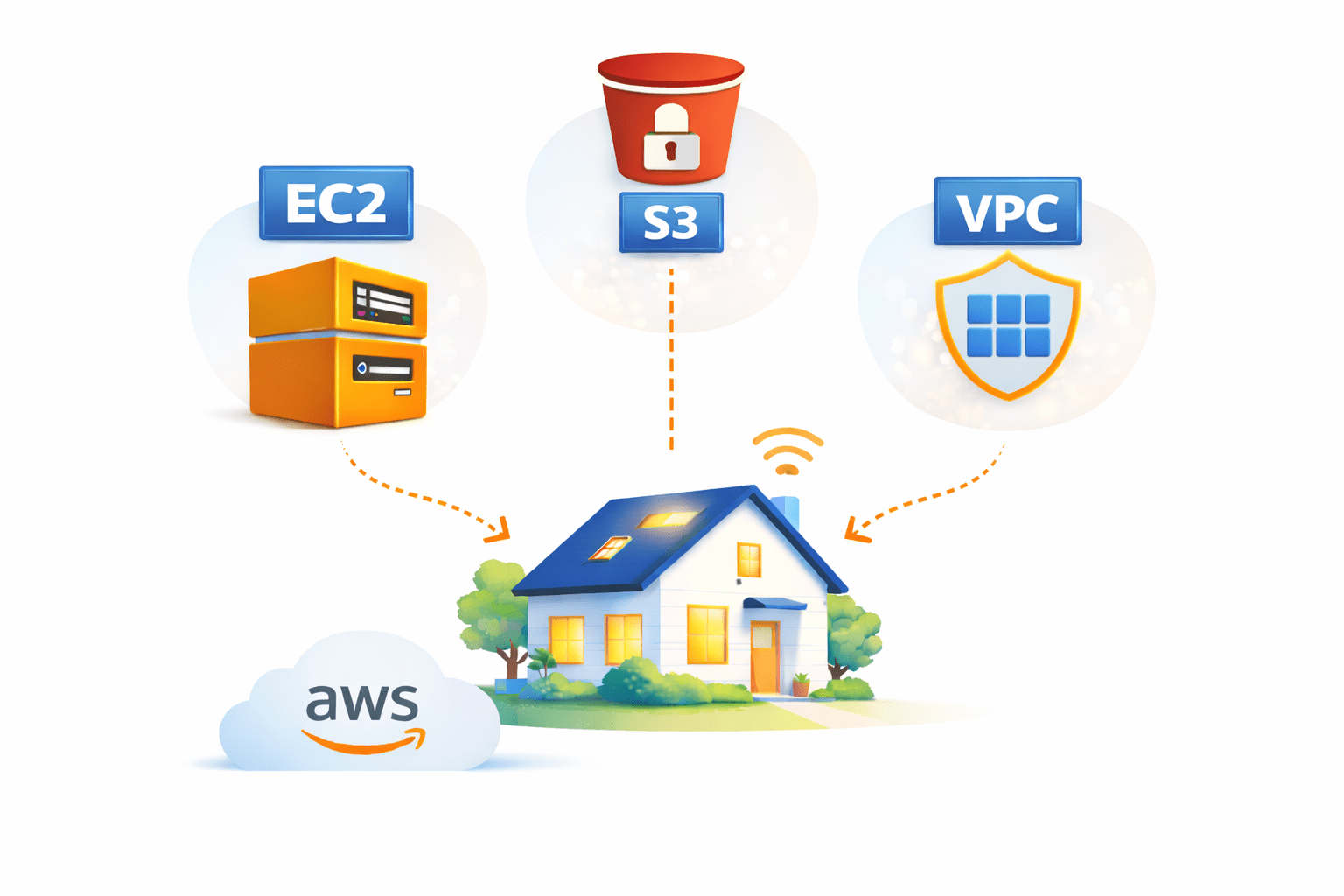
Think about a house
Place to live
Place to store things
Boundary wall
AWS works the same way using EC2, S3, and VPC
Room
Cupboard
Protects the house
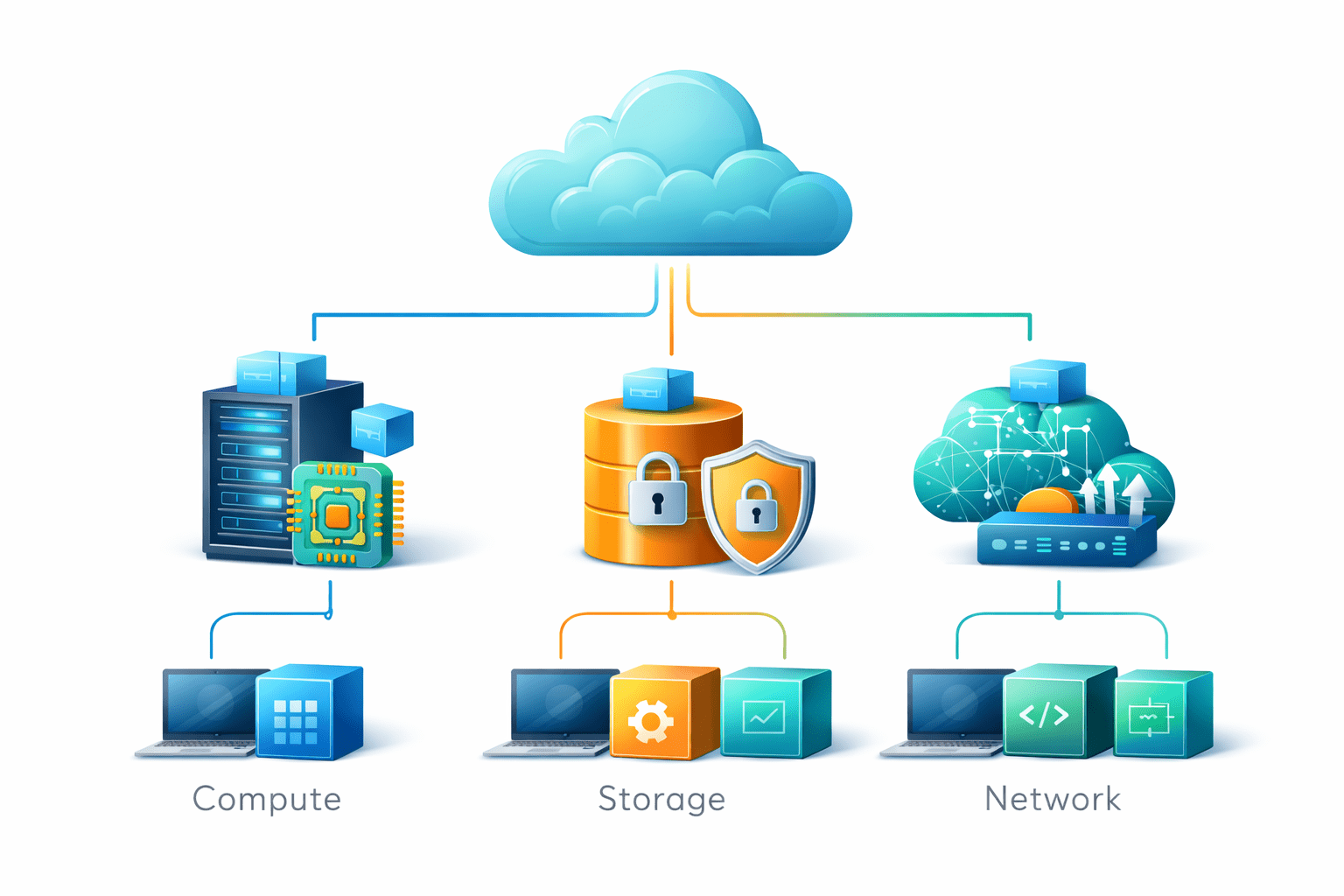
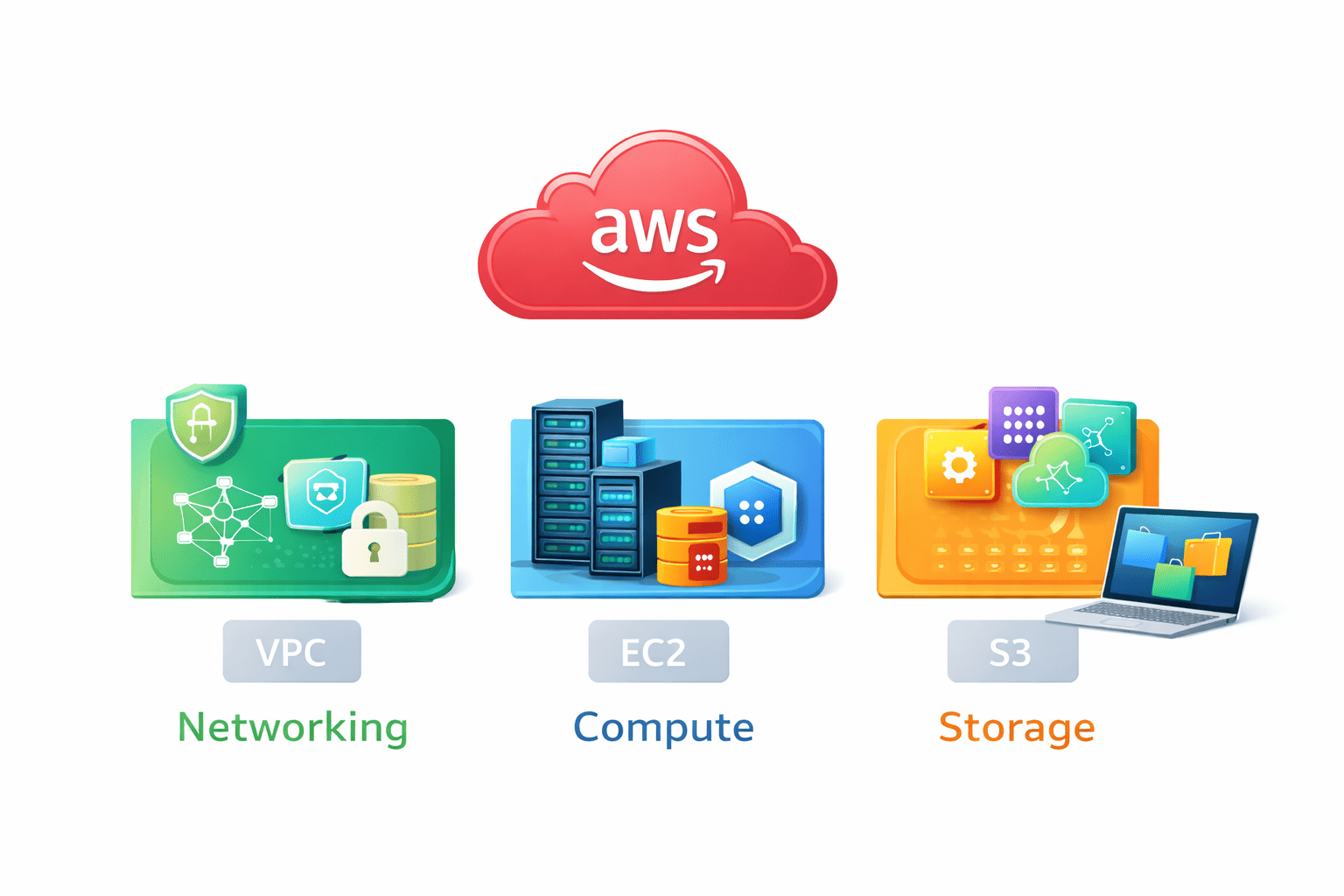
To run applications in AWS,
we need networking, servers, and storage
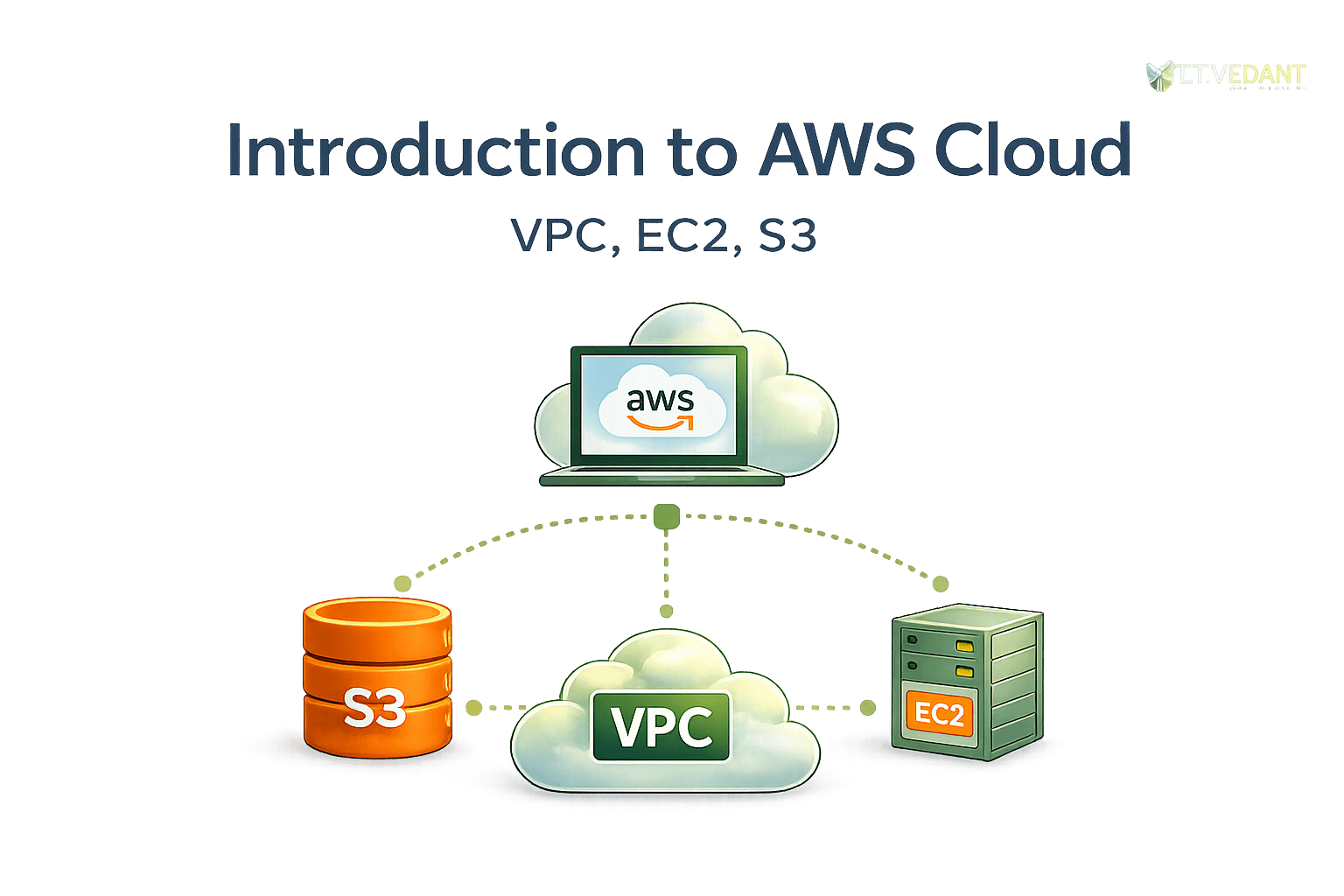
AWS provides these using VPC, EC2, and S3
What is EC2?
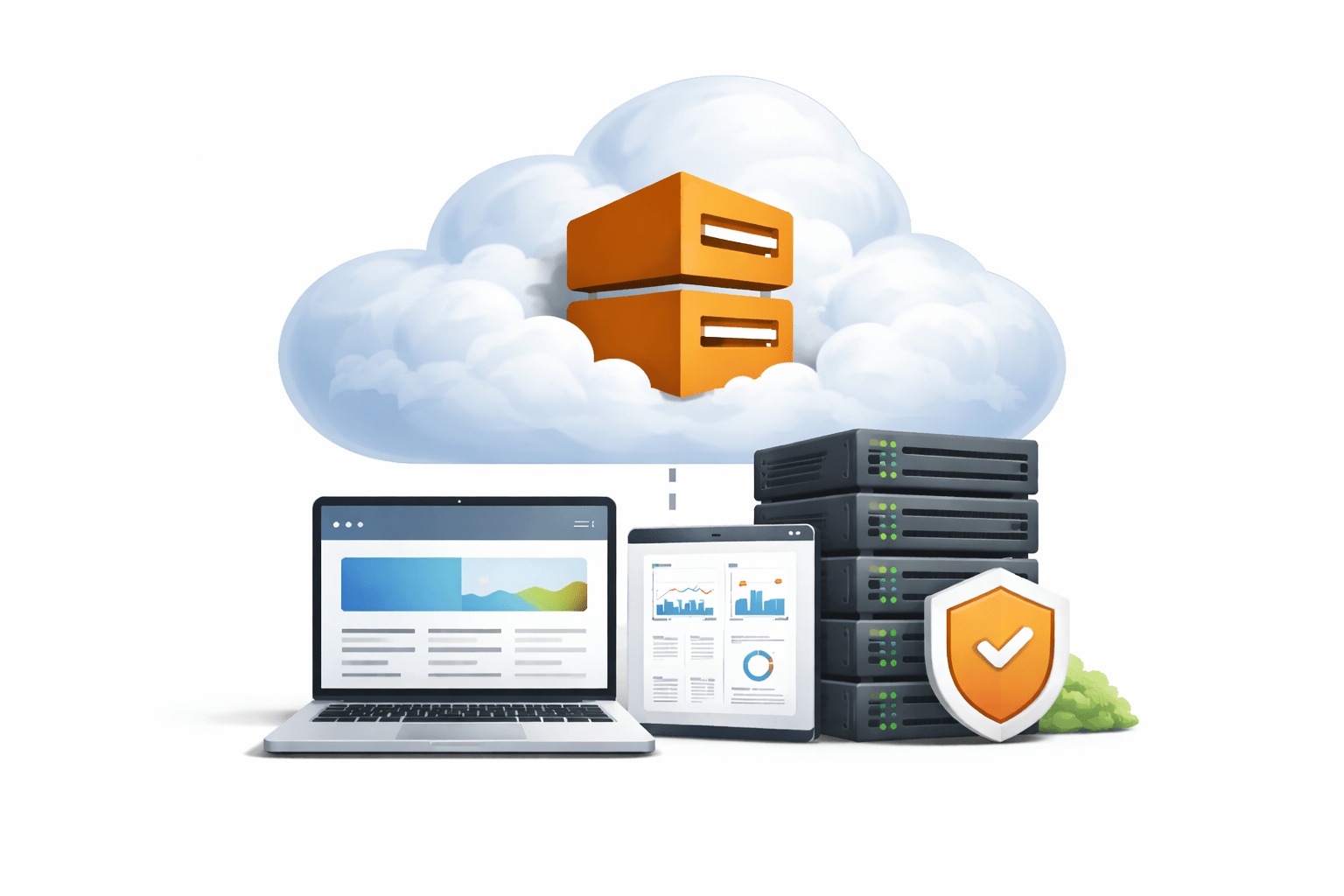
Amazon EC2 (Elastic Compute Cloud) is a cloud service
that provides scalable virtual machines (instances) to run applications
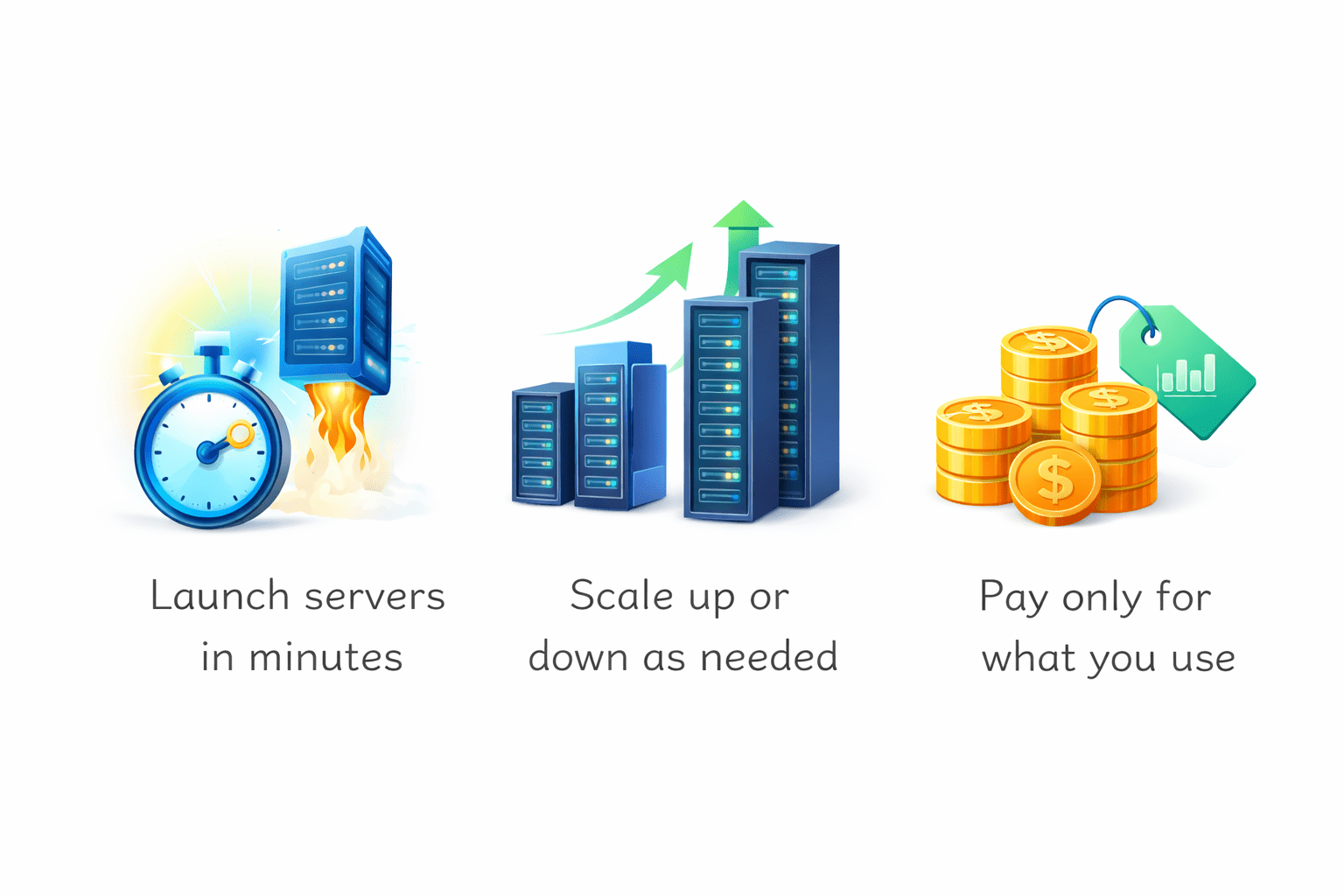
It allows you to
Launch servers in minutes
Scale up or down as needed
Pay only for what you use
Example:
Hosting a website or running backend services on a virtual server
Why EC2 is Important
Provides computing power on demand
No need to buy physical servers
Easy to scale based on traffic
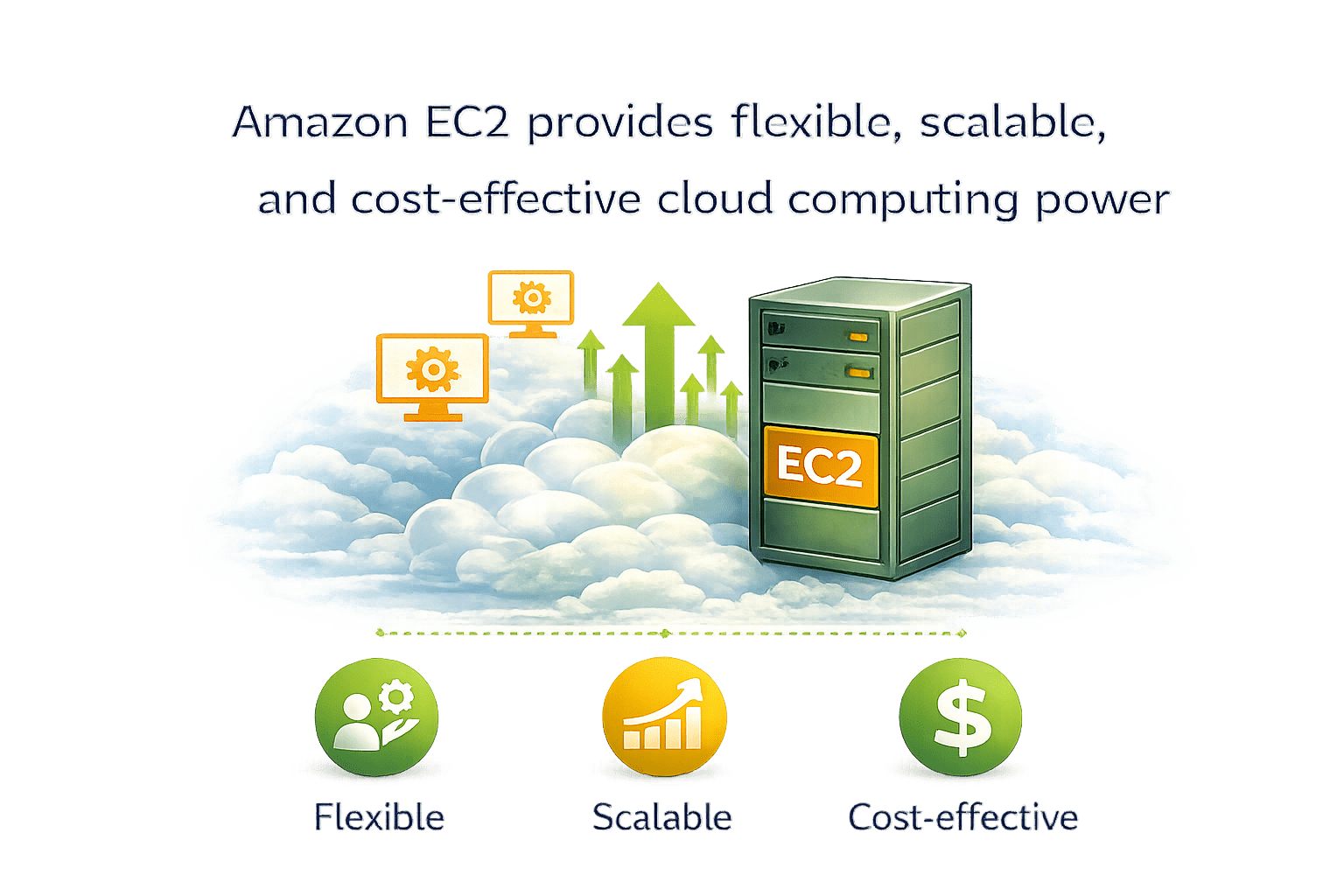
Amazon EC2 provides flexible, scalable, and cost-effective cloud computing power
What is an Instance?
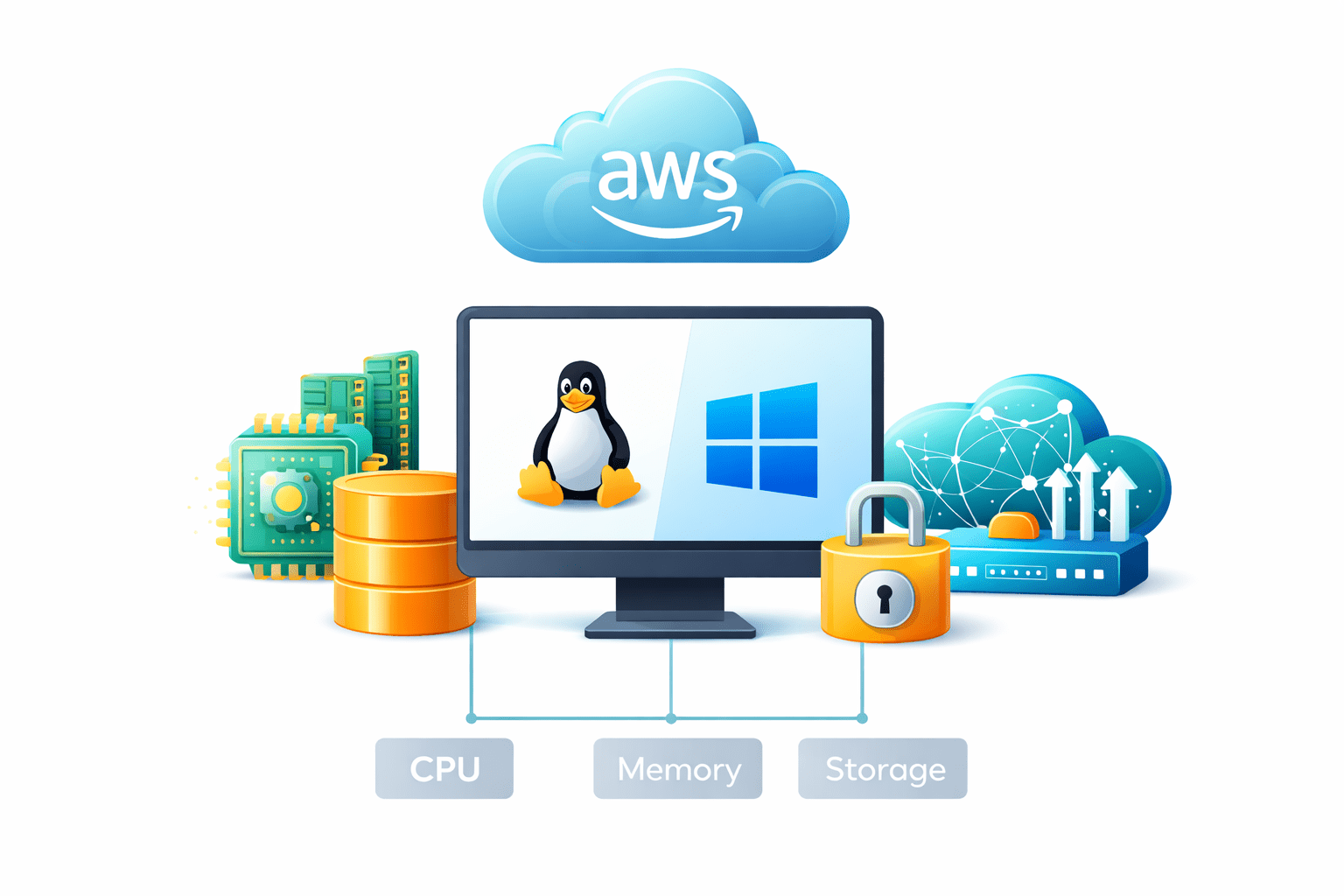
An EC2 instance is a virtual server in AWS
It is used to run applications and services in the cloud
An instance includes
Operating system (Linux / Windows)
CPU, memory, and storage
Network connectivity
In simple words, an EC2 instance is like a computer running in AWS
EC2 Instance Types
EC2 instances are grouped based on workload type
General Purpose
Balanced CPU and memory
Used for web apps, small databases
Compute Optimized
High CPU performance
Used for batch processing, gaming servers
Memory Optimized
More RAM
Used for databases, in-memory caching
Storage Optimized
High disk performance
Used for big data, log processing
EC2 Pricing Types
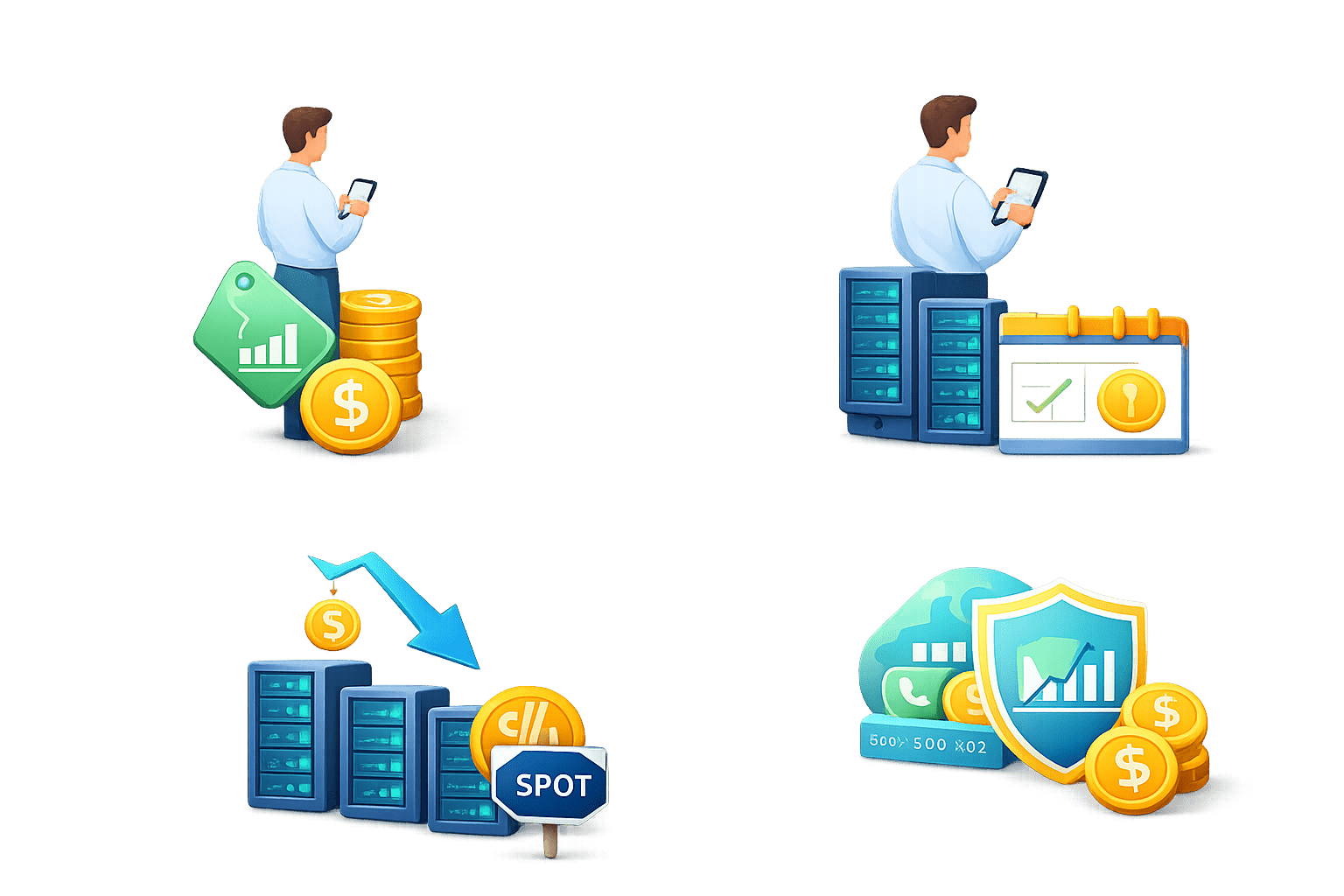
AWS provides different pricing options for EC2 instances based on usage needs
Savings Plans
On-Demand
Reserved
Spot
AMIs & Operating Systems
What is an AMI?
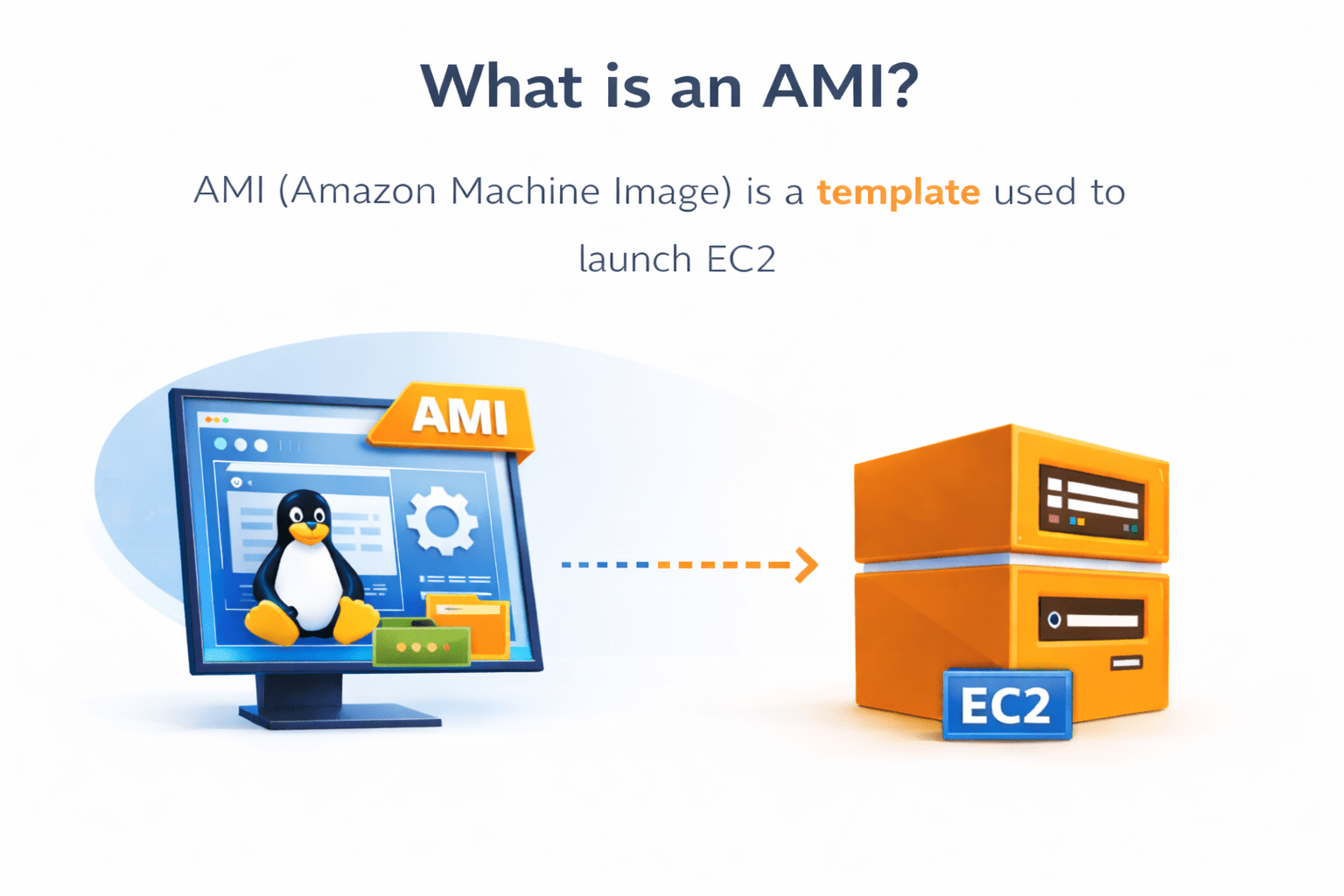
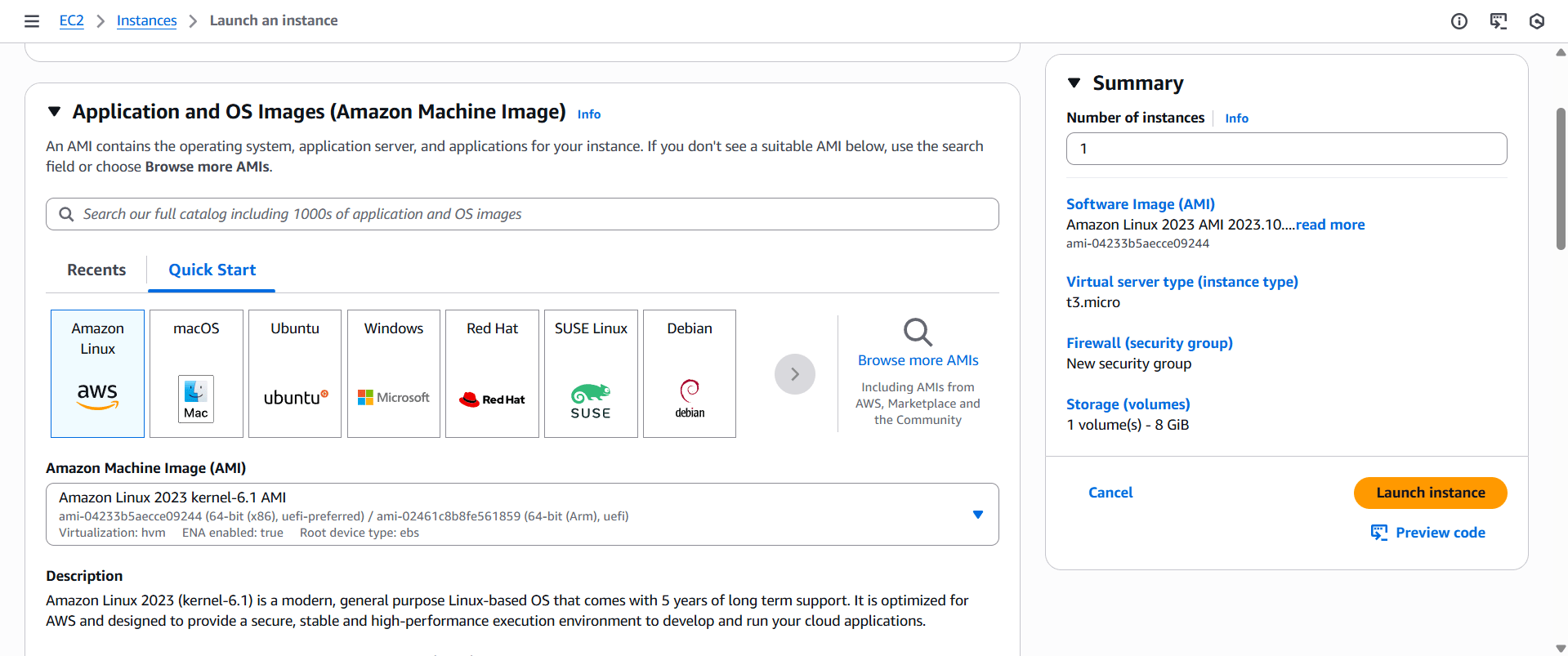
AMI (Amazon Machine Image) is a template used to launch EC2
It includes
Operating system
Pre-installed software
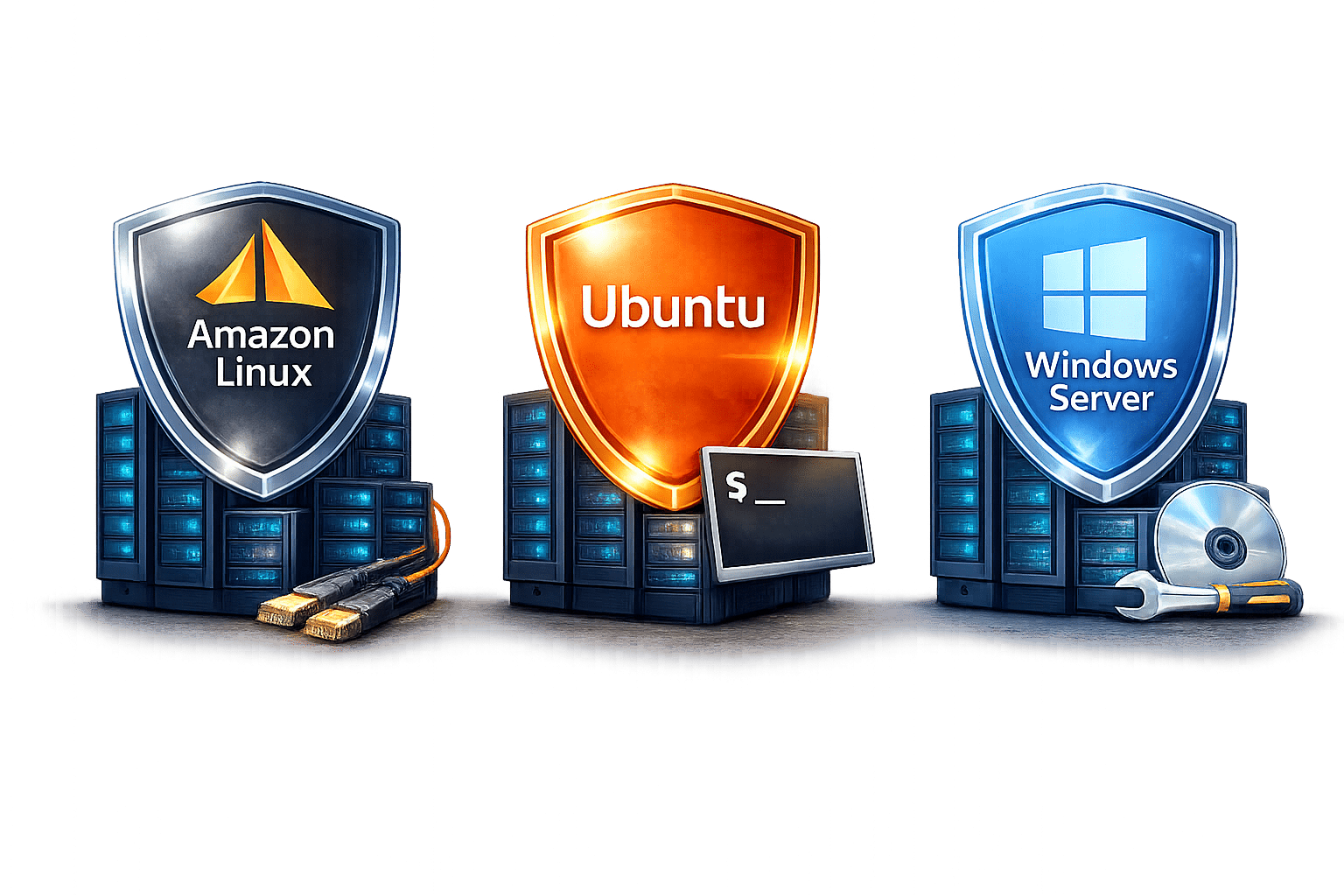
Common AMIs
Networking & Access in EC2
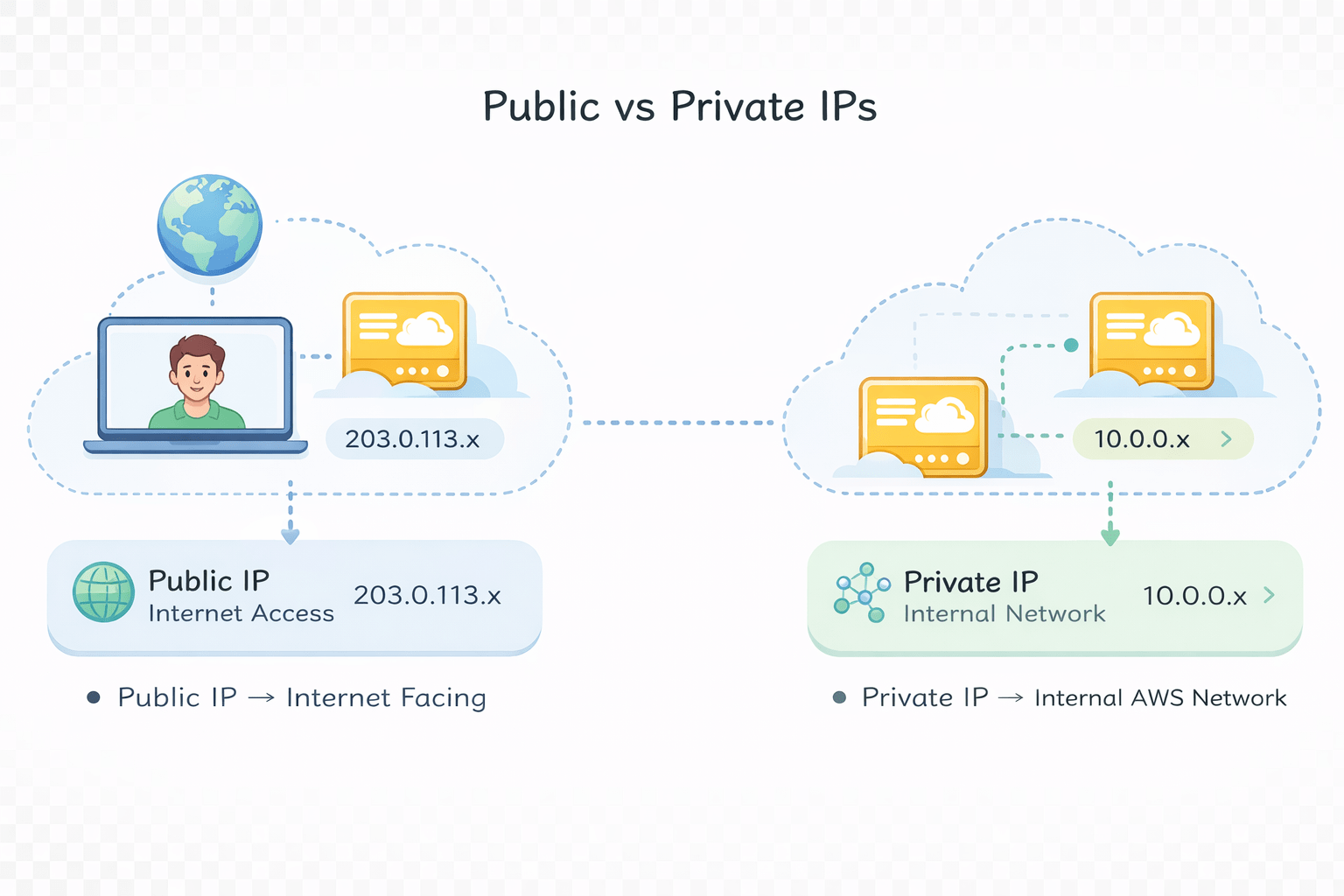
Each EC2 instance has
Internal AWS network
Internet facing
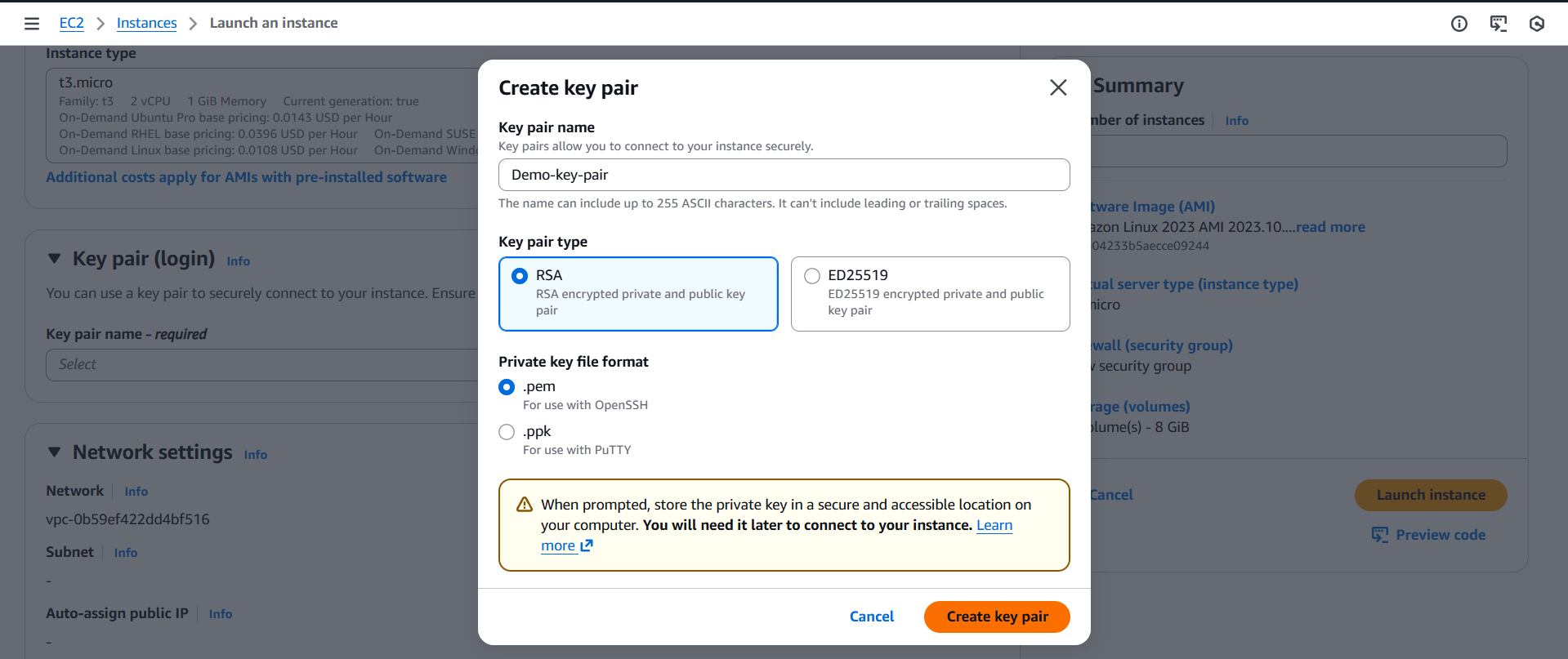
Key Pairs
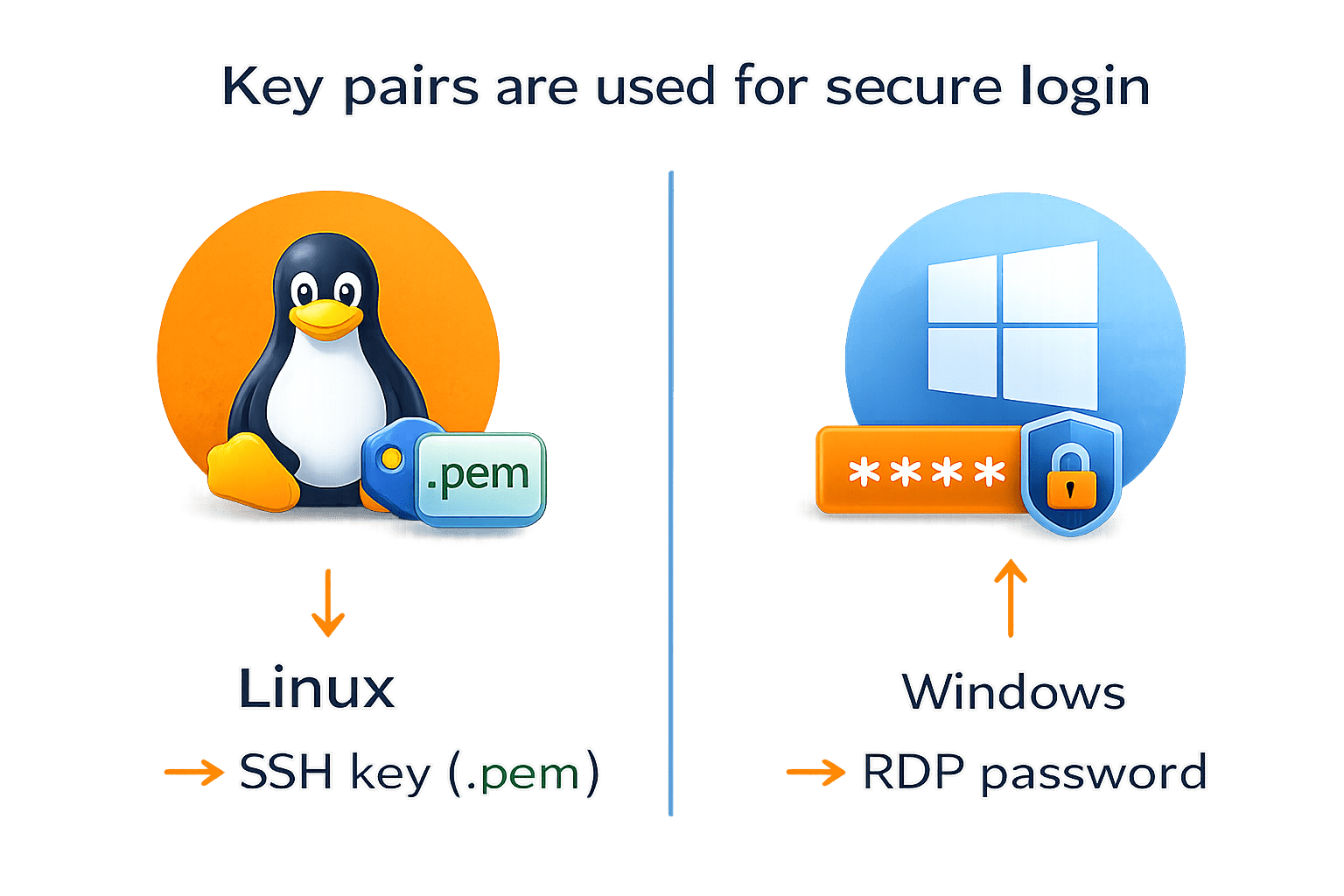
Key pairs are used for secure login
Linux → SSH key (.pem)
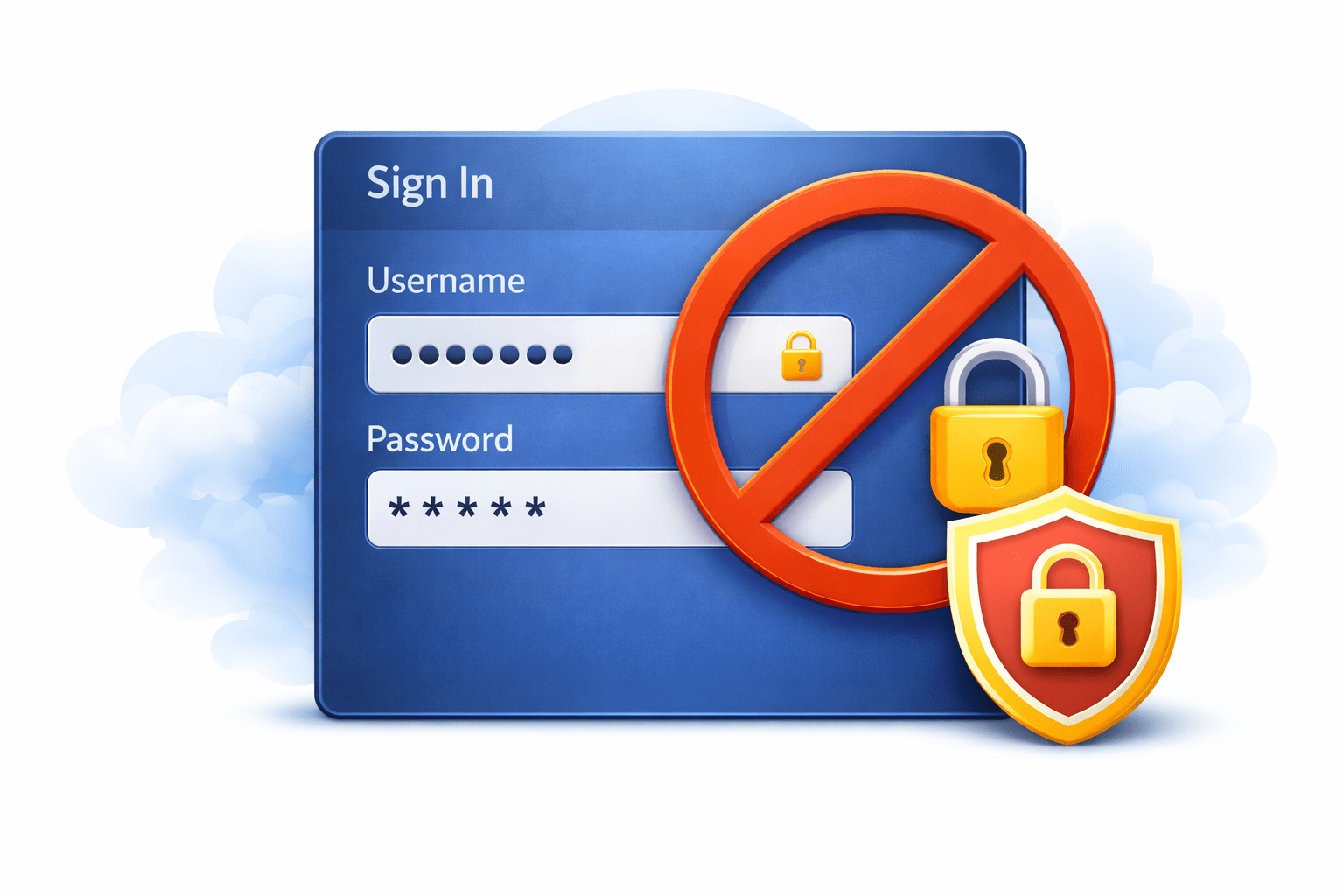
Password login is disabled by default for security
Windows → RDP password
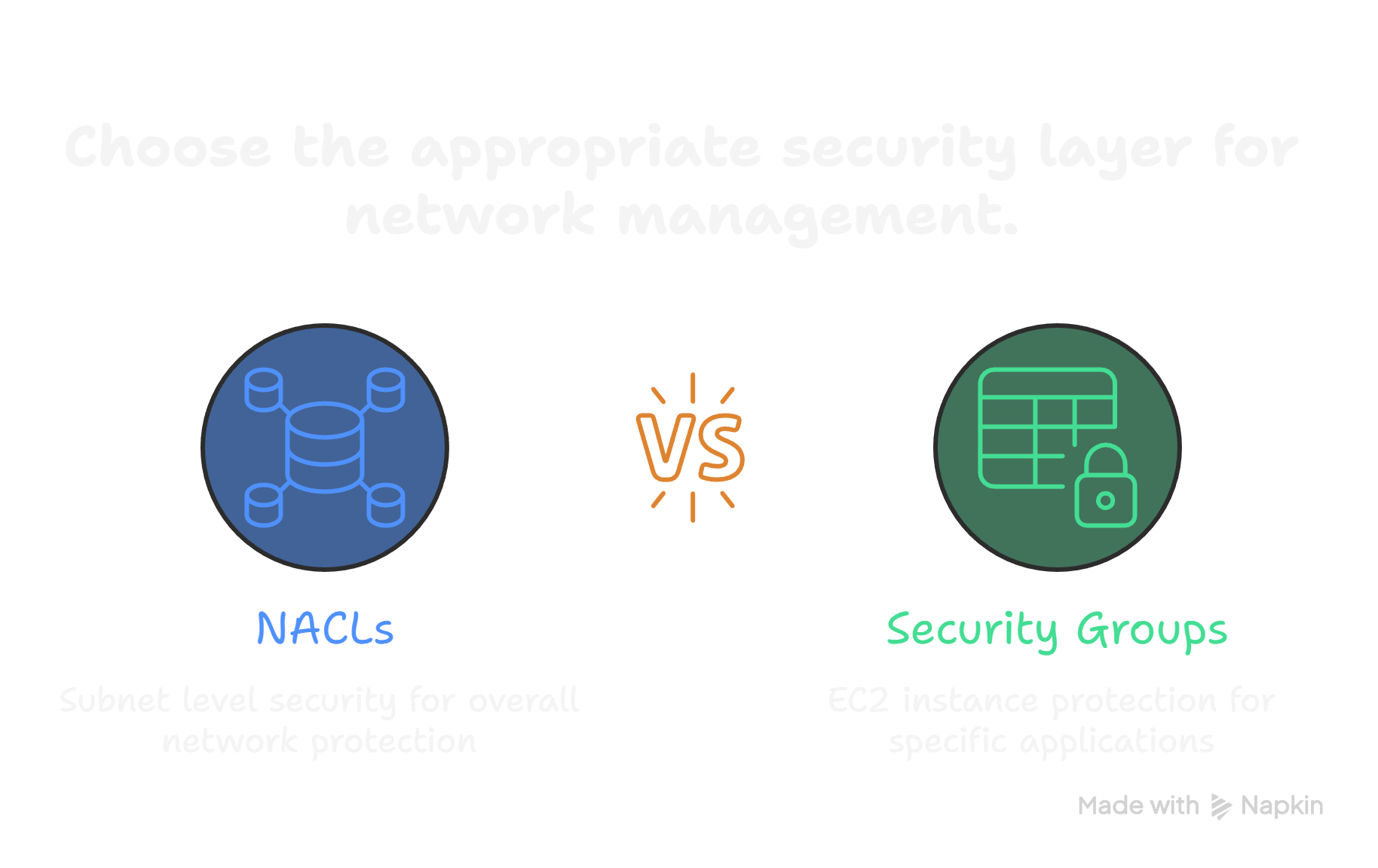
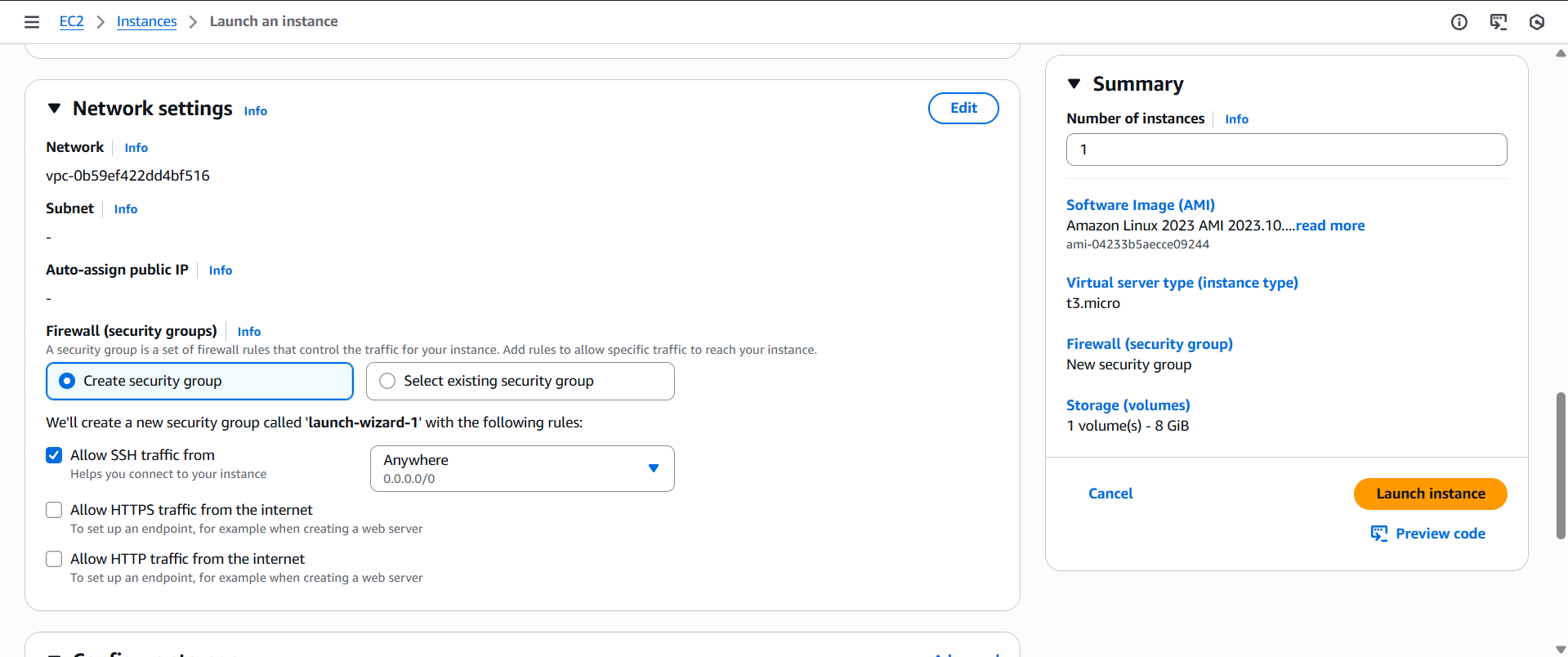
NACLs Vs Security Groups
Security Groups = Primary EC2 protection
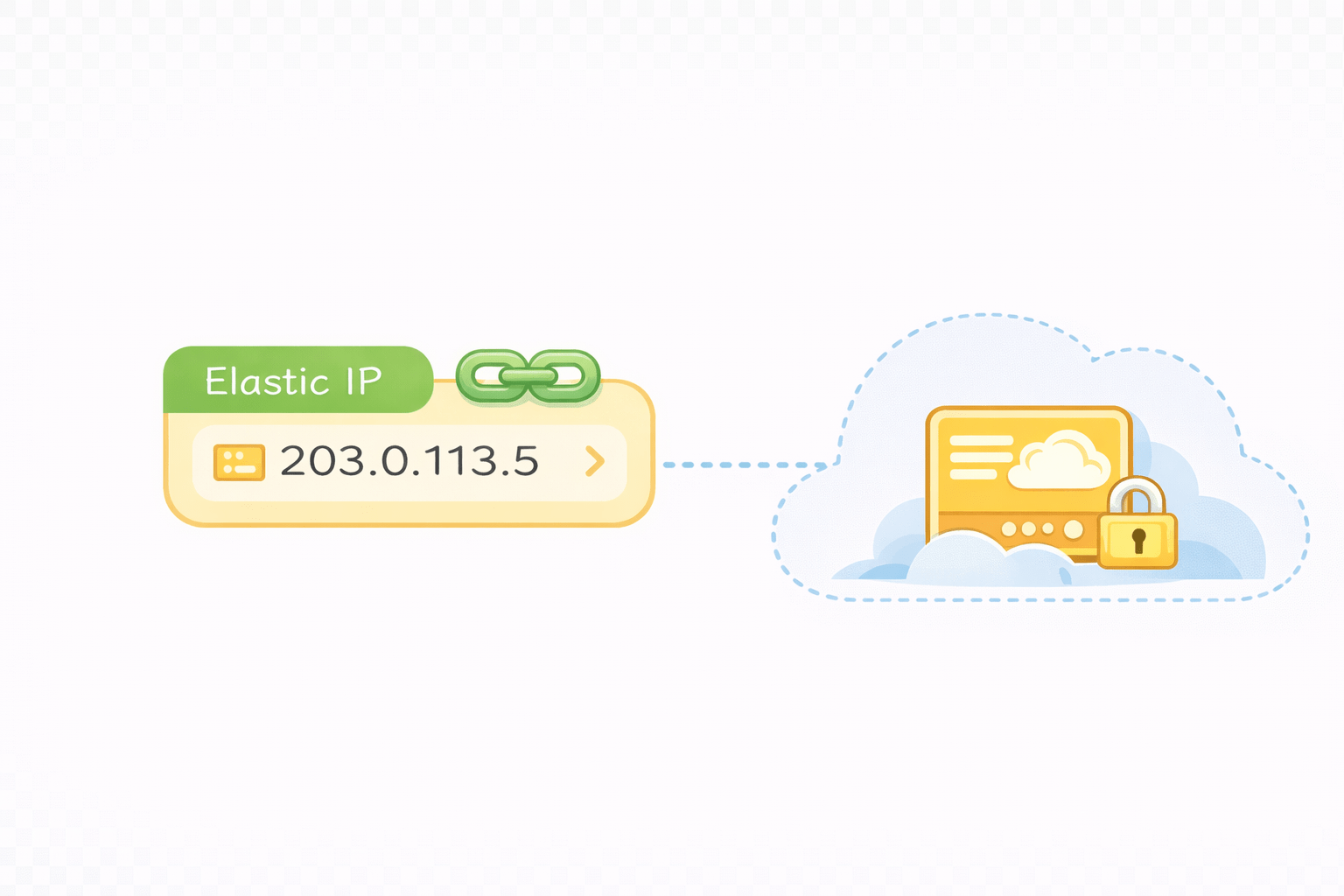
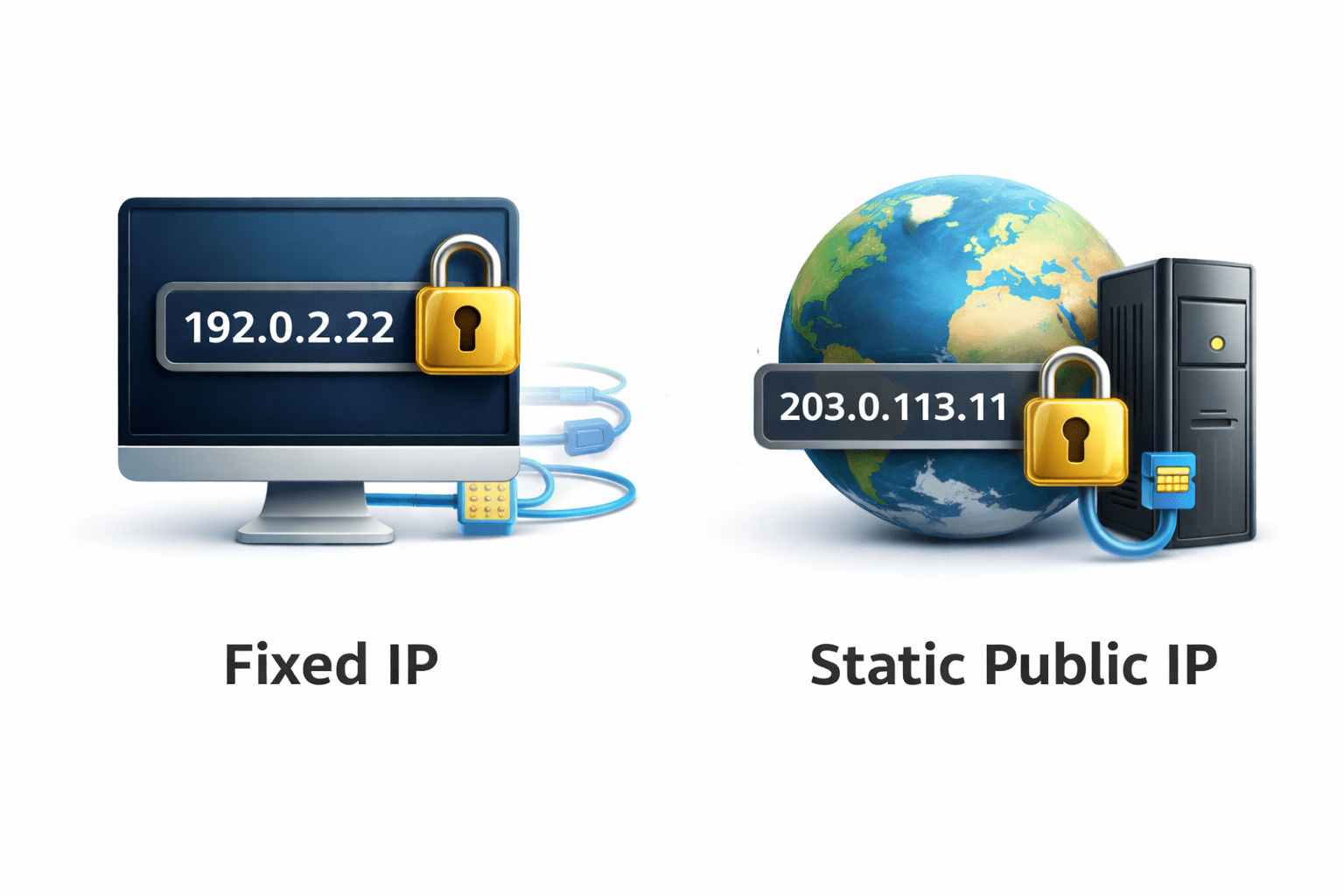
Elastic IP is a static public IP address
Public IP should not change
It's Used when
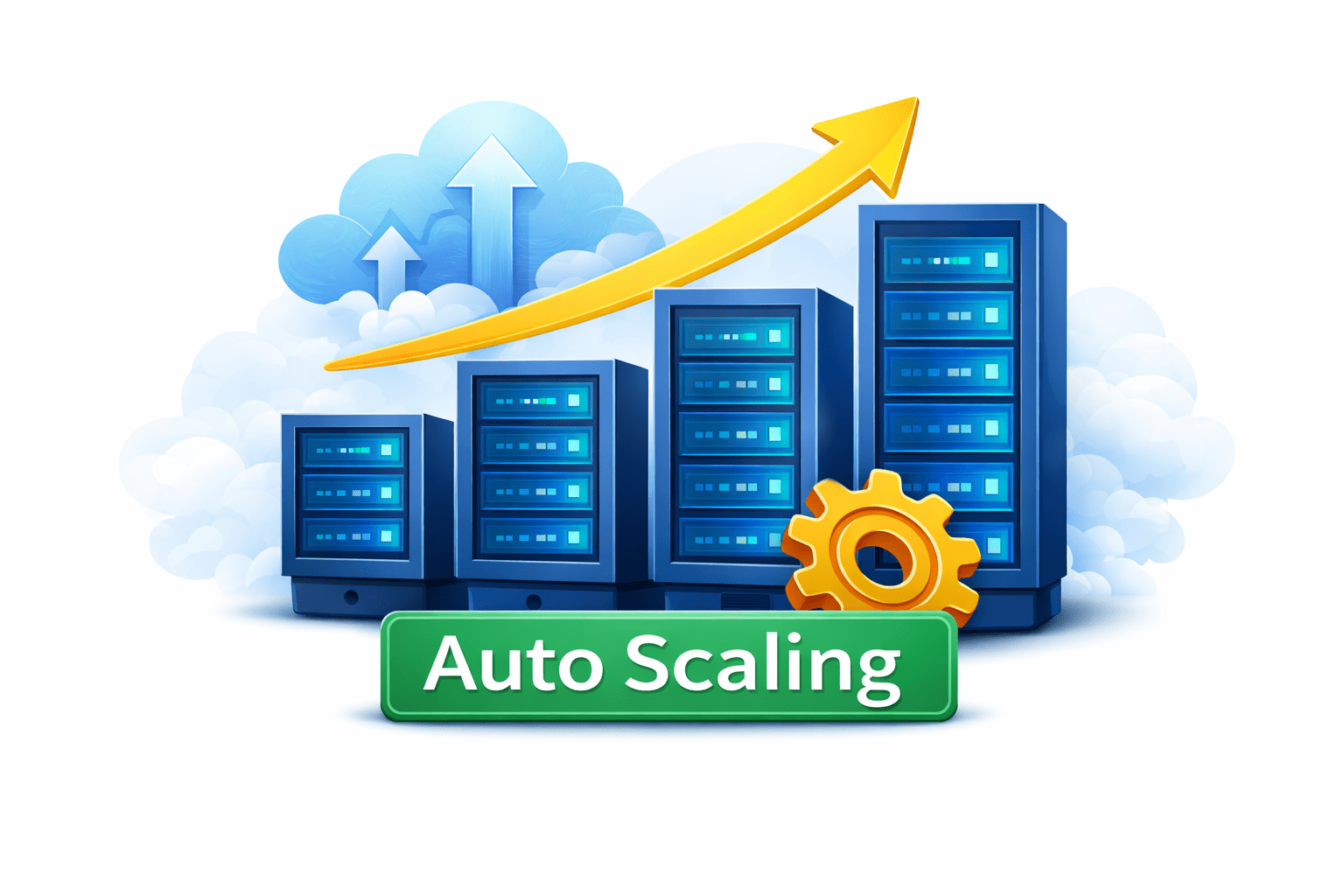
Auto Scaling & Load Balancer
Automatically increases/decreases EC2 instances
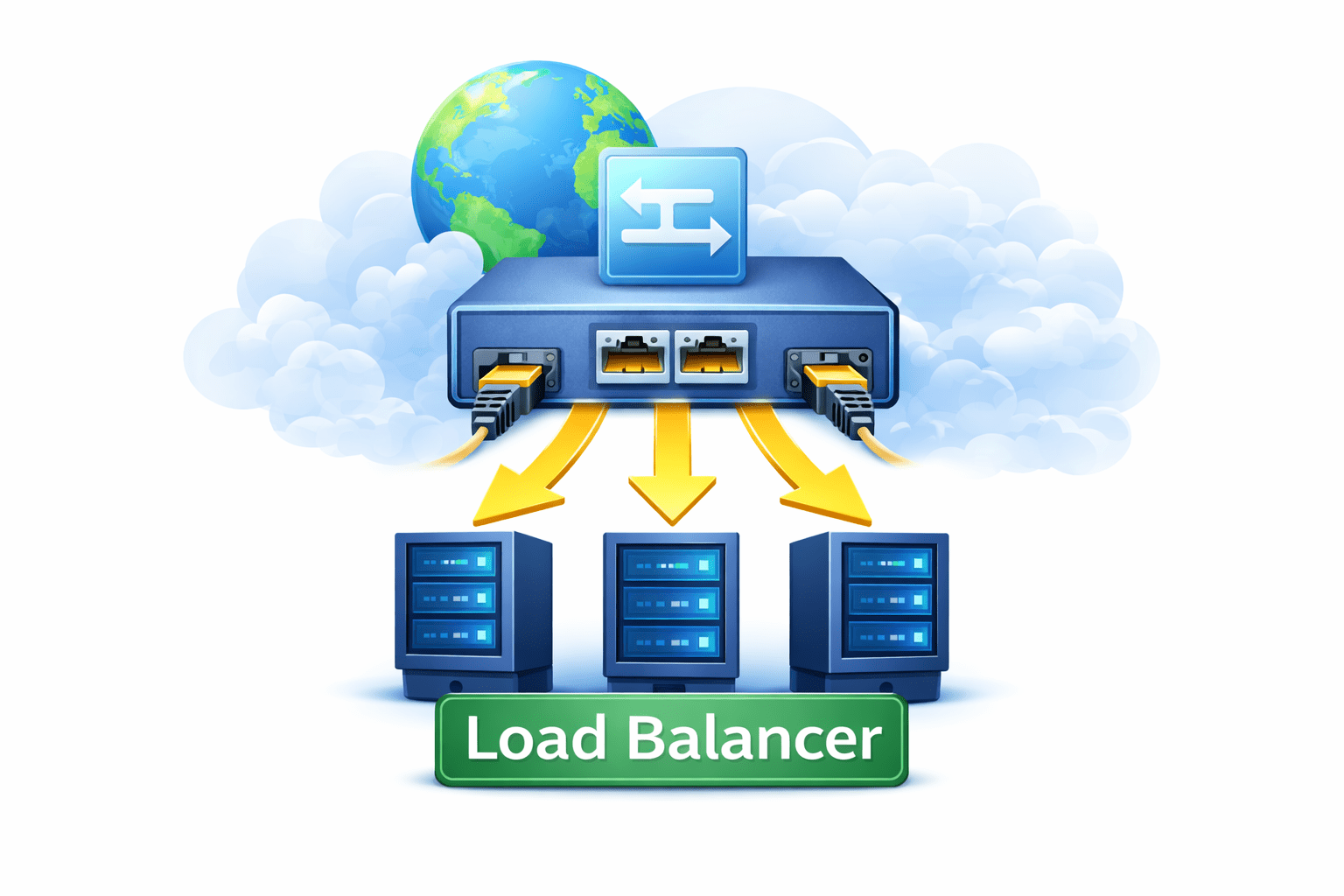
Distributes traffic across multiple EC2 instances
Used together for high availability systems
Improves availability and reliability
Used during high or low traffic
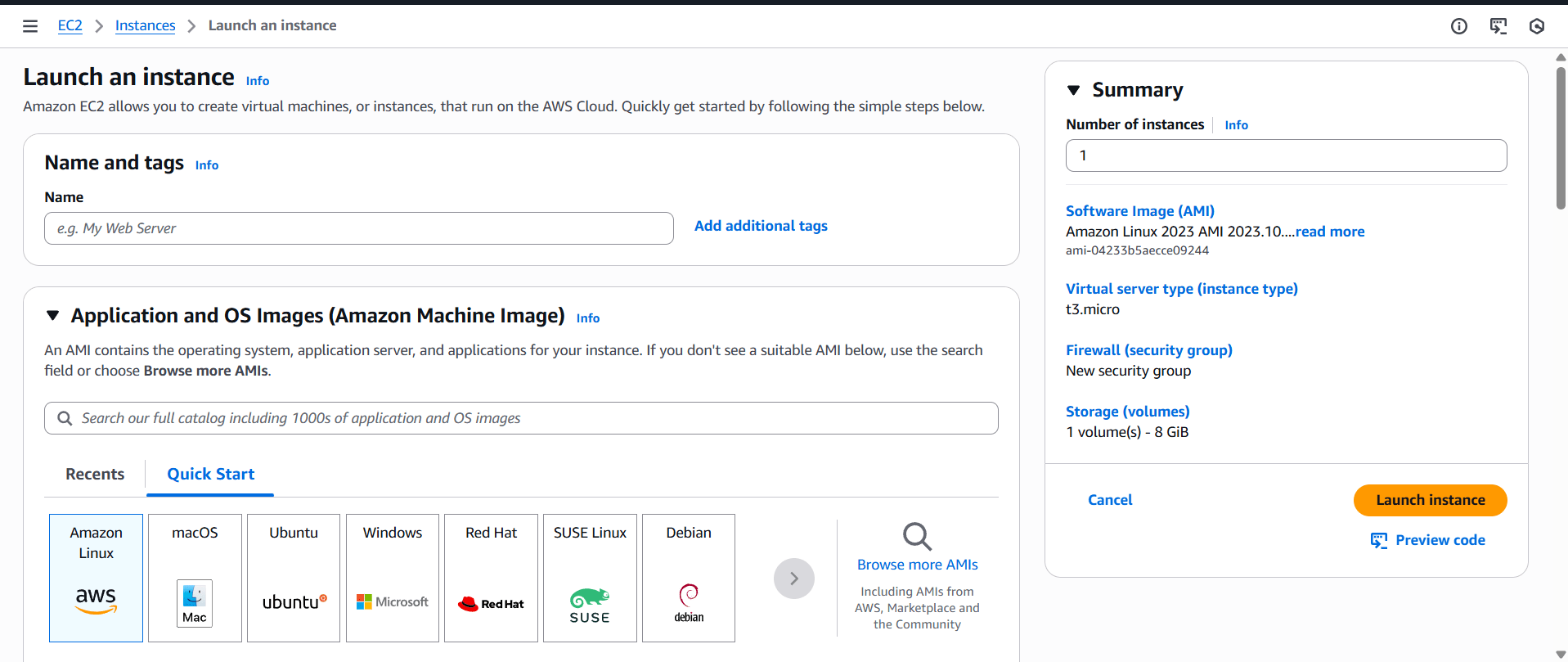
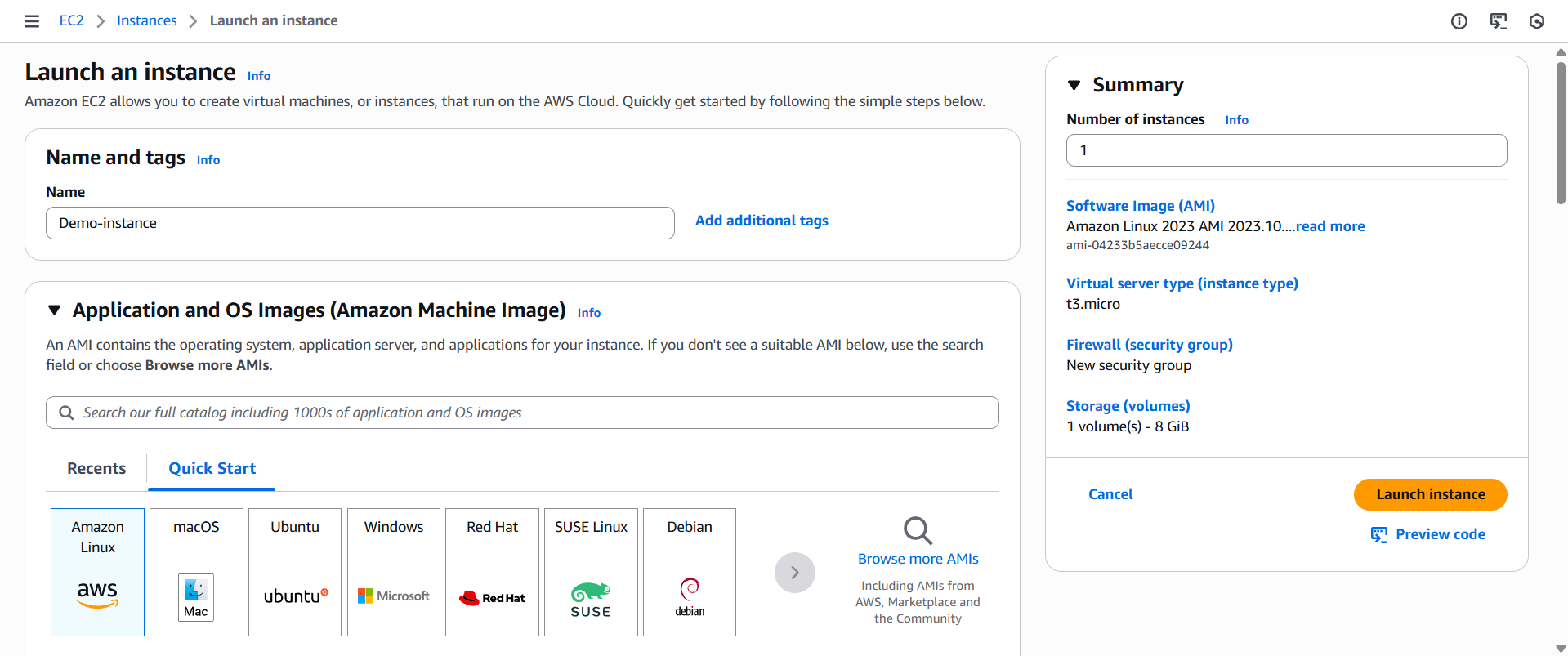
Launch an EC2 Instance
Allow SSH (port 22)
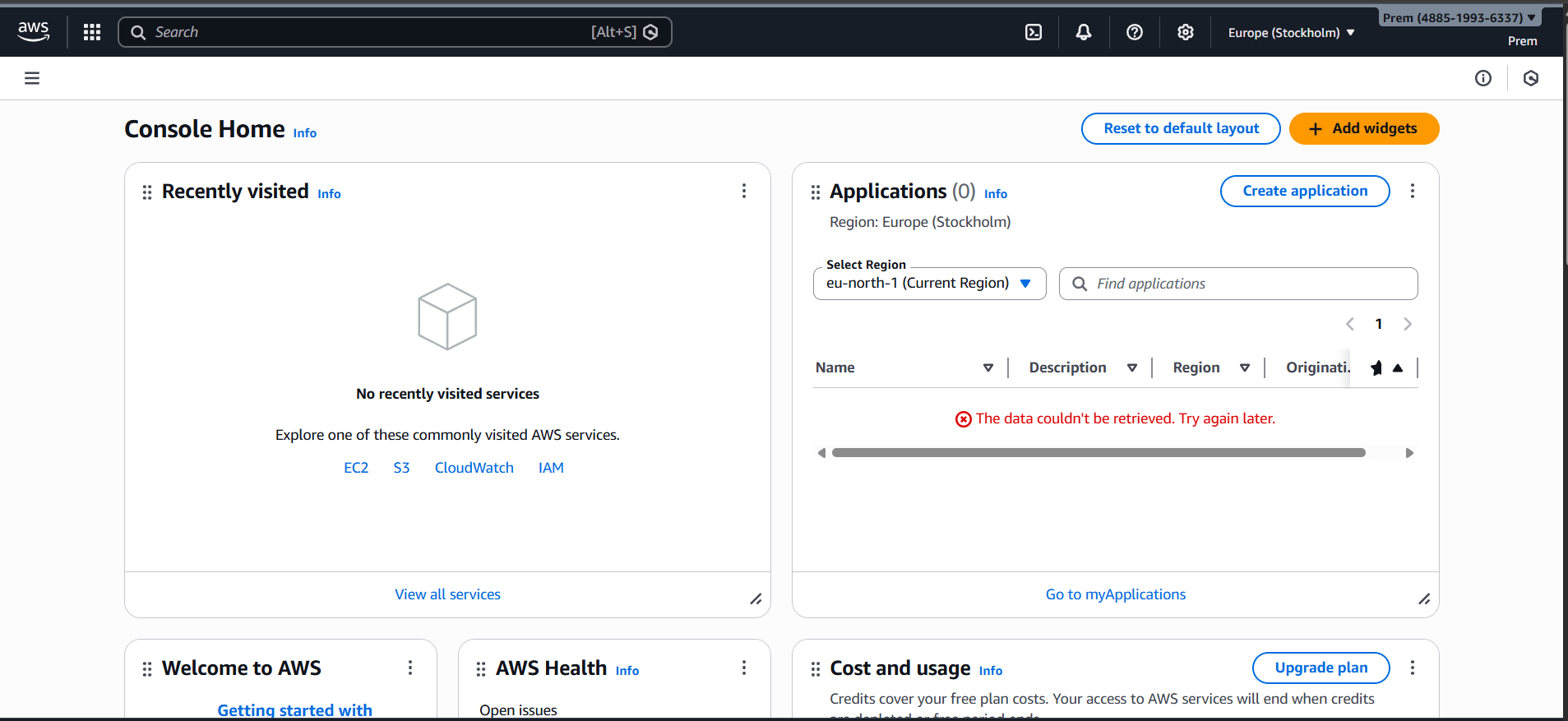
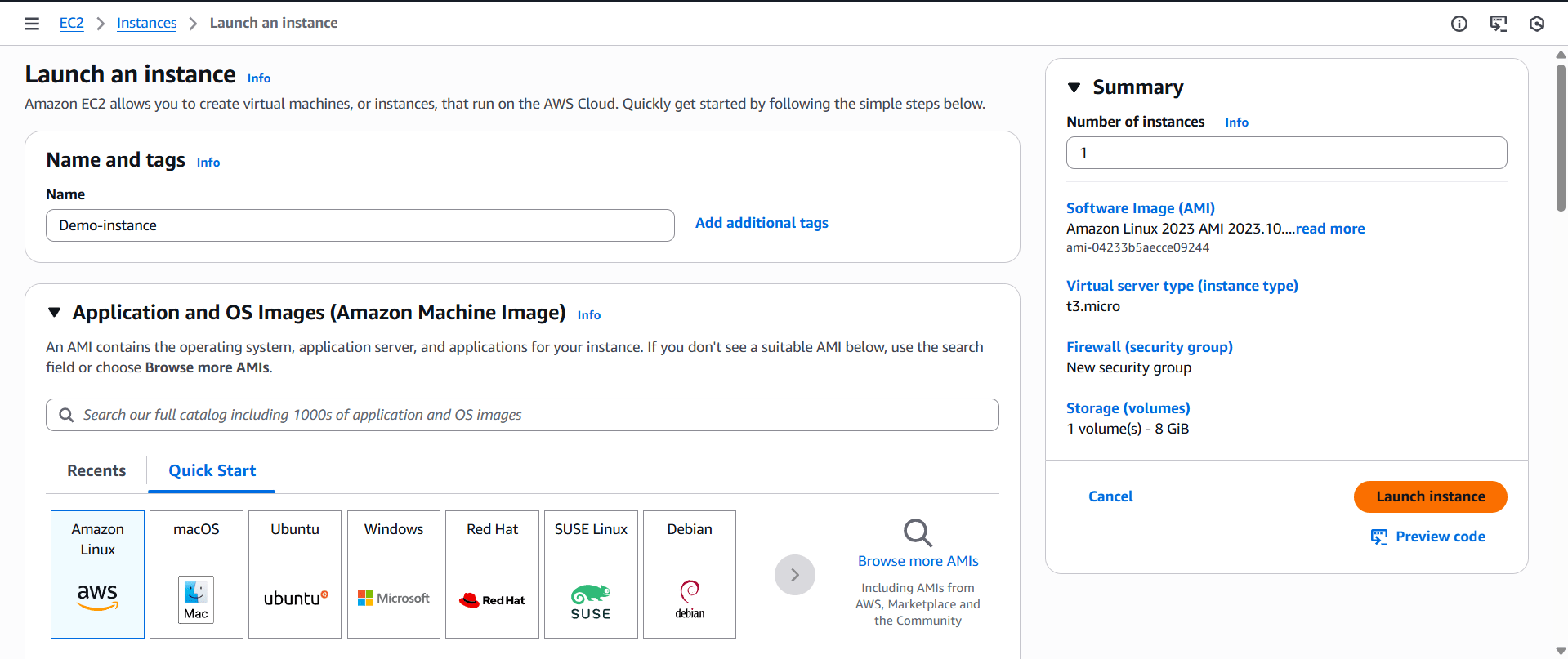
Open AWS Management Console
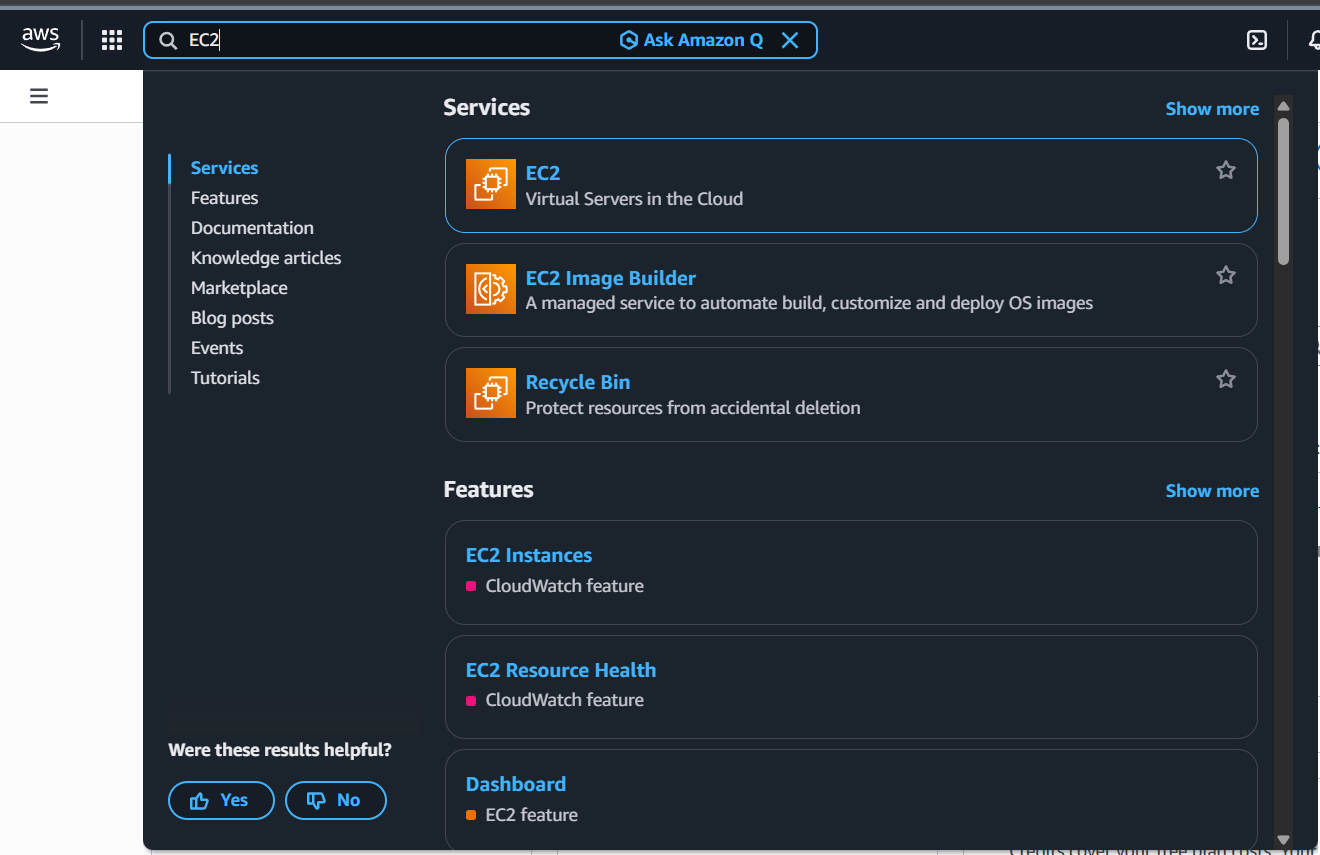
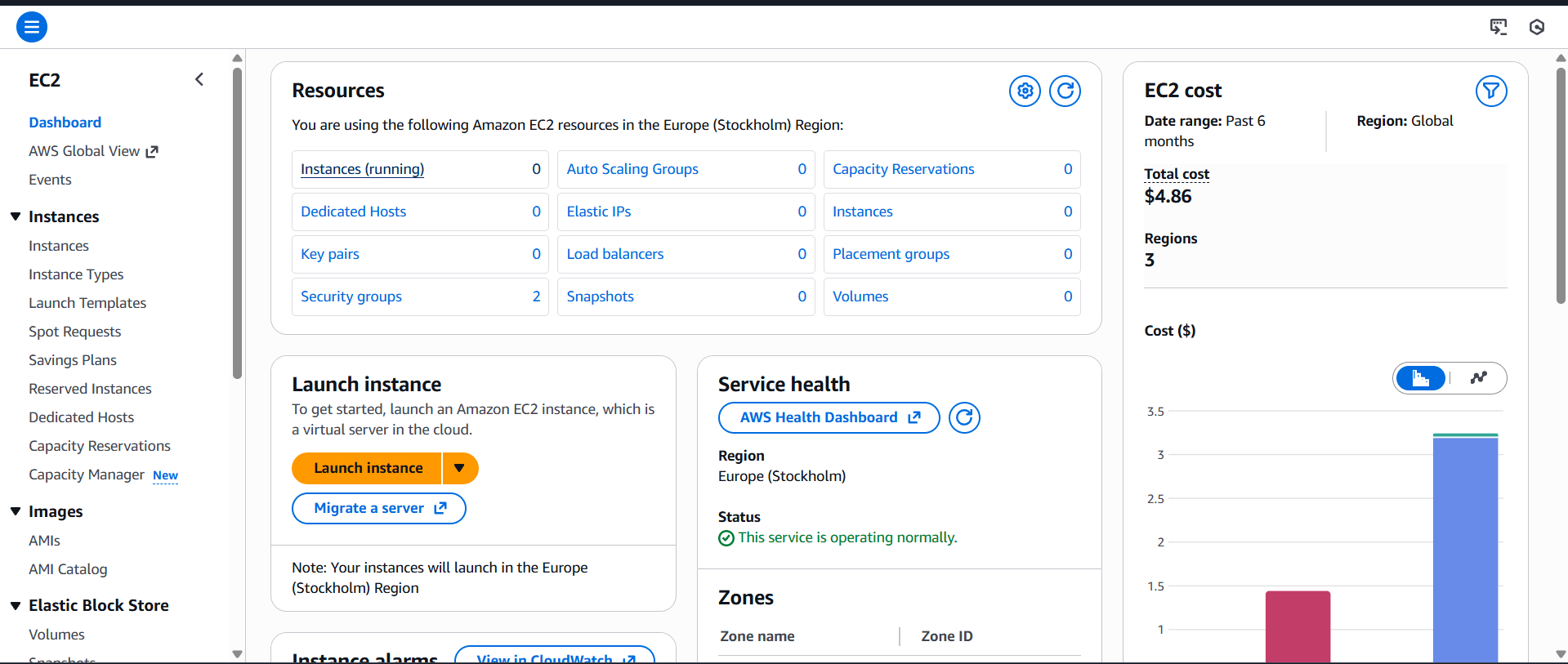
Search EC2 & Click to Launch Instance
Choose AMI (Amazon Linux)
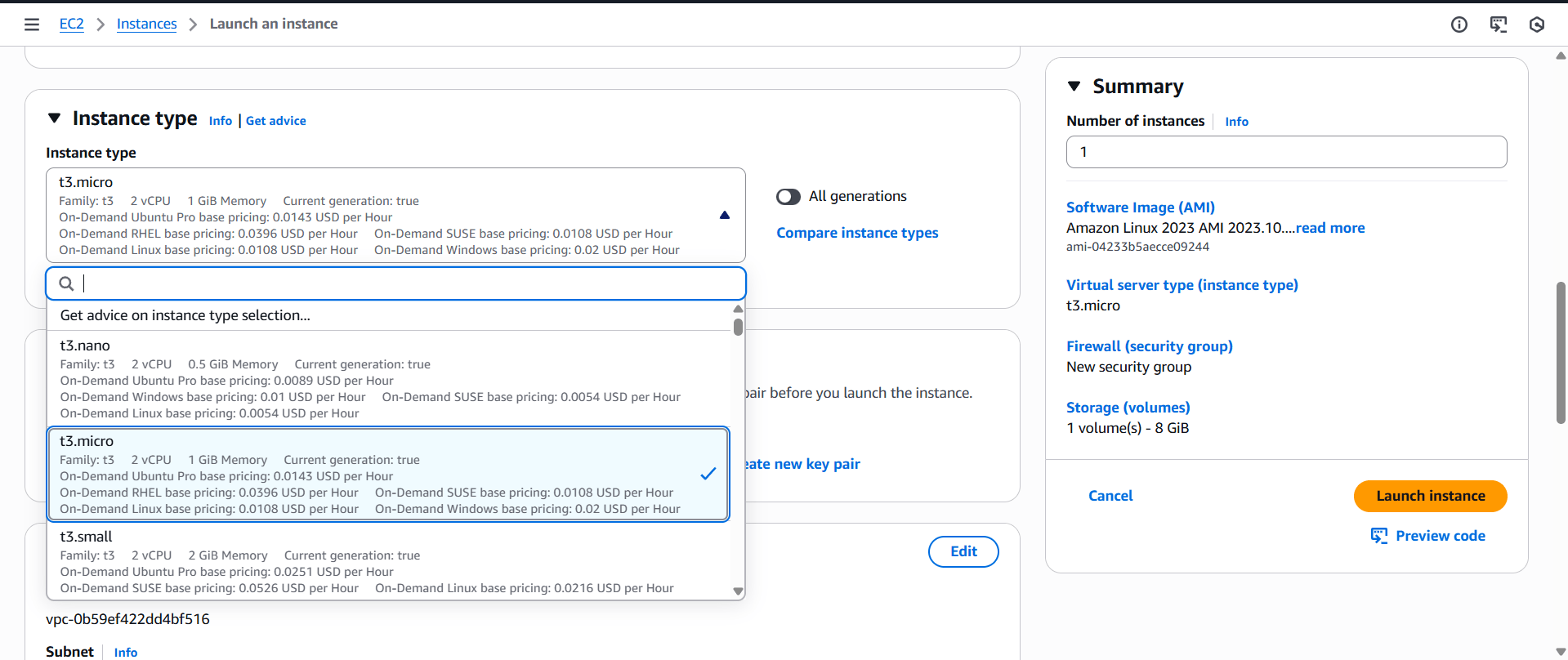
Choose instance type (t3.micro)
Create/download key pair
Connect to EC2
Linux (SSH)
ssh -i key.pem ec2-user@<public-ip>
Launch an EC2 Instance
Install Web Server
Apache (Amazon Linux)
sudo yum install httpd -y
sudo systemctl start httpd
Stop, Start, Terminate Instance
Stop → temporarily stops
Start → restarts
Terminate → permanently deletes
Go to Volumes → Select volume
Click Create Snapshot
Used for:
Backup
Recovery
Creating new volumes
Creating new volumes
Create Snapshot of EBS
Click Create Snapshot
Used for:
Backup
Recovery
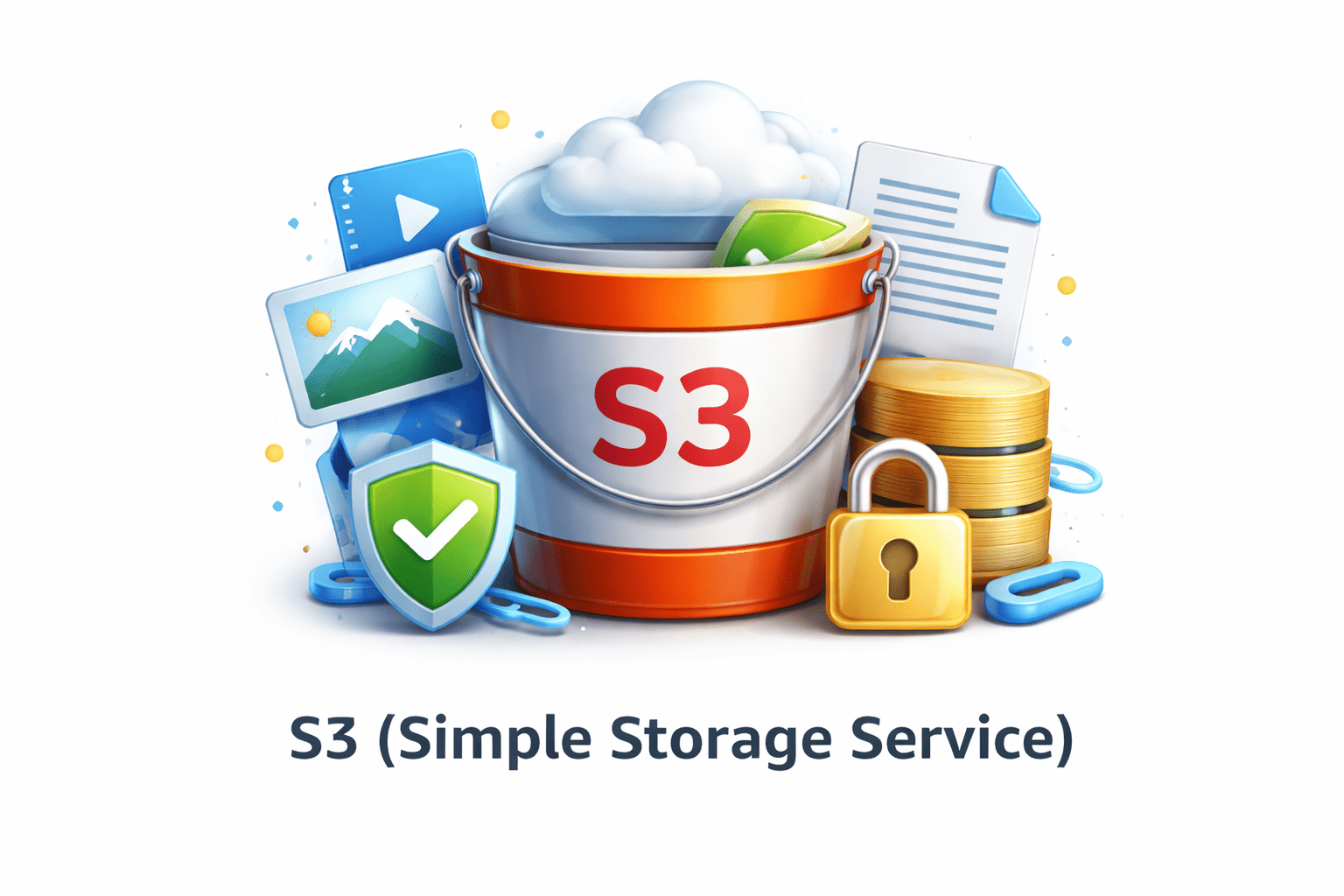
What is S3?
S3 (Simple Storage Service)
is an object storage service used to store files and data
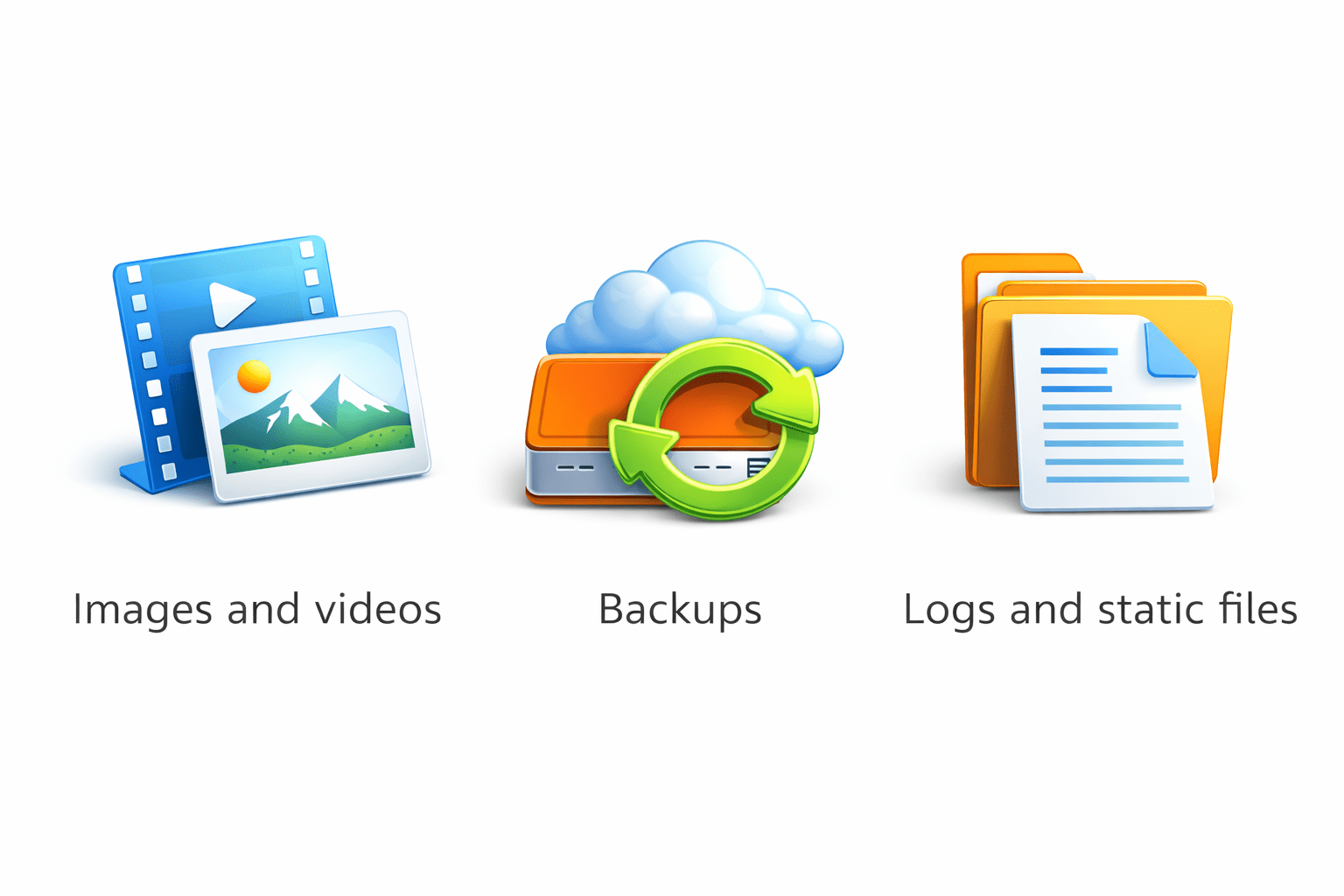
Images and videos
It is commonly used for
Logs and static files
Backups
Why S3 is Important
Highly durable and reliable
Amazon S3 provides secure, scalable cloud storage for any type of data
Stores large amounts of data
Easy access from anywhere
Amazon S3 Durability & Availability
Durability (11 9’s)
Amazon S3 provides 99.999999999% durability
This means data is extremely safe and designed to never be lost
S3 automatically stores data across multiple devices and locations
Availability (4 9’s)
Amazon S3 provides 99.99% availability
S3 is designed for high uptime and reliable access
This means data is almost always accessible when needed
What is Object Storage?
Object storage stores data as objects, not files or blocks
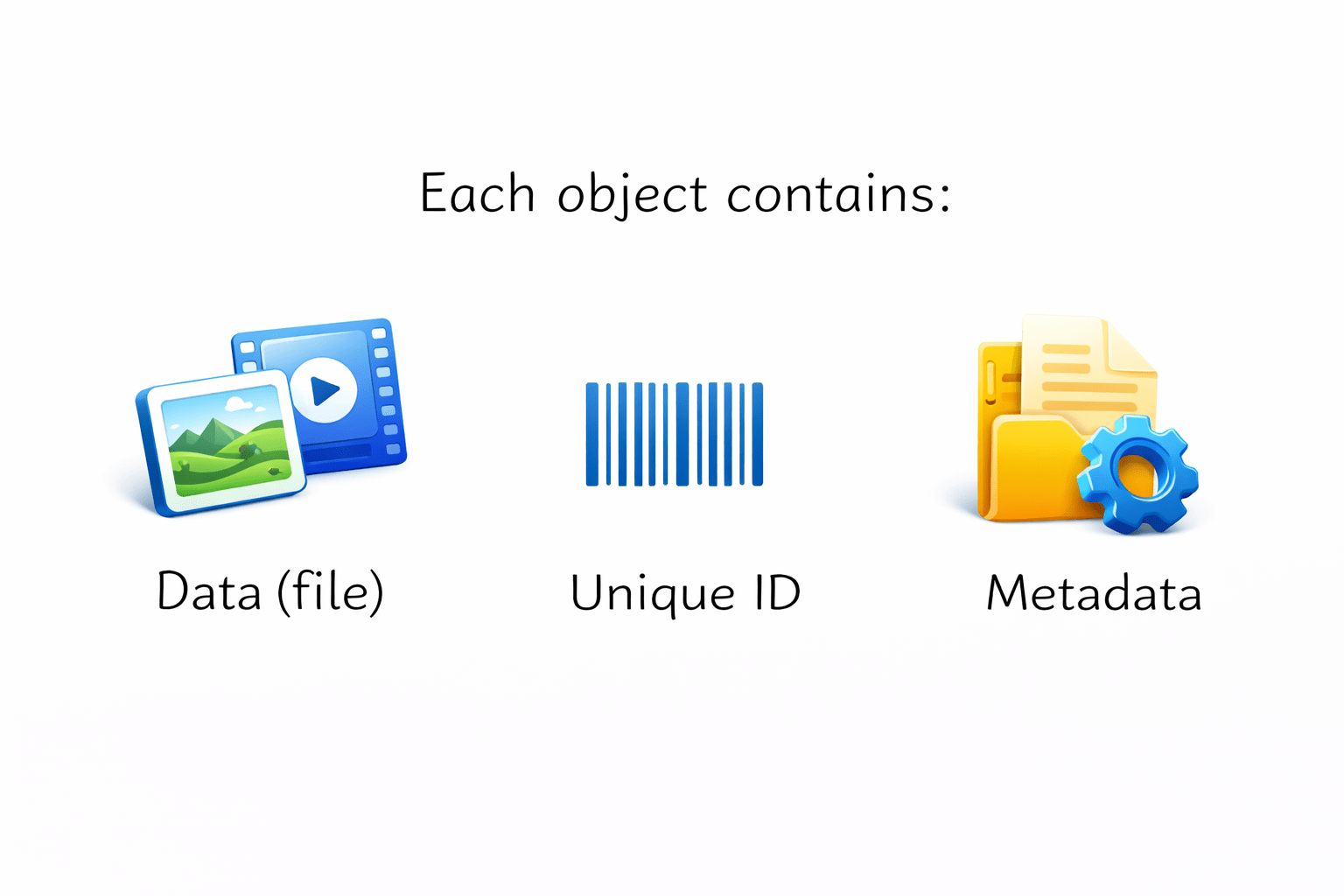
Unique ID
S3 is an object storage service, best for unstructured data
Each object contains
Data (file)
Metadata
Buckets & Objects
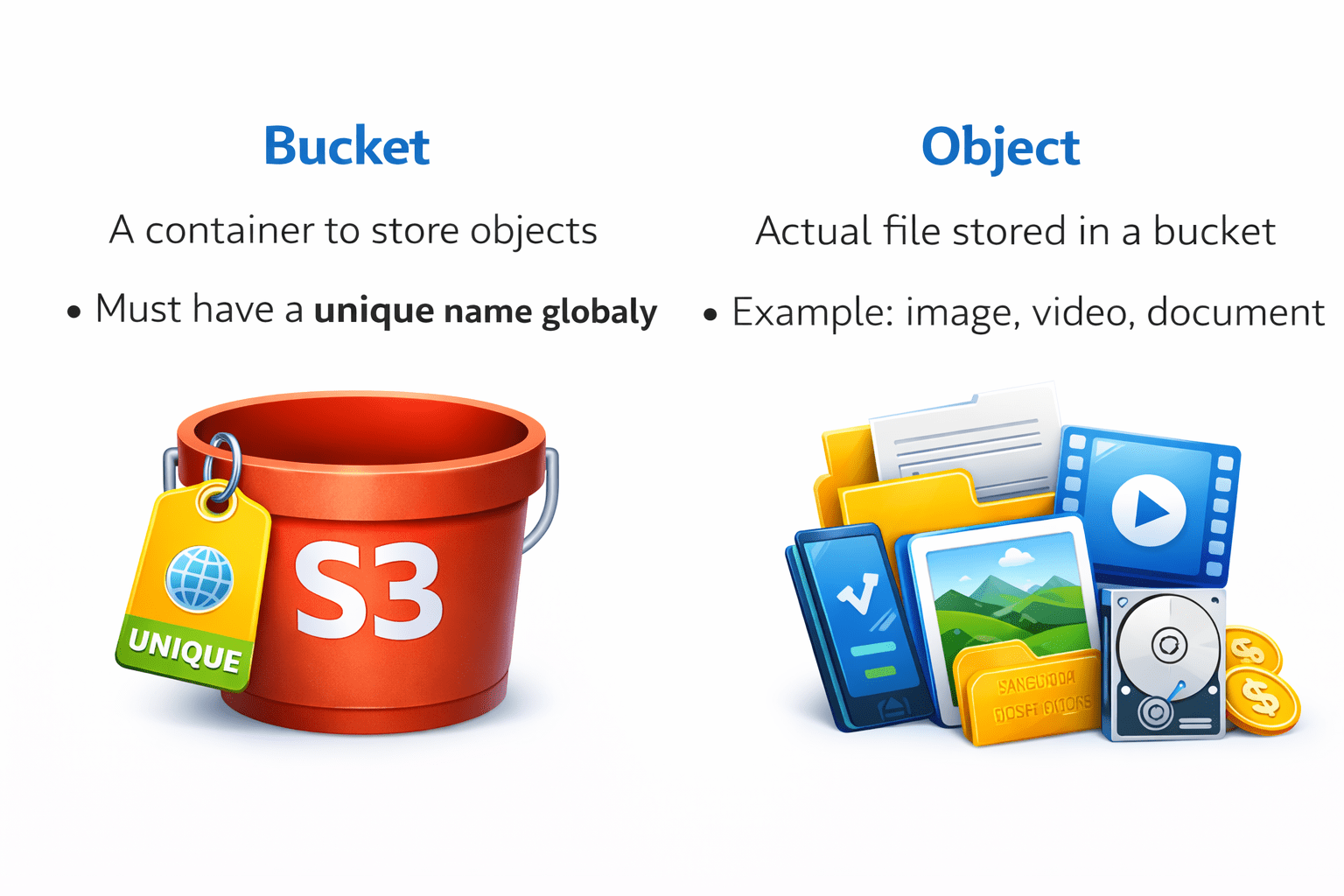
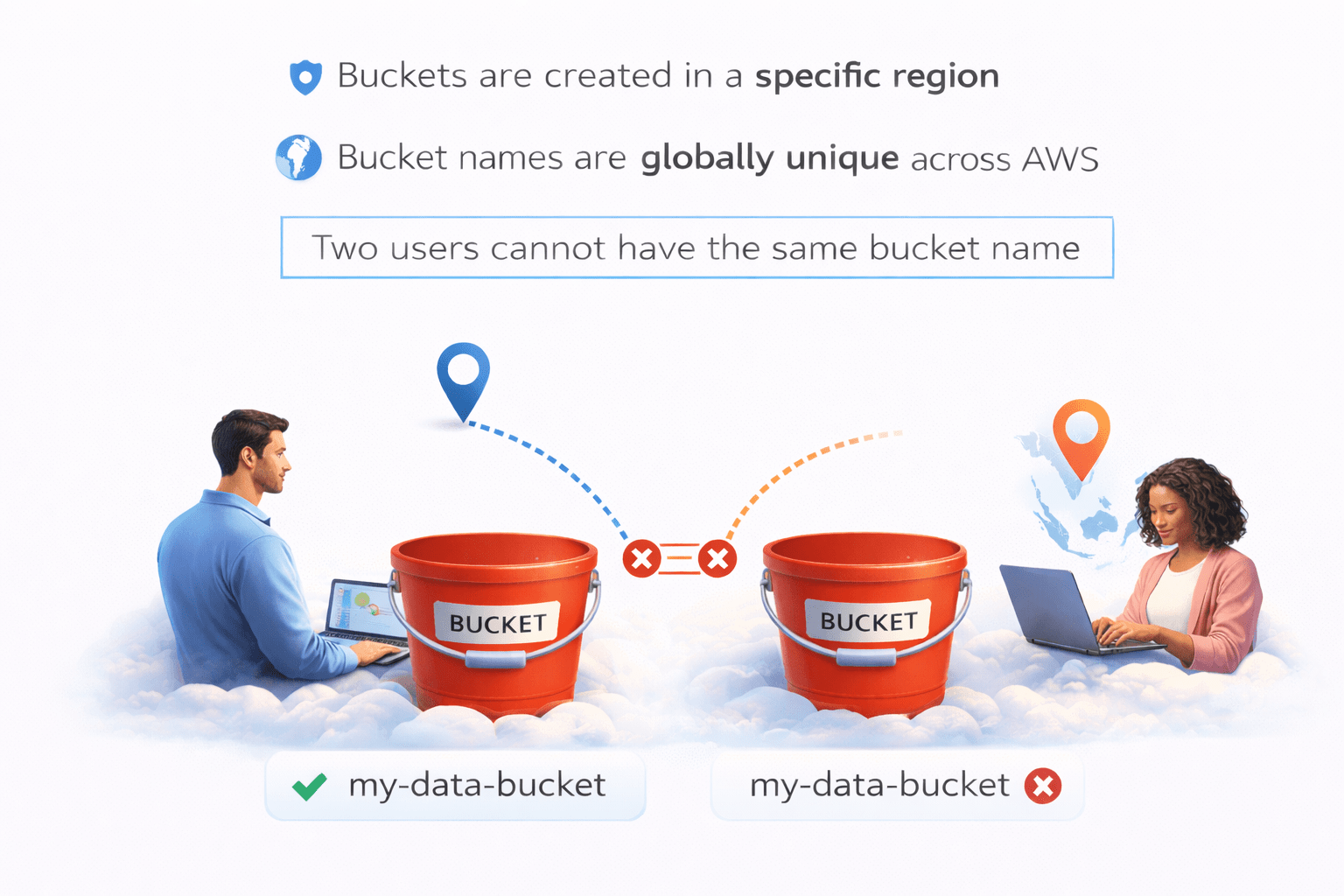
A container to store objects
Must have a unique name globall
Example: image, video, document
Bucket
Object
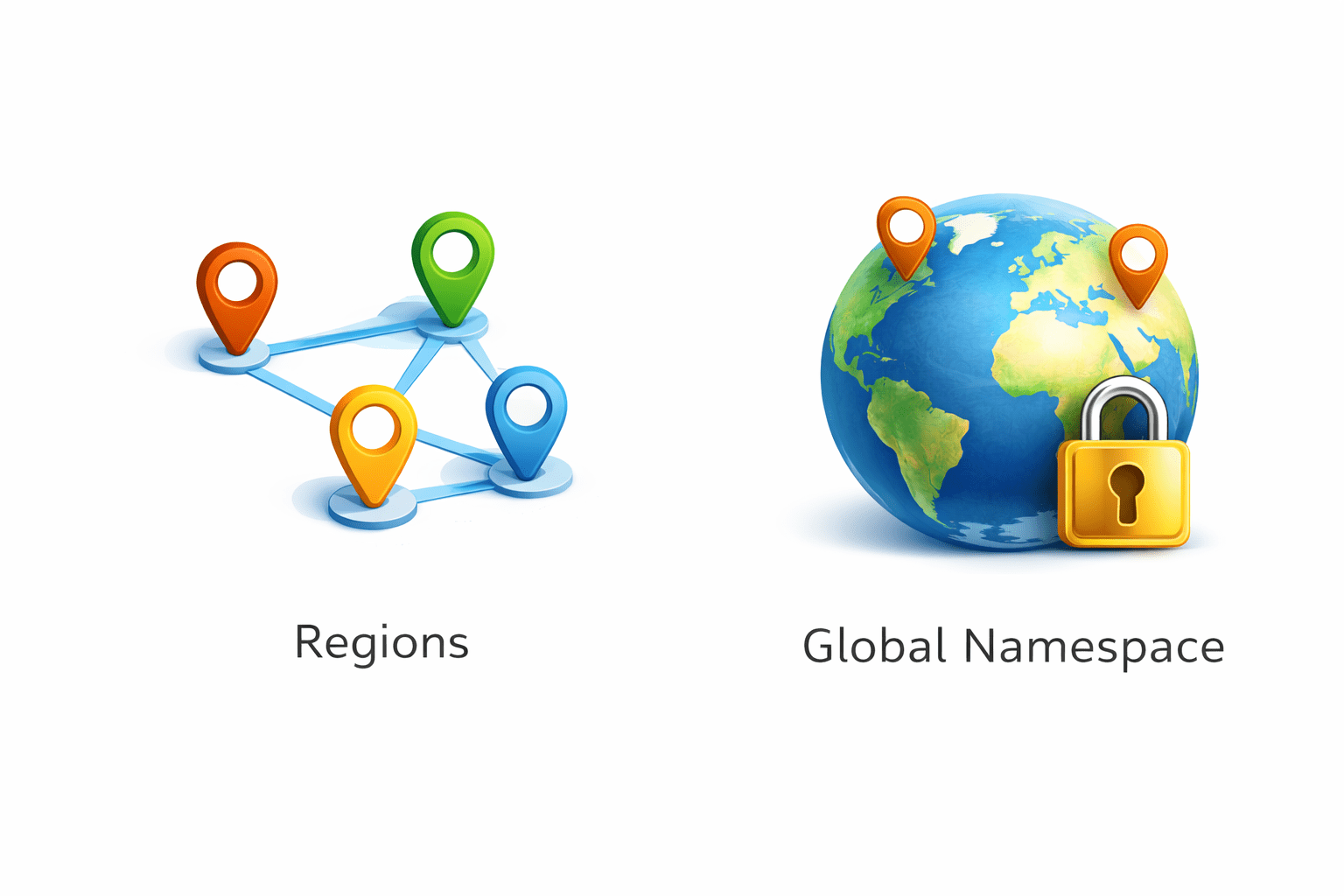
Buckets are created in a specific region
Two users cannot have the same bucket name
Bucket names are globally unique across AWS
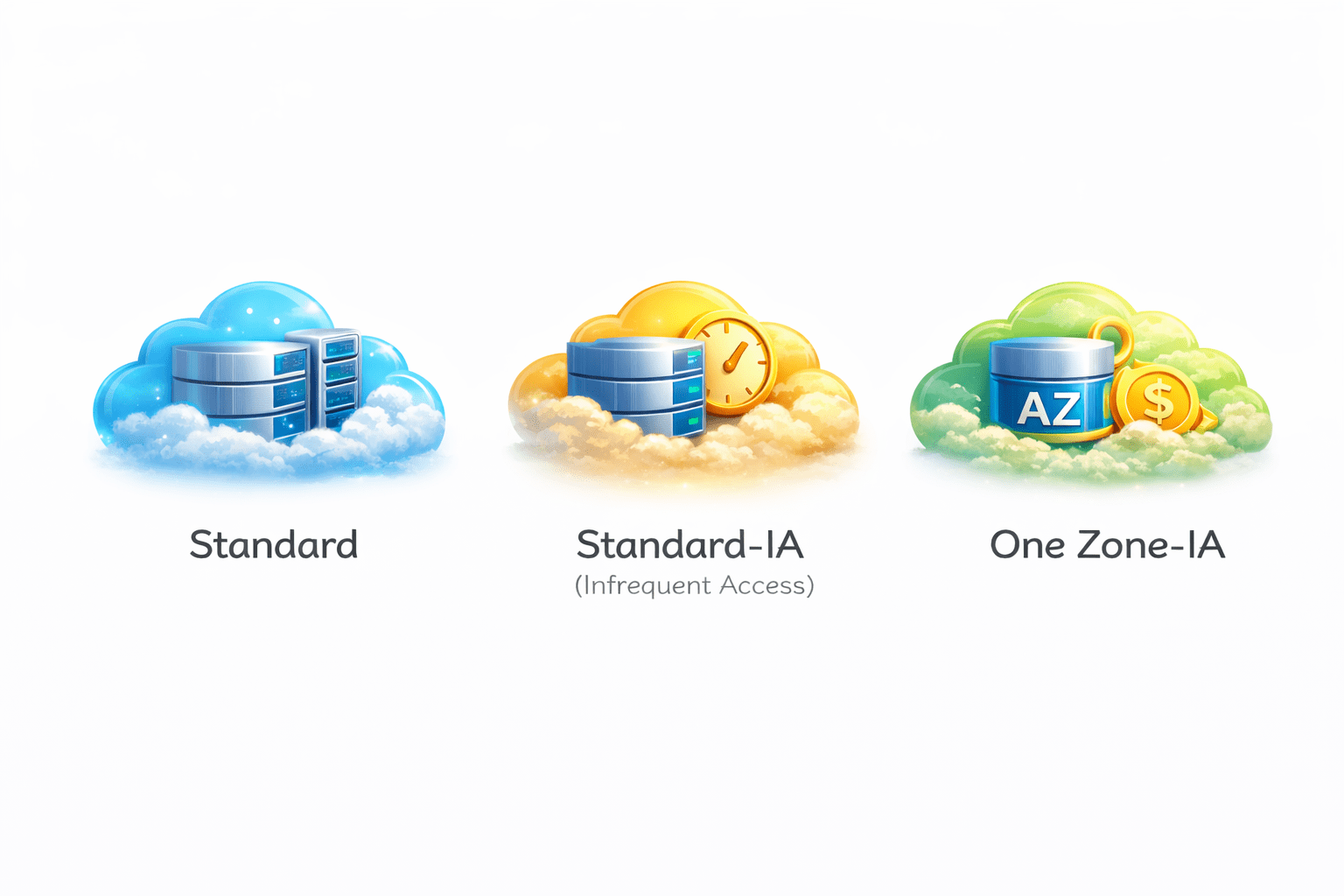
Amazon S3 Storage Classes
Lower cost than Standard
One Zone-IA
Stored in one Availability Zone (low cost)
Standard
Standard-IA (Infrequent Access)
Less frequently accessed data
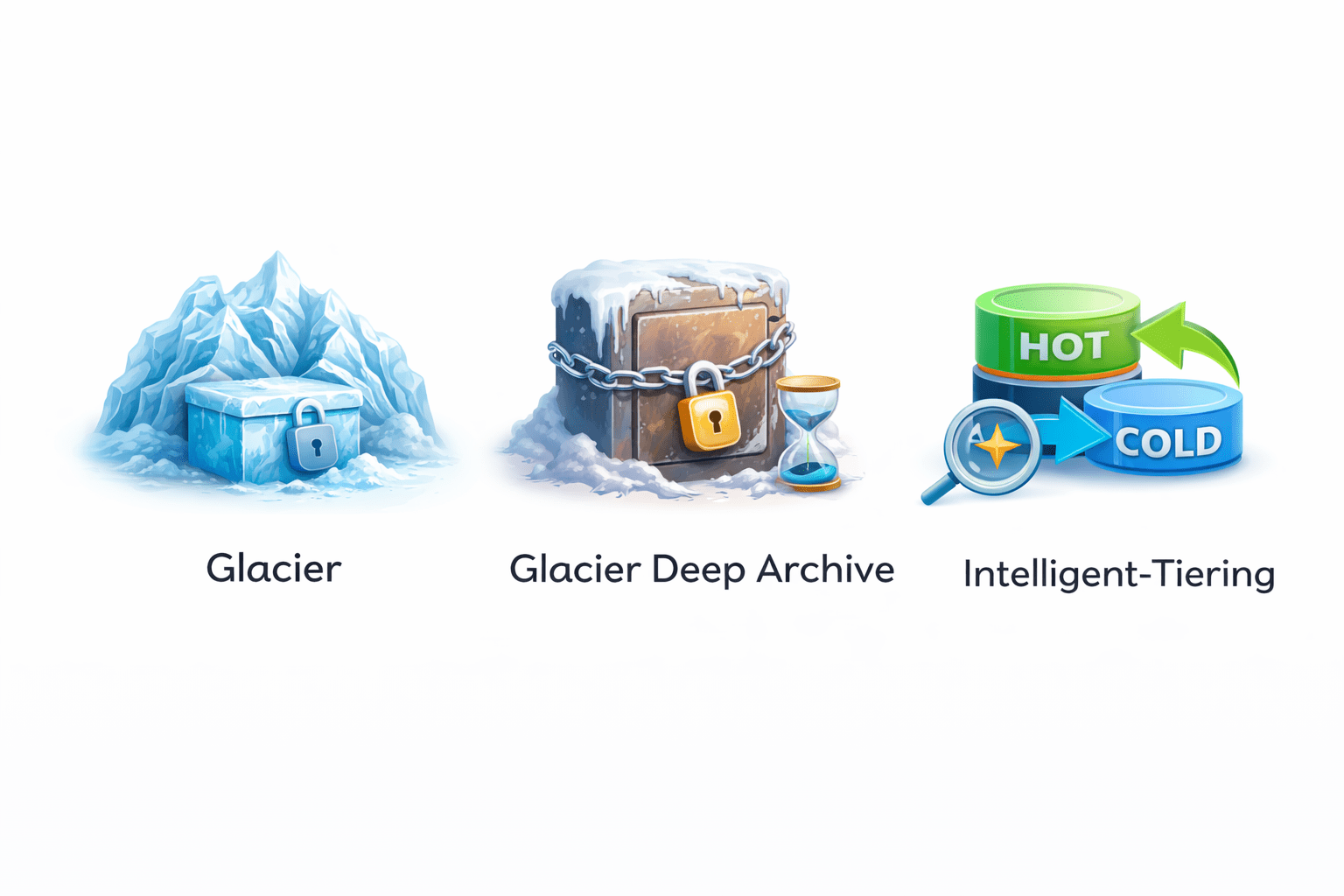
Amazon S3 Storage Classes
Intelligent-Tiering
Glacier
Glacier Deep Archive
Very low cost
Used for very long-term data retention
Based on access patterns
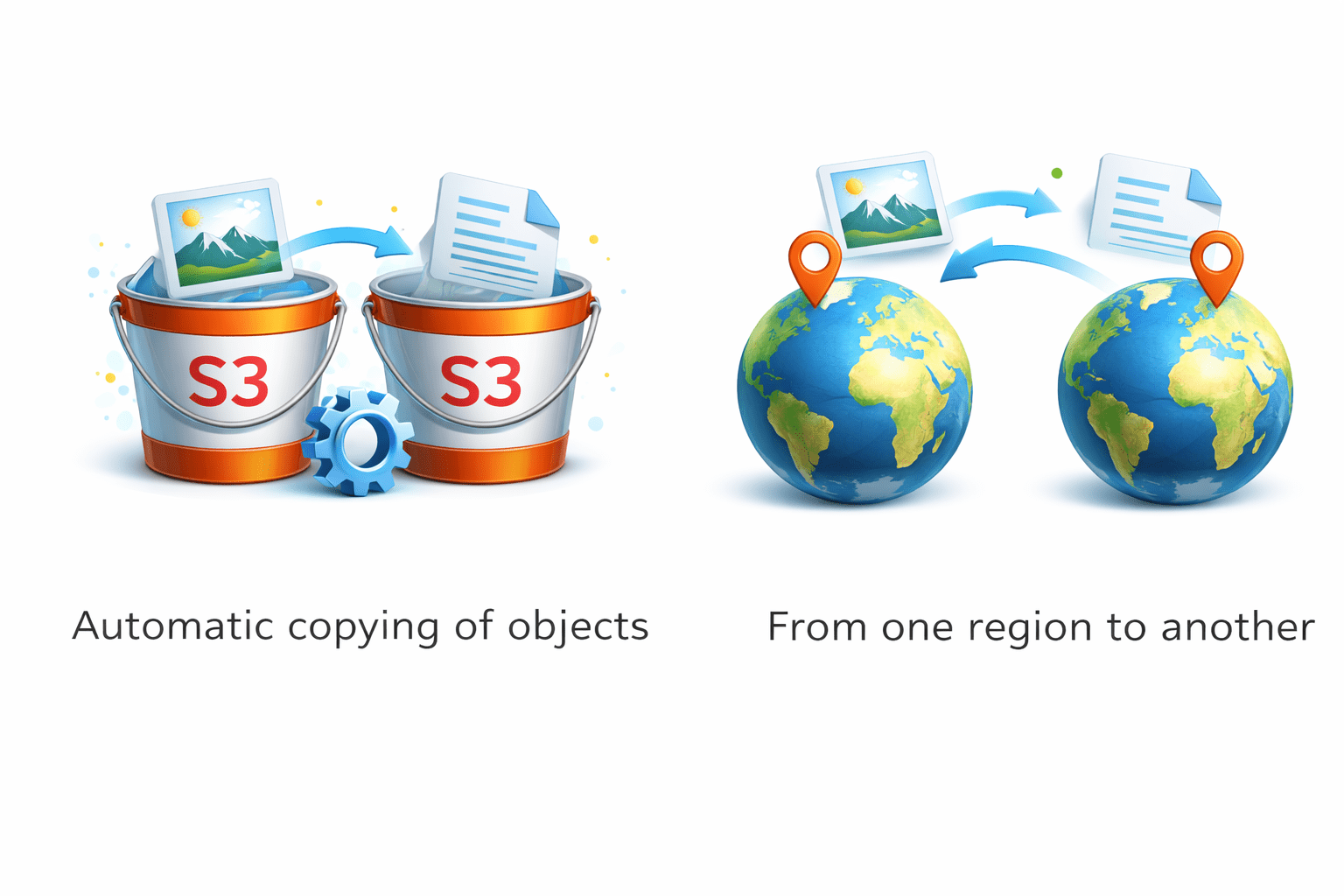
Cross-Region Replication (CRR)
CRR allows:
Used for:
From one region to another
Automatic copying of objects
Disaster recovery
Compliance
Low-latency access
Security & Access in S3
Public access must be handled carefully
Bucket Policies
Example: read-only or full access
IAM Policies for S3
Public vs Private Buckets
Private
Public
Secure, restricted
Accessible over internet
Security & Access in S3
Block Public Access
Pre-Signed URLs
Hands-On: Amazon S3 Practical
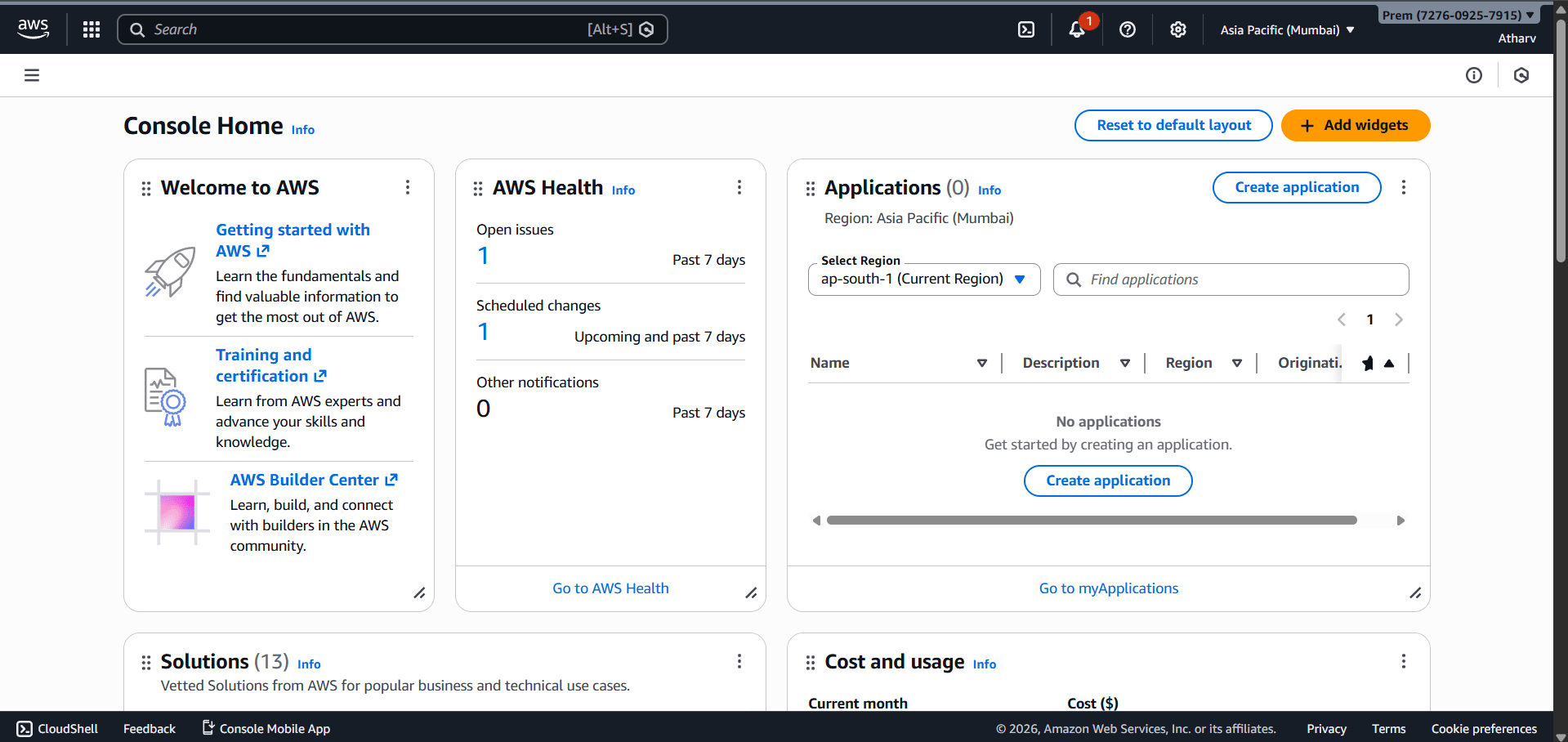
Login to AWS Management Console
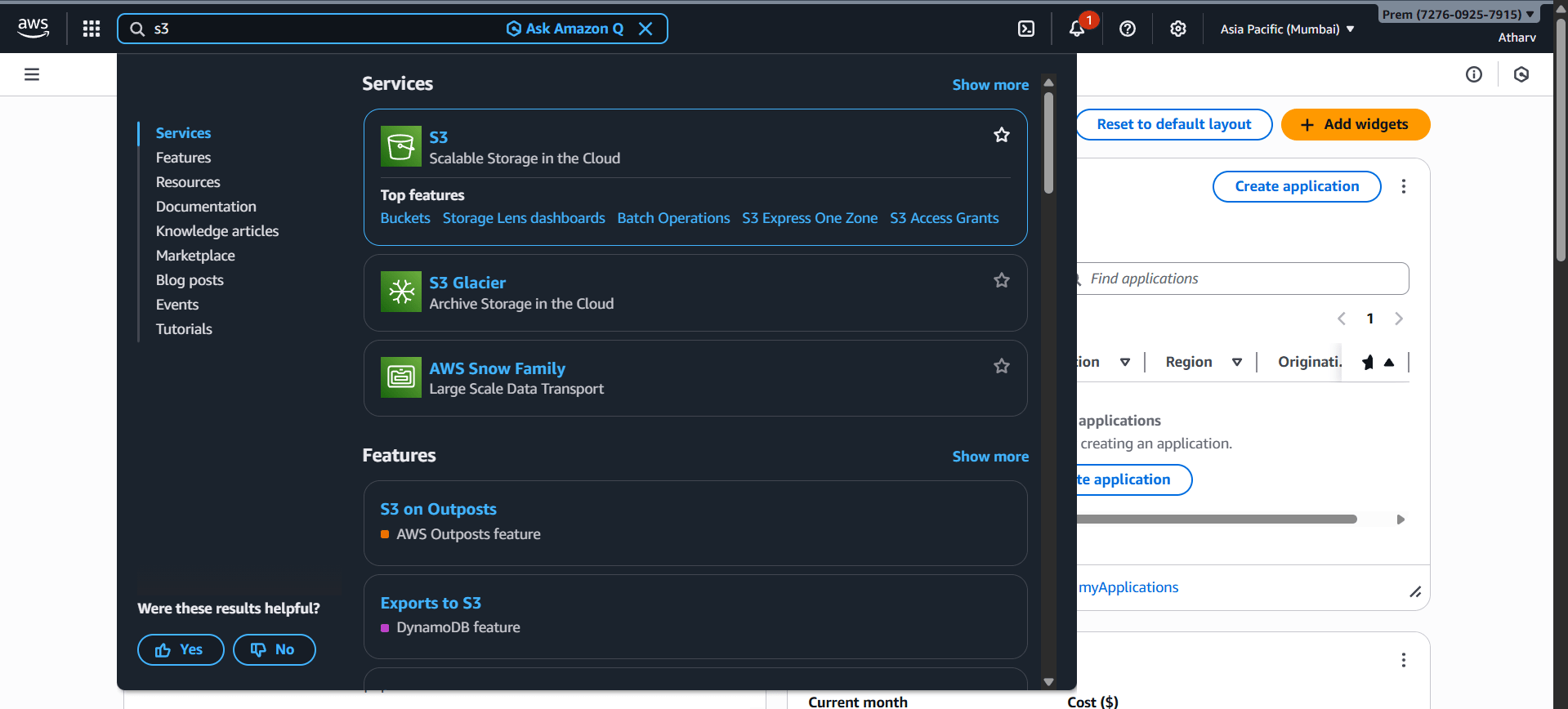
Search for S3
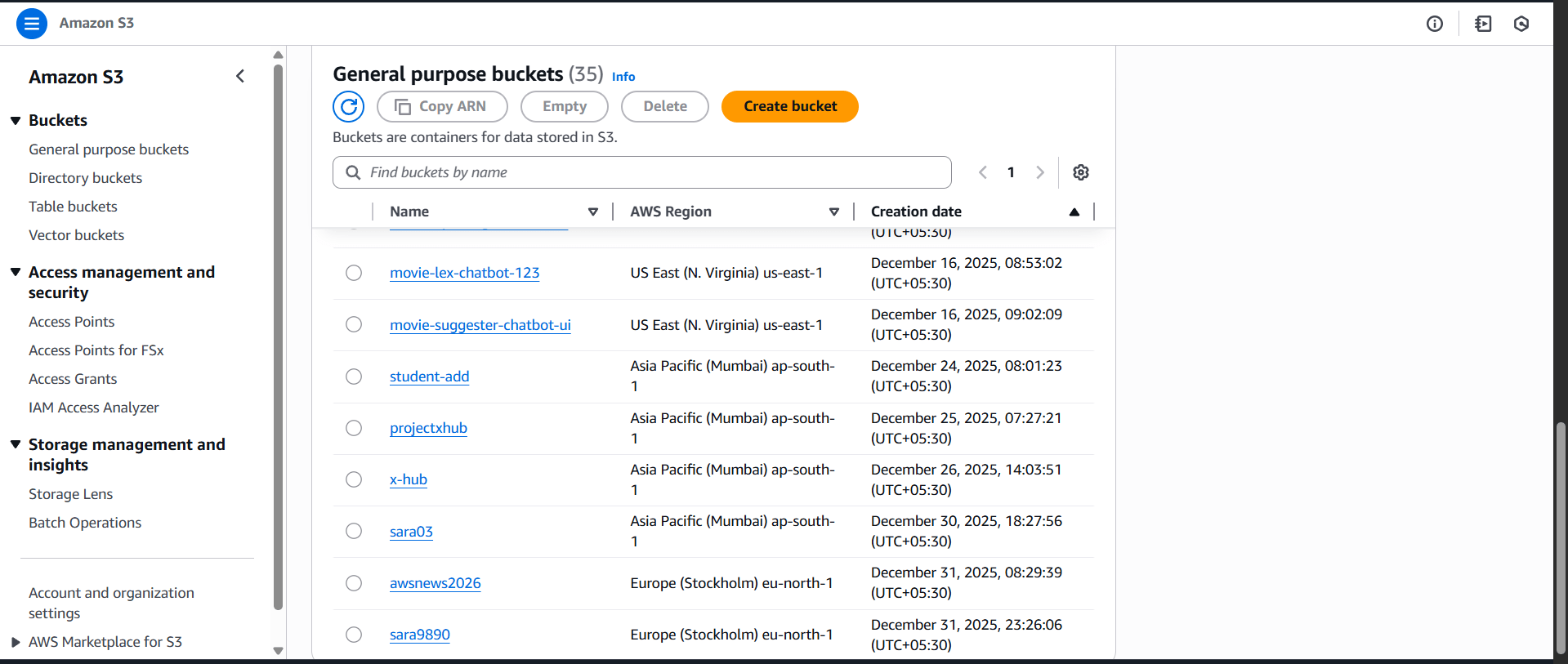
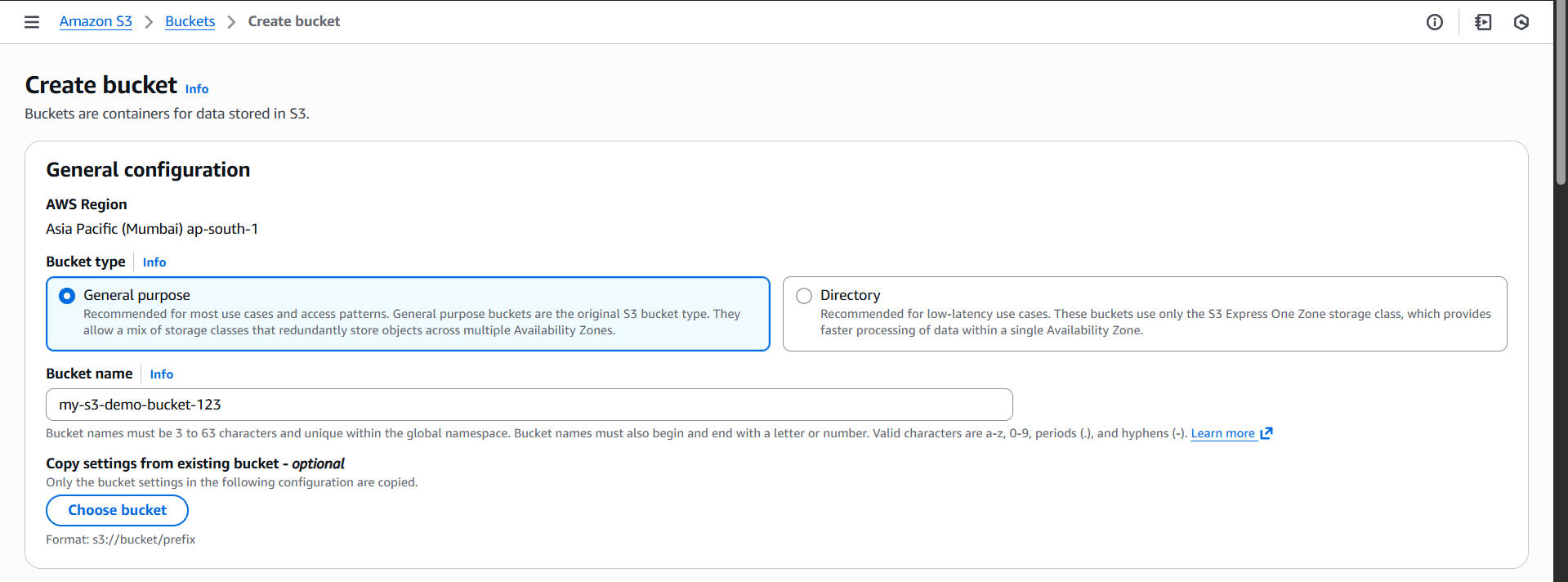
Click Create bucket
Fill details:
Bucket name: my-s3-demo-bucket-123 (must be globally unique)
Region: Choose nearest region (e.g., Mumbai)
Object Ownership: Keep default
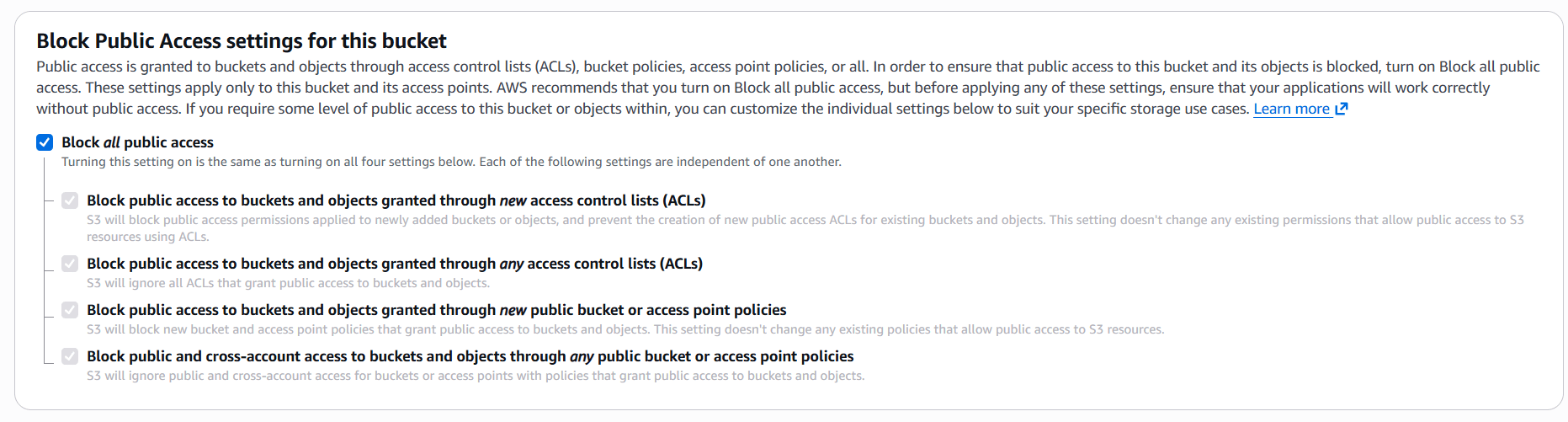
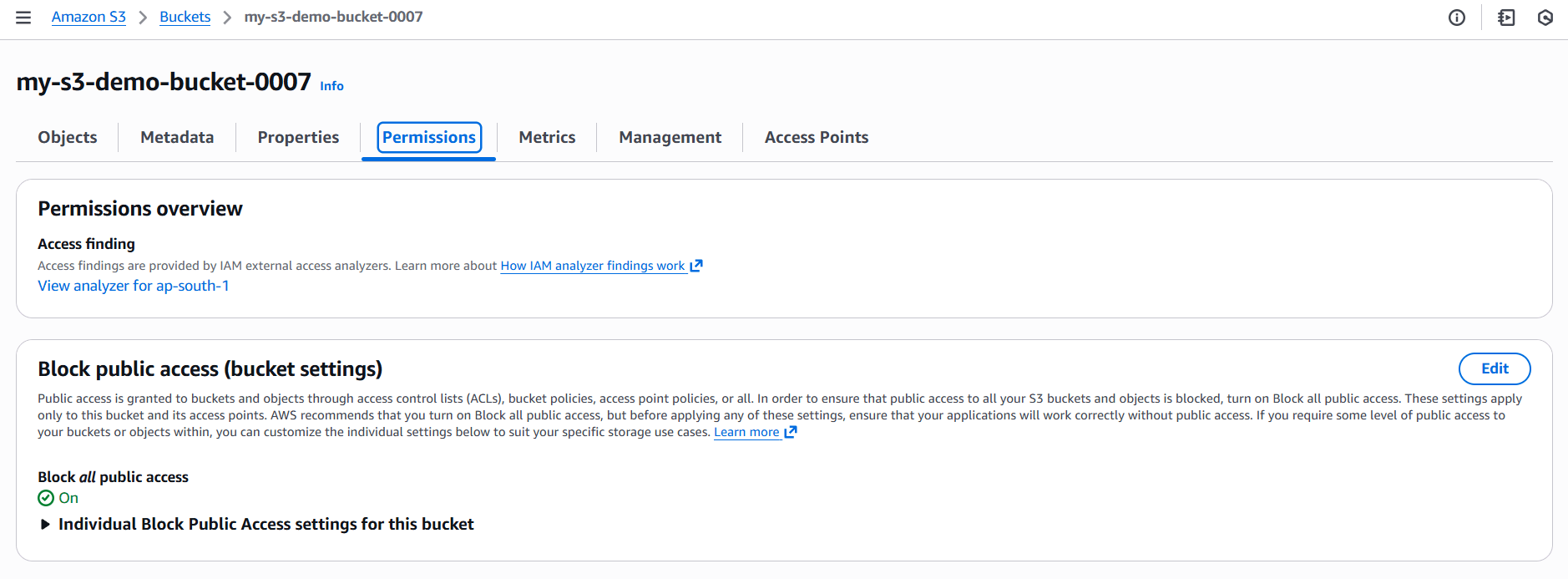
Block Public Access: Keep ON (recommended)
Click Create bucket
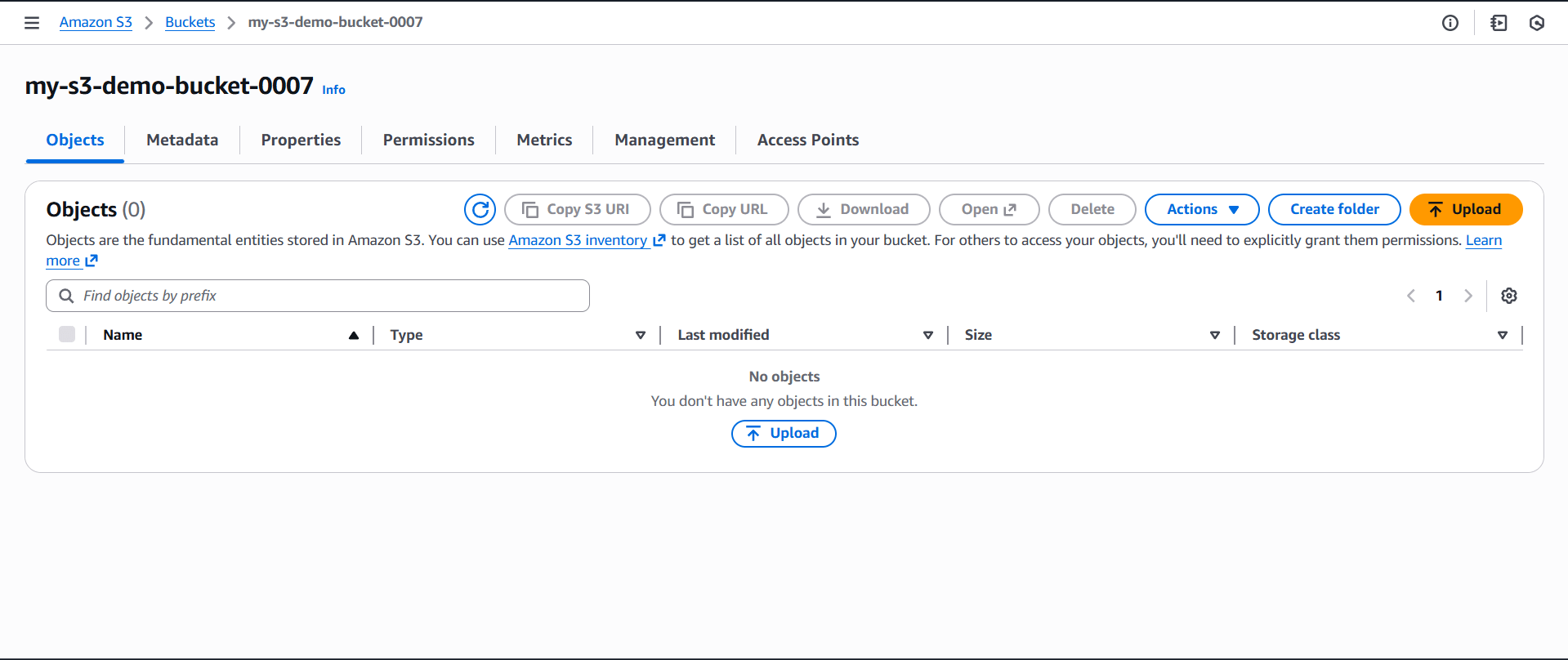
Bucket is now created.
Hands-On: Amazon S3 Practical
Hands-On: Amazon S3 Practical
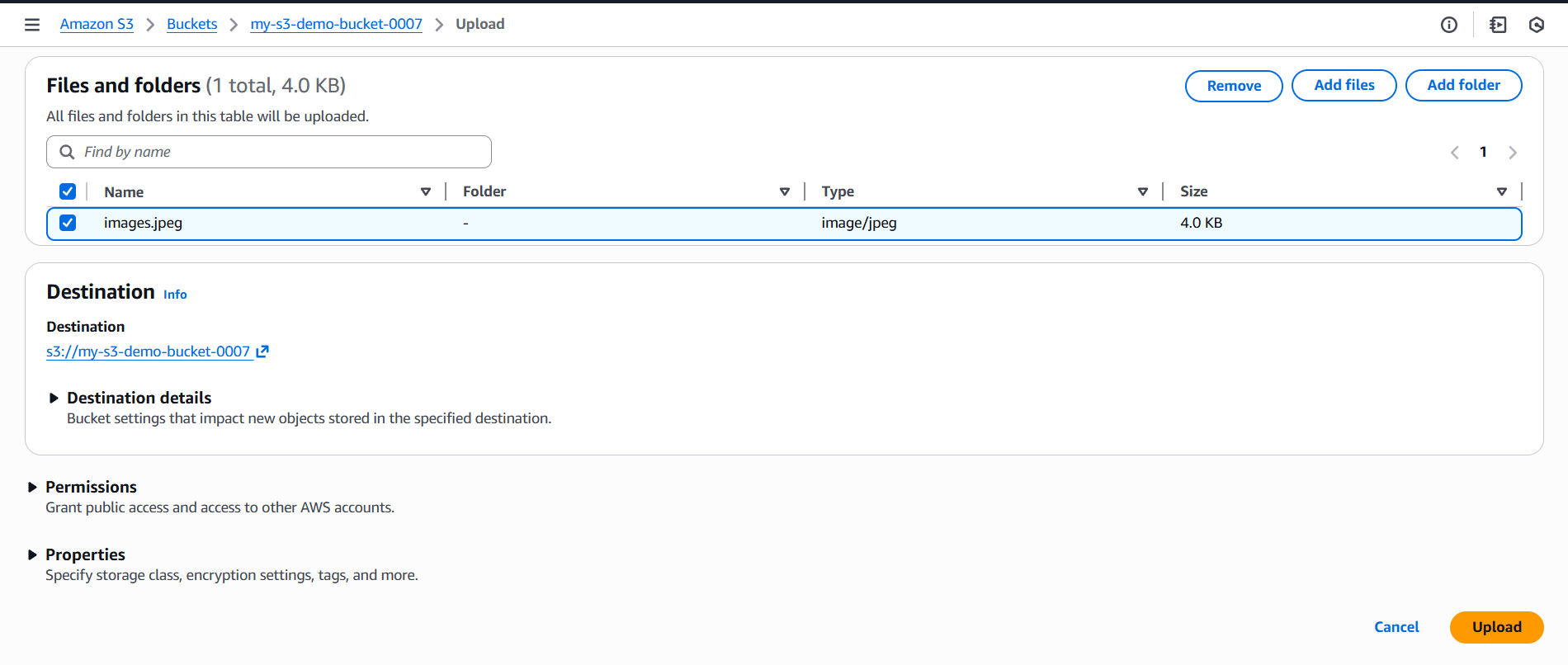
Open the created bucket
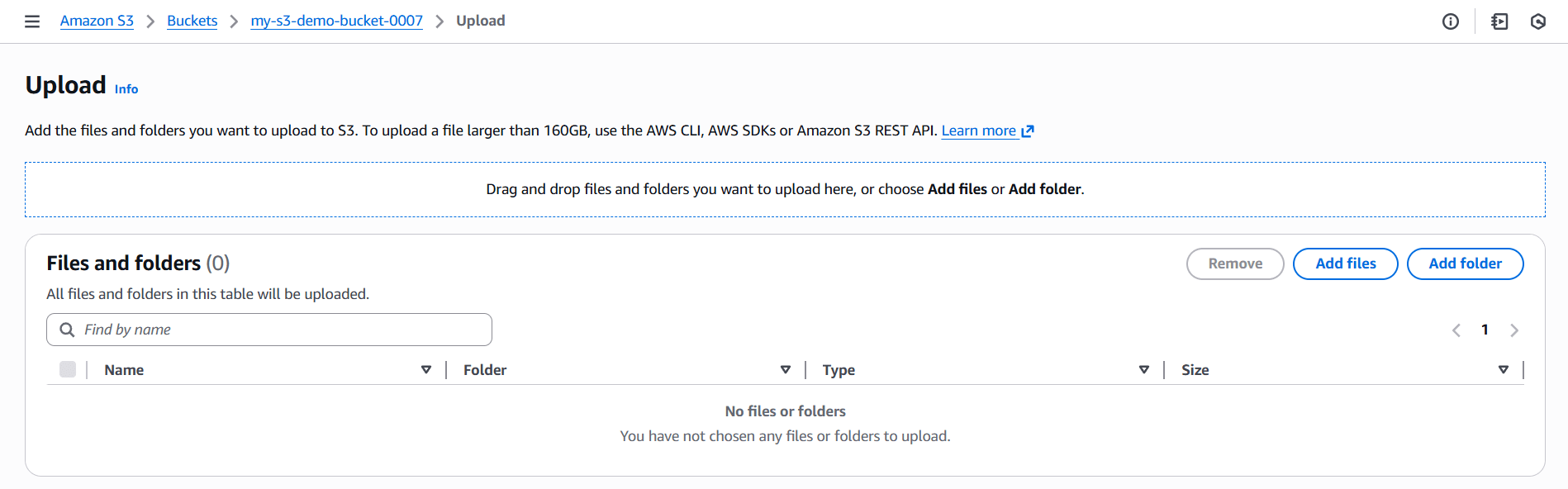
Click Upload
Click Add files
Select any file (image / text / pdf)
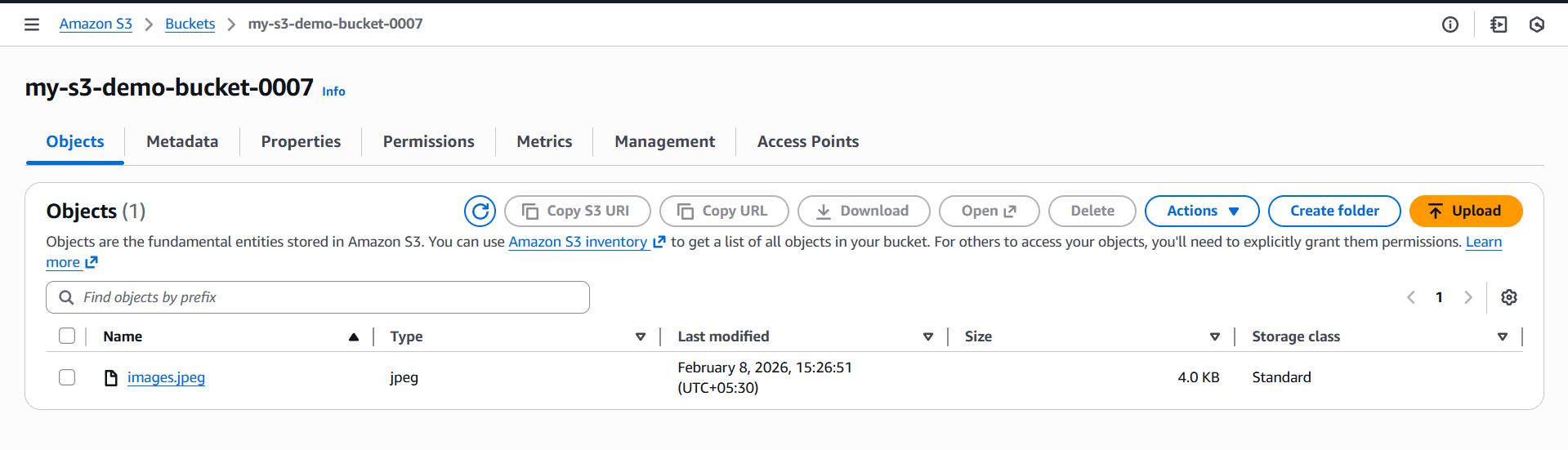
Click Upload
File is now stored as an object in S3.
Hands-On: Amazon S3 Practical
Hands-On: Amazon S3 Practical
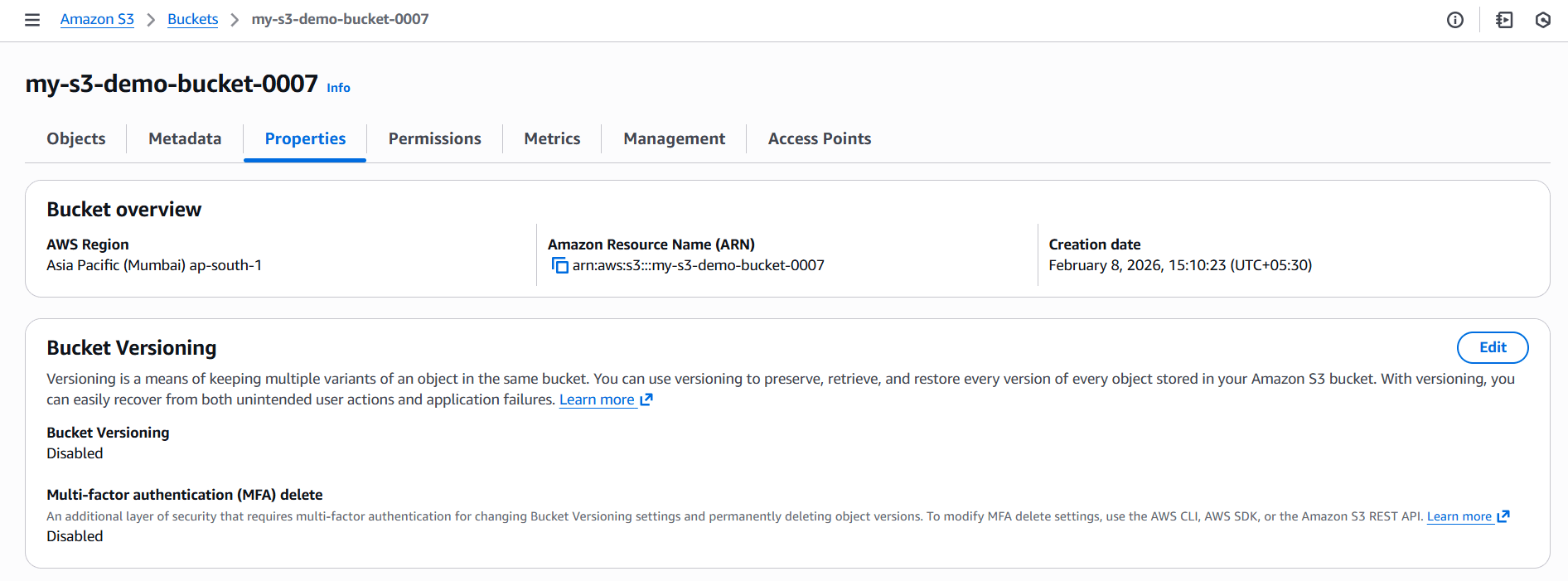
Step 3: Enable Versioning
Versioning helps keep multiple versions of the same file.
Open the bucket
Go to Properties
Find Bucket Versioning
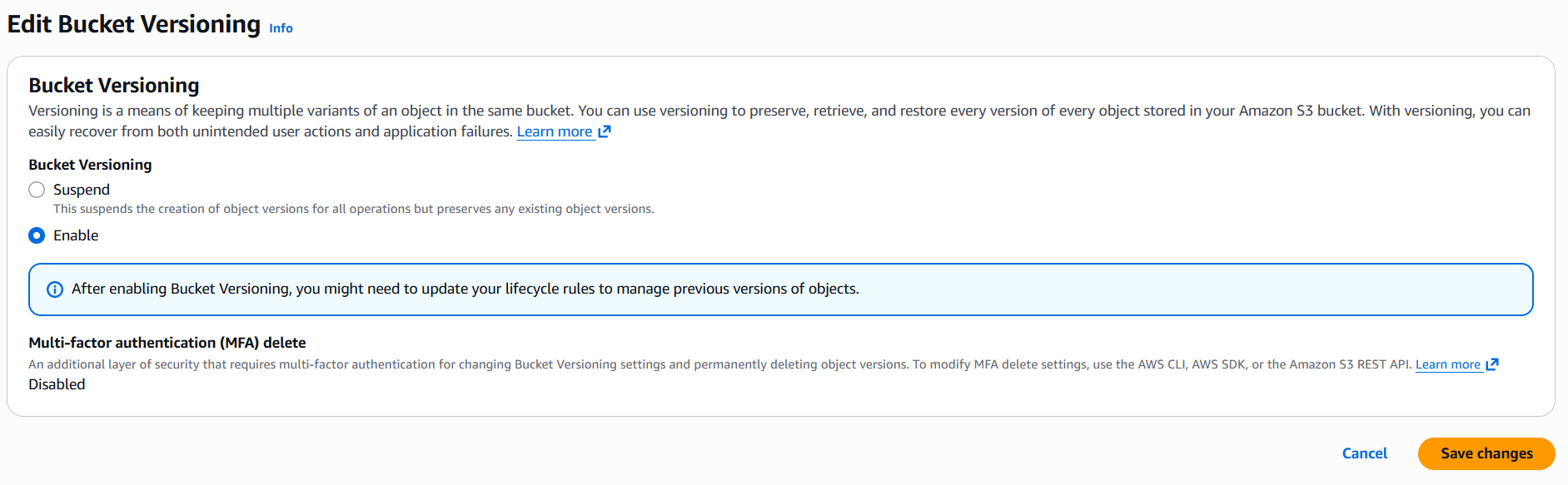
Click Edit
Enable Versioning
Save changes
Now, every file update creates a new version
Hands-On: Amazon S3 Practical
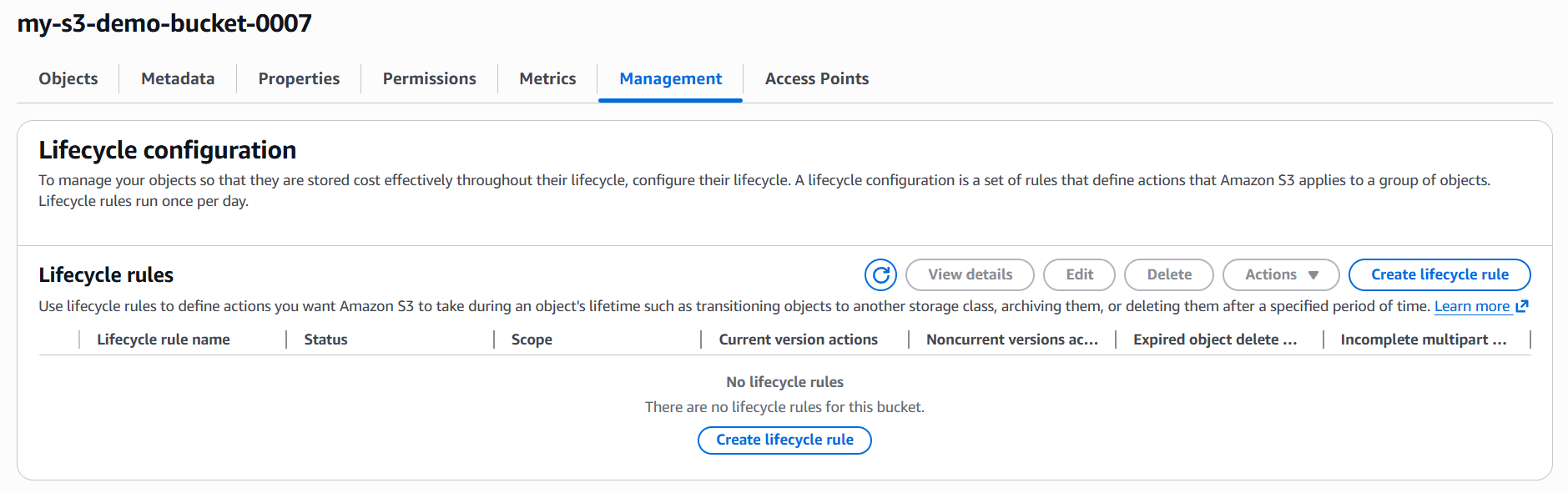
Lifecycle rules help reduce storage cost automatically.
Go to Management tab
Click Create lifecycle rule
Rule name: move-to-glacier
4Choose Apply to all objects
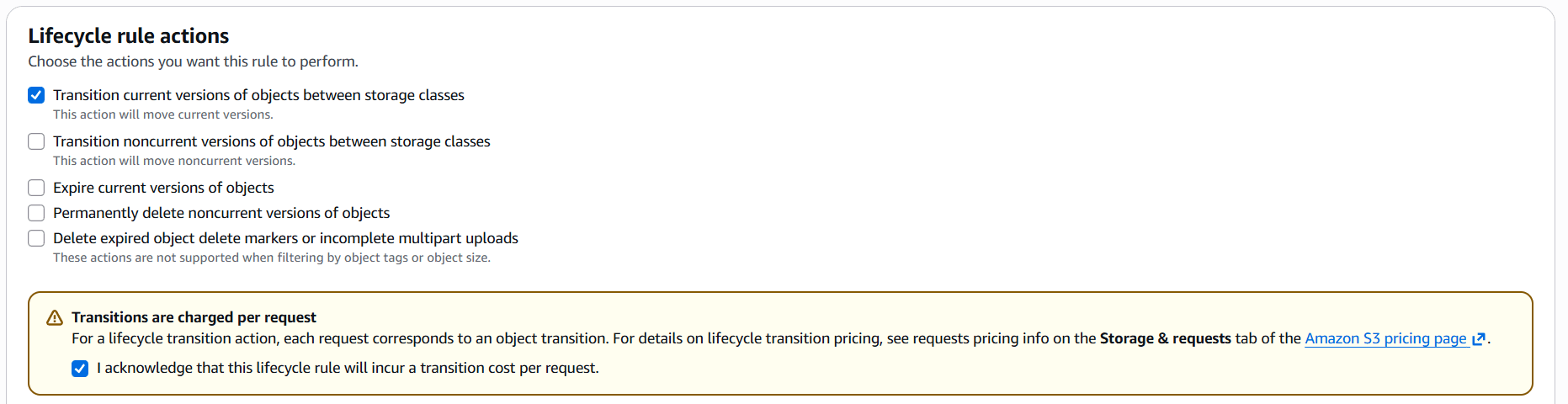
Transition current versions of objects between storage classes click on this
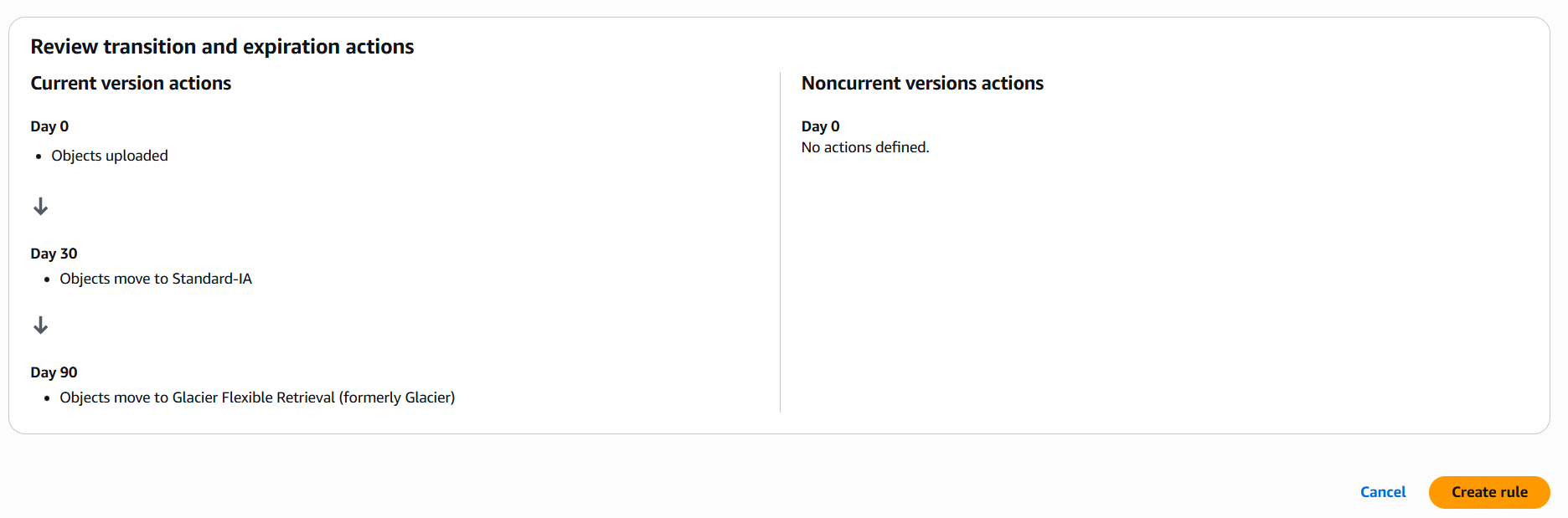
Add transition:
Move objects to Standard-IA after 30 days
Move objects to Glacier after 90 days
Save rule
S3 will automatically move objects based on age.
Best Practice: Do NOT make the whole bucket public.
Open the bucket
Select one object (file)
Go to Permissions
Edit Object ACL
Allow Read access for public
Save changes
Now:
Copy Object URL
Open in browser
Only that file is public, bucket remains private.
Pre-signed URLs allow temporary access.
Use cases:
Secure downloads
Time-limited sharing
Conceptual steps:
Generate pre-signed URL
Set expiry time (e.g., 10 minutes)
After expiry, link stops working automatically.
Upload index.html file
Go to Properties
Enable Static website hosting
Select:
Hosting type: Static website
Index document: index.html
Save changes
Allow public read access for website objects
Update bucket policy accordingly
Access website using S3 website endpoint URL
What is VPC?
A Virtual Private Cloud (VPC) is an isolated network in AWS
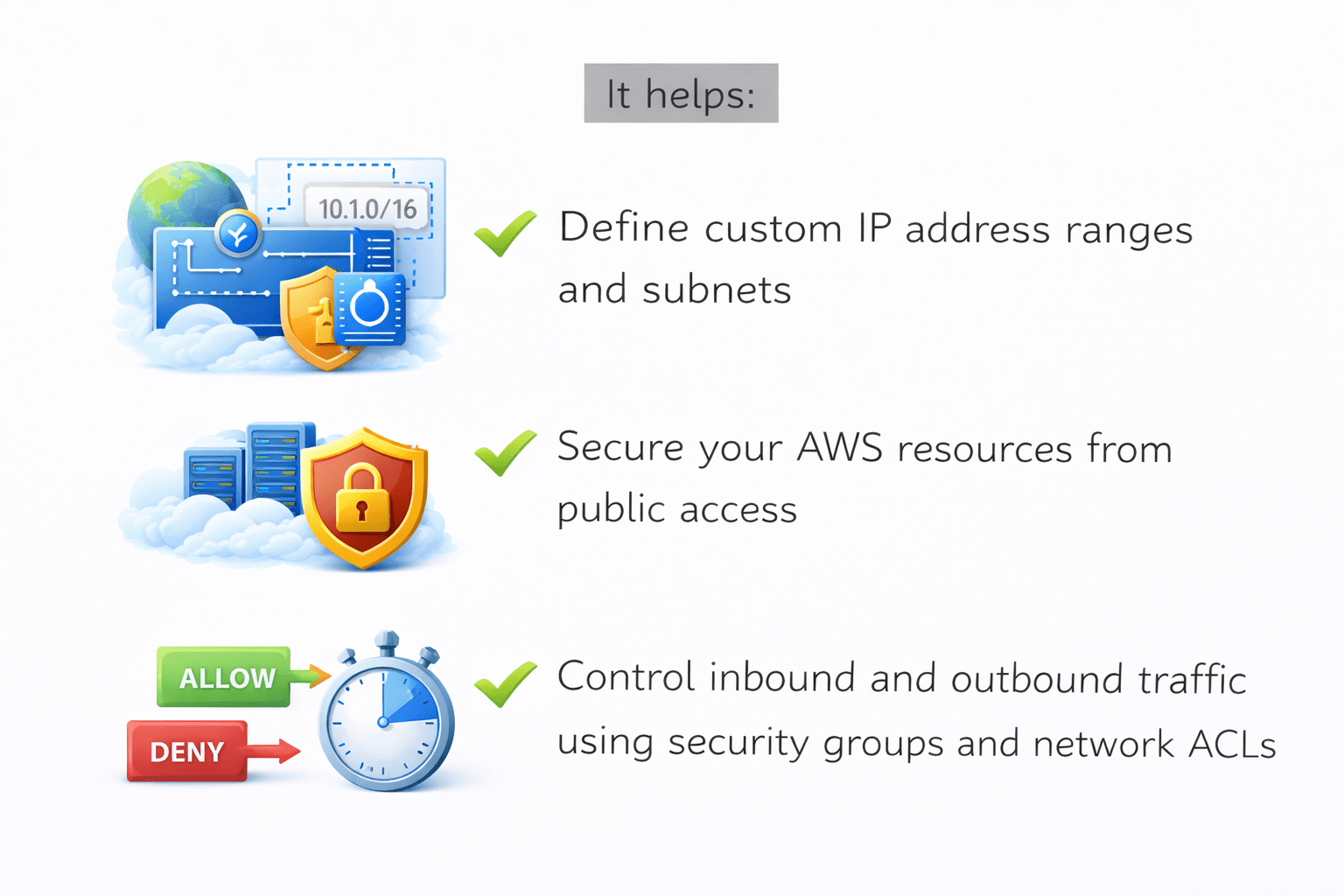
It helps:
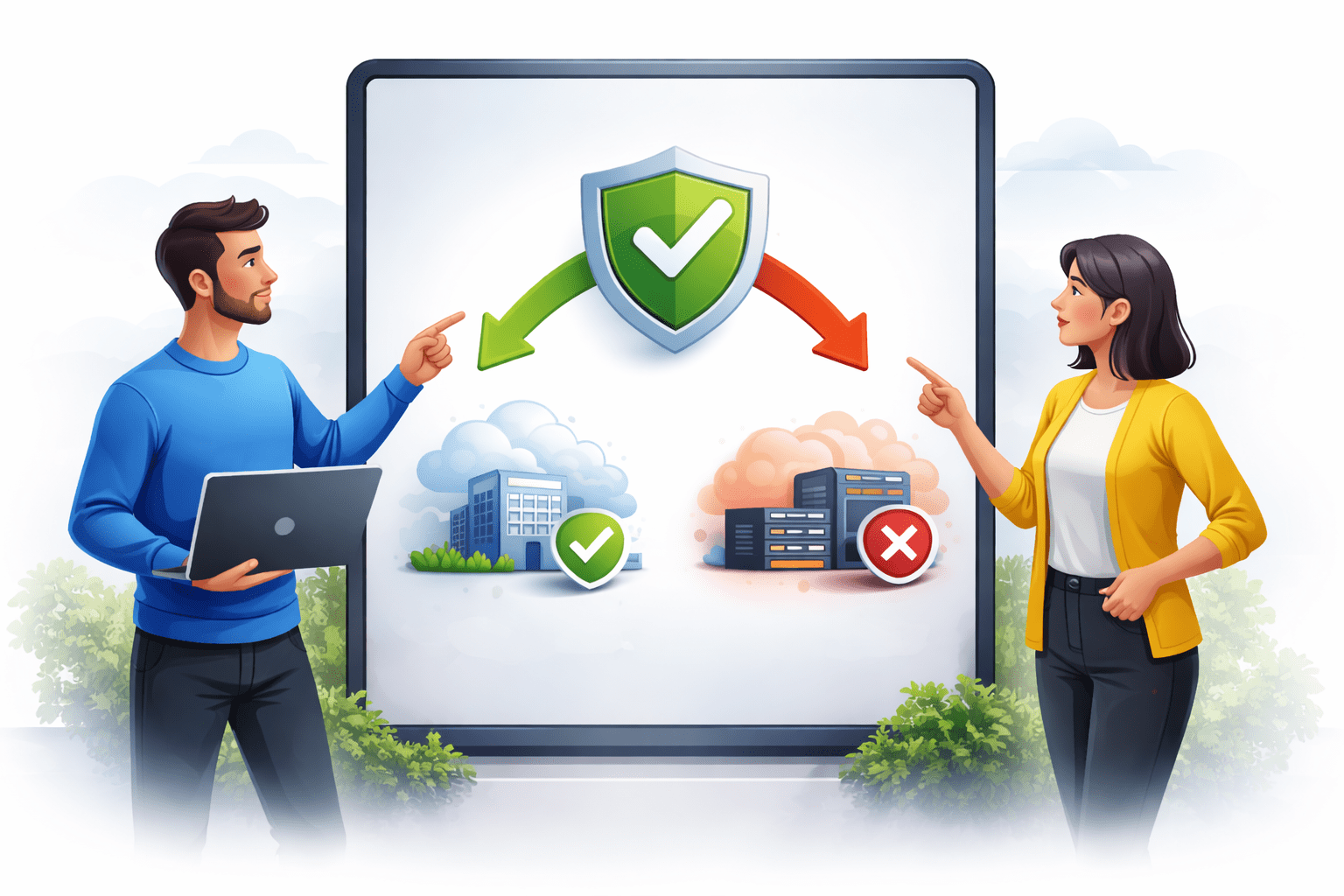
Control inbound and outbound traffic using security groups and network ACLs
Define custom IP address ranges and subnets
Secure your AWS resources from public access
Where you can deploy resources like EC2 instances, databases, and load balancers
Why VPC is Important
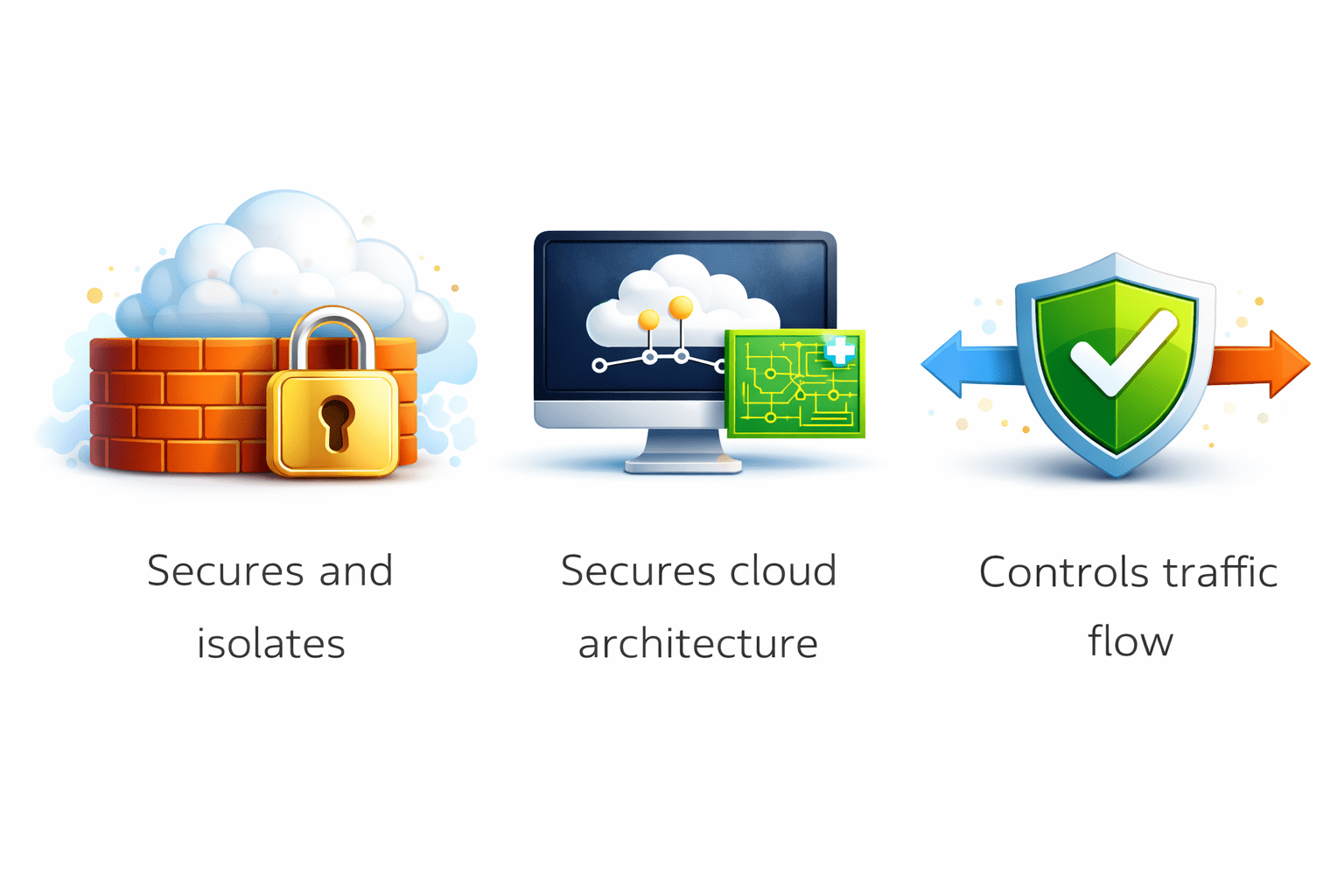
Helps design secure cloud architecture
AWS VPC provides a secure, customizable networking environment in the cloud
Keeps resources secure and isolated
Allows control over inbound and outbound traffic
CIDR Blocks
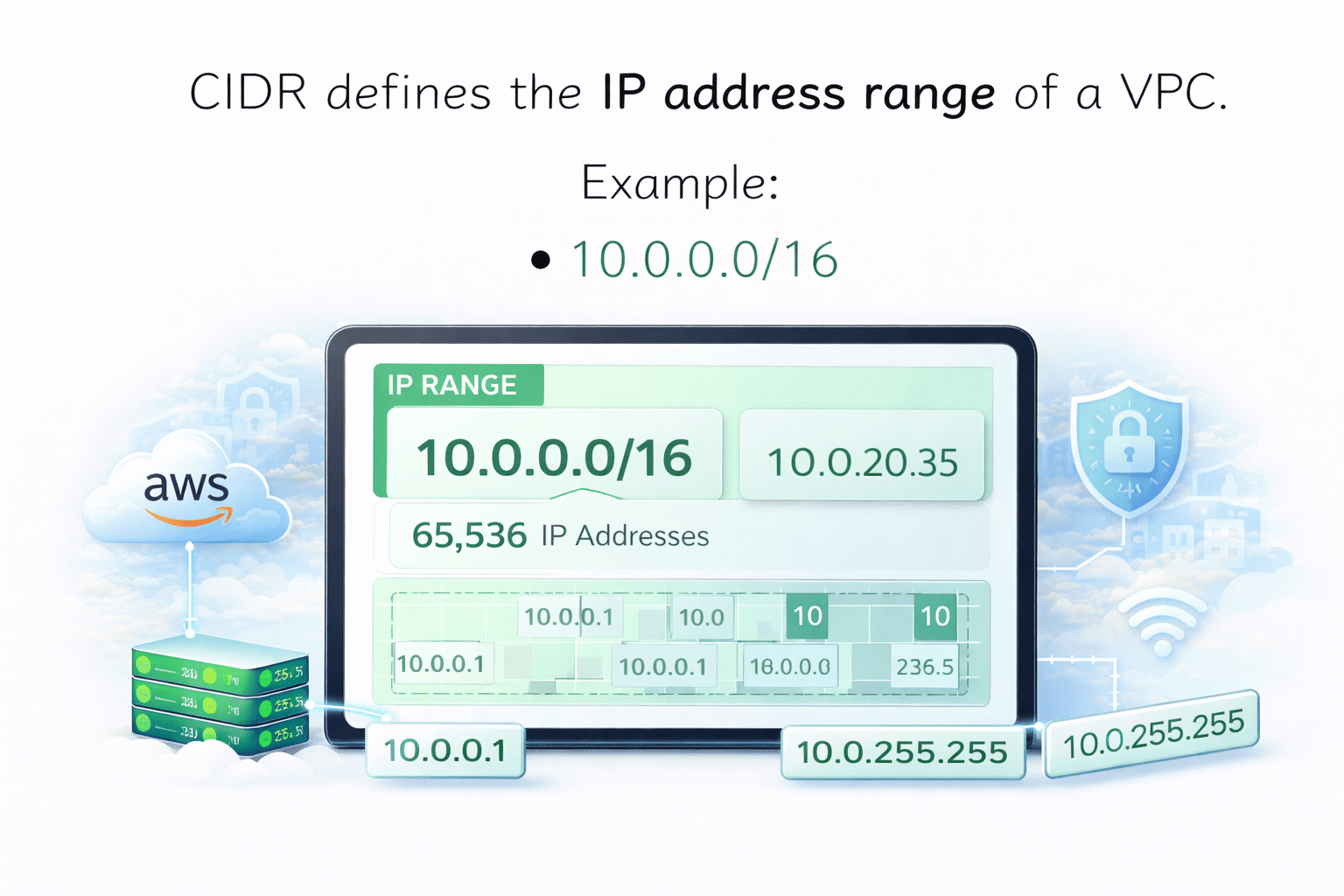
CIDR defines the IP address range of a VPC
Example:
10.0.0.0/16
CIDR helps in:
All subnets come from the VPC CIDR.
IP planning
Network isolation
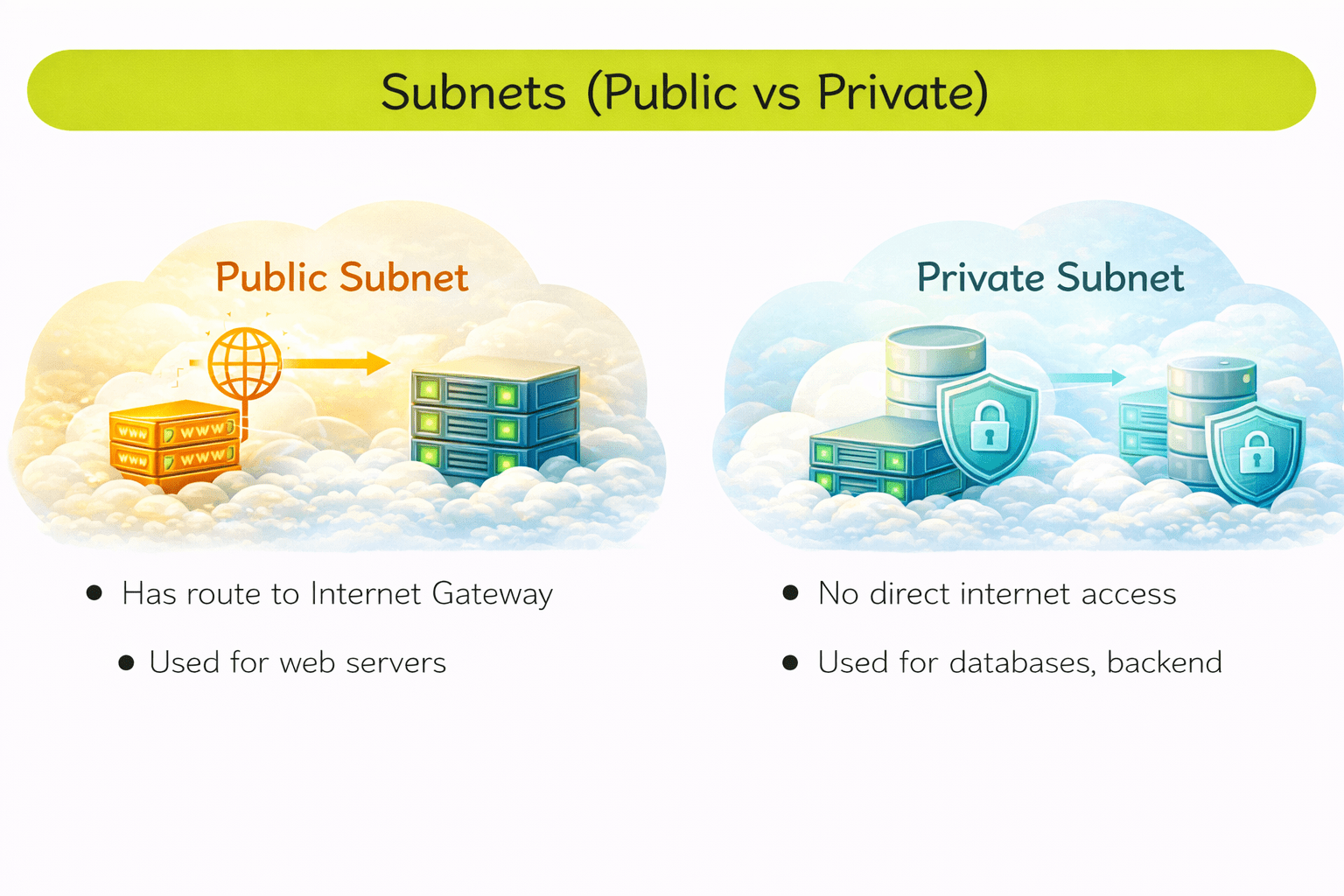
Subnets (Public vs Private)
Has route to Internet Gateway
No direct internet access
Used for web servers
Used for databases, backend
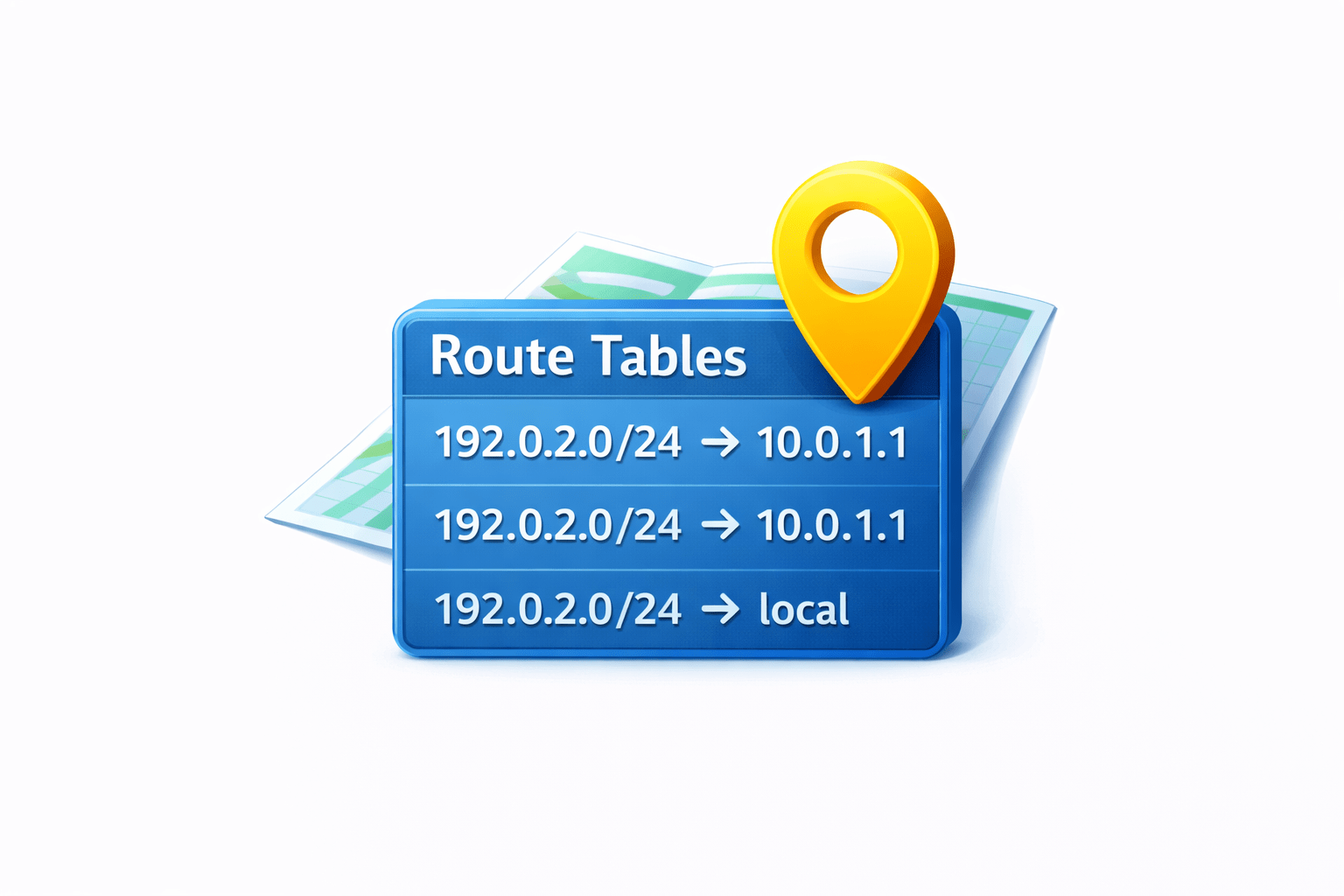
Route Tables & Connectivity
Each subnet must be associated with a route table
Route tables define:
Where network traffic should go
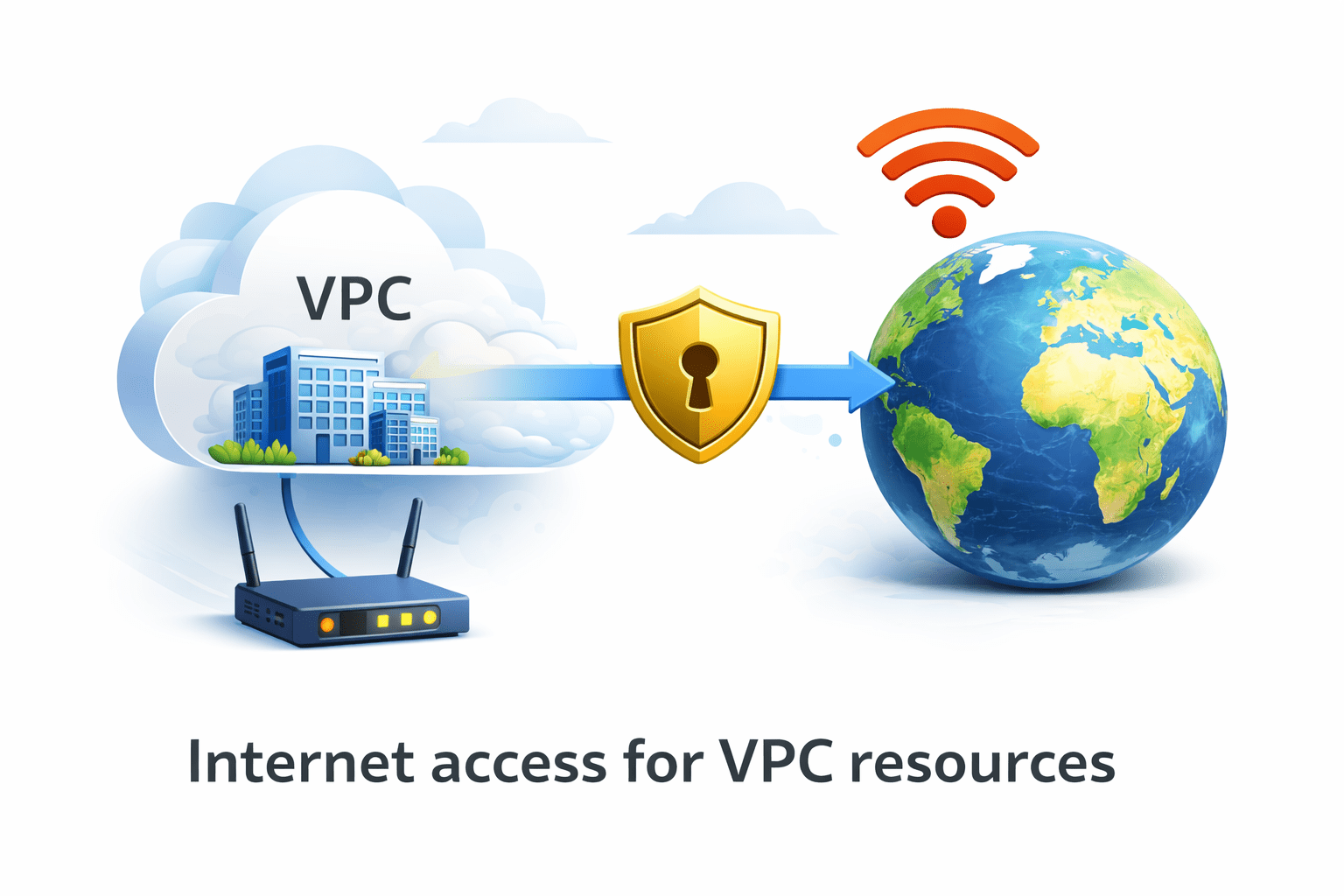
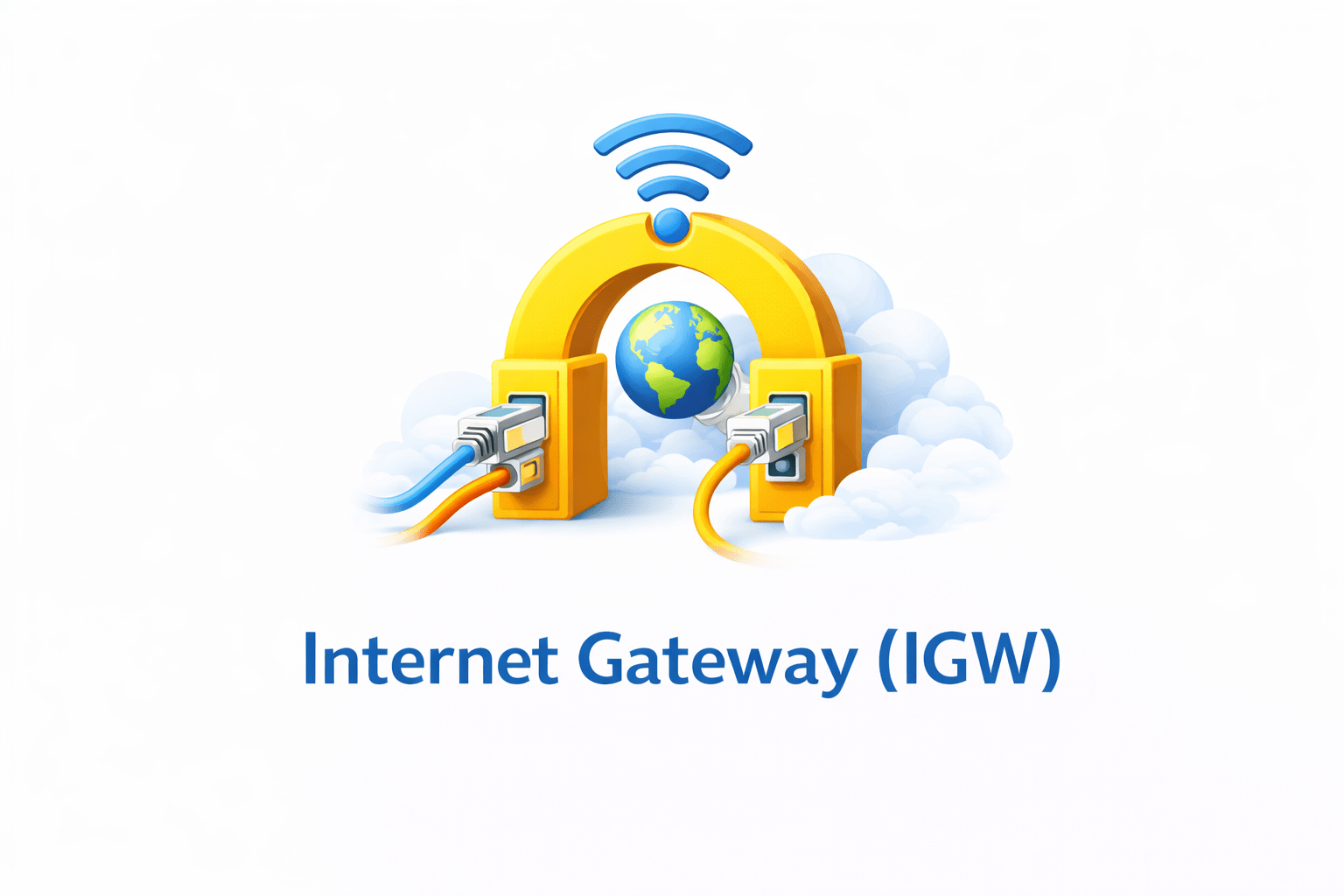
Internet Gateway (IGW)
Required for public subnets
Internet Gateway allows:
Internet access for VPC resources
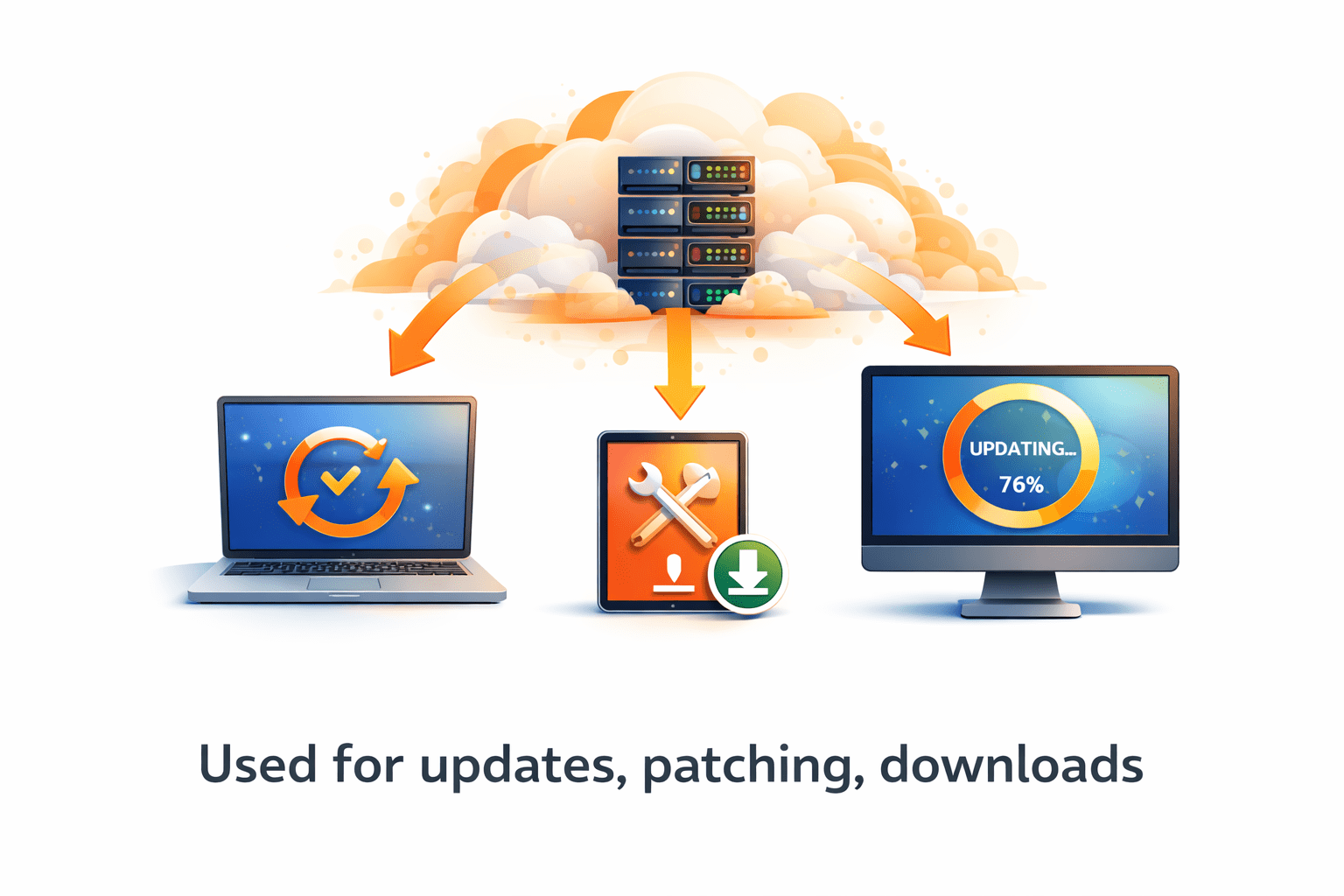
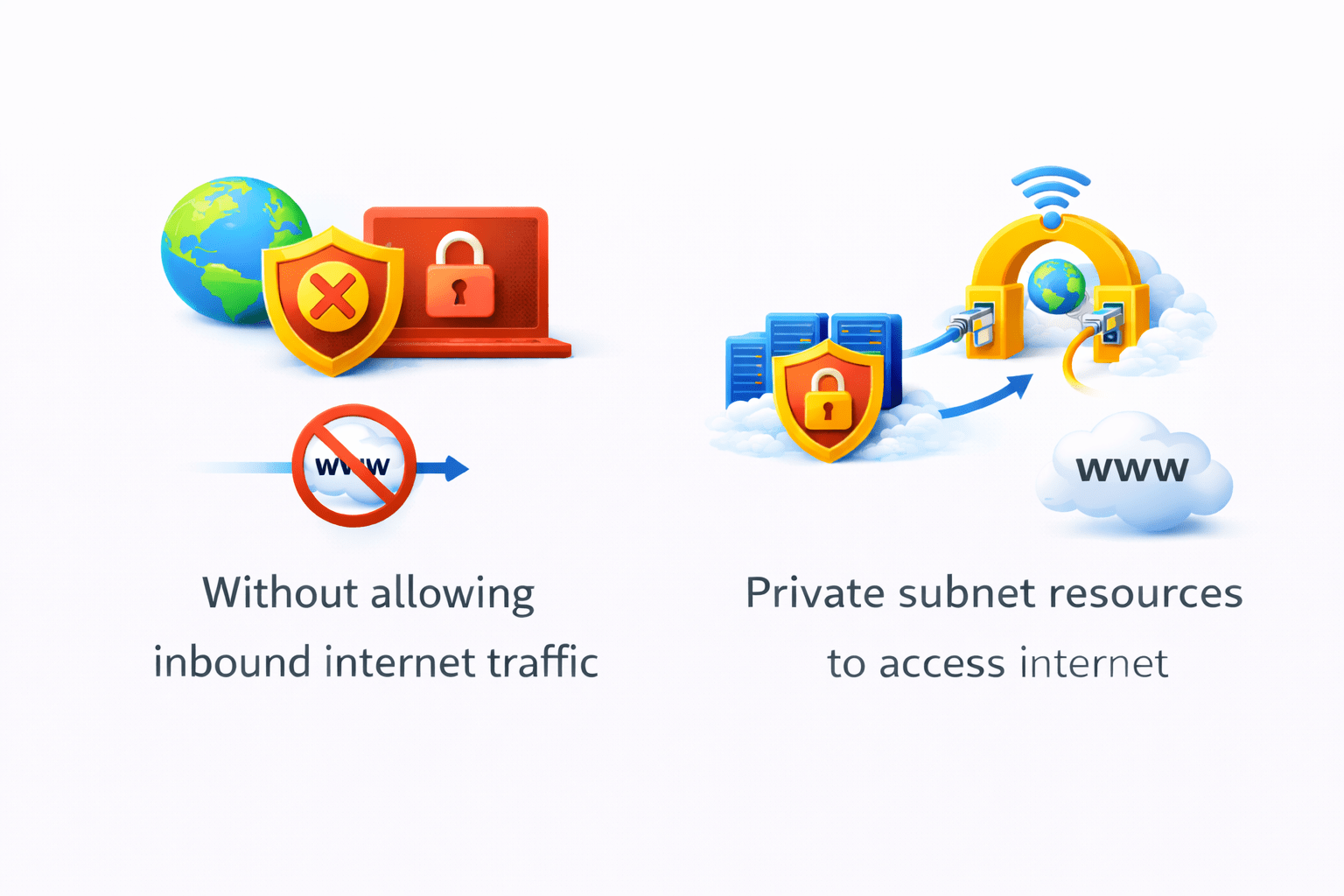
NAT Gateway
NAT Gateway allows:
Private subnet resources to access internet
Without allowing inbound internet traffic
Used for updates, patching, downloads
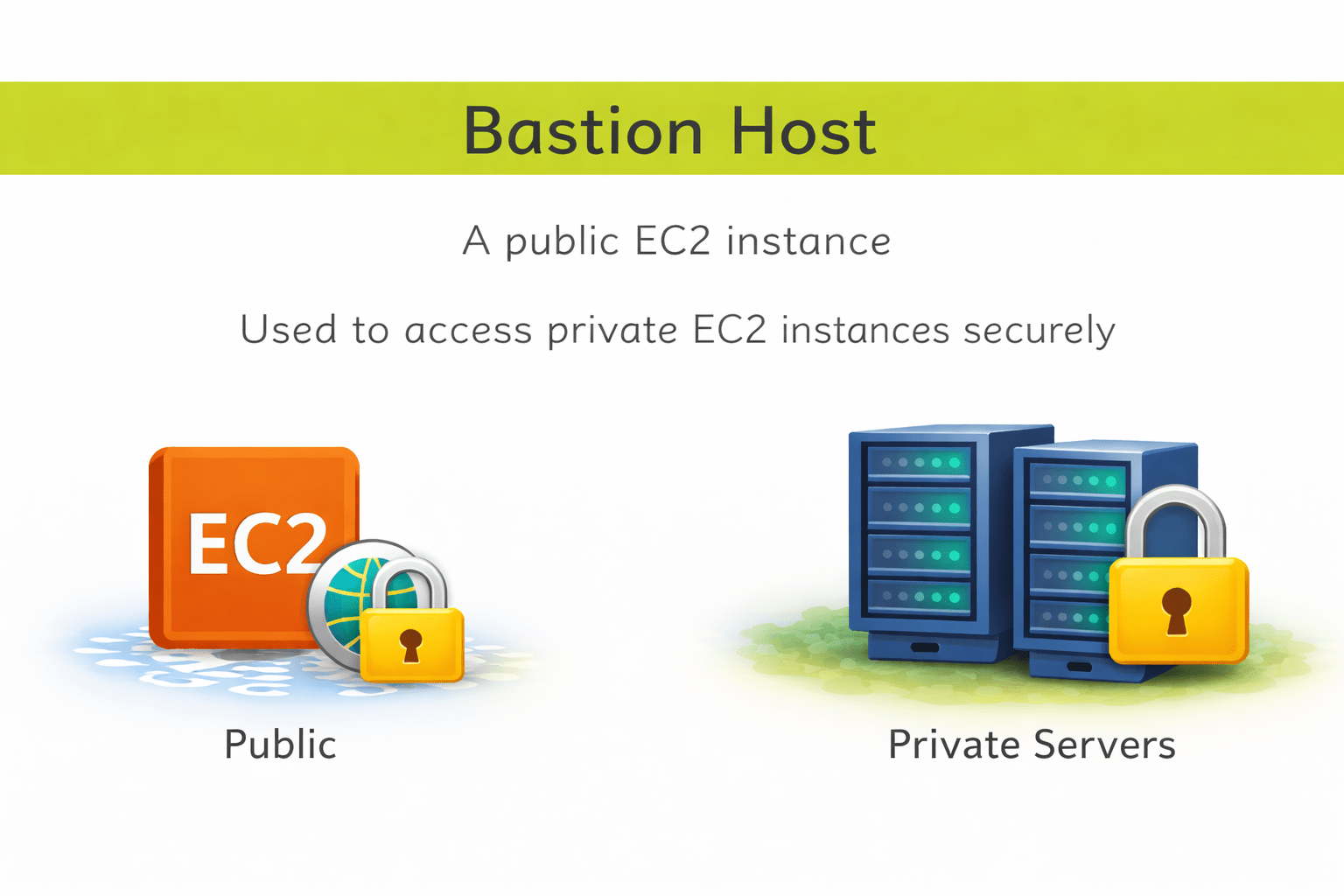
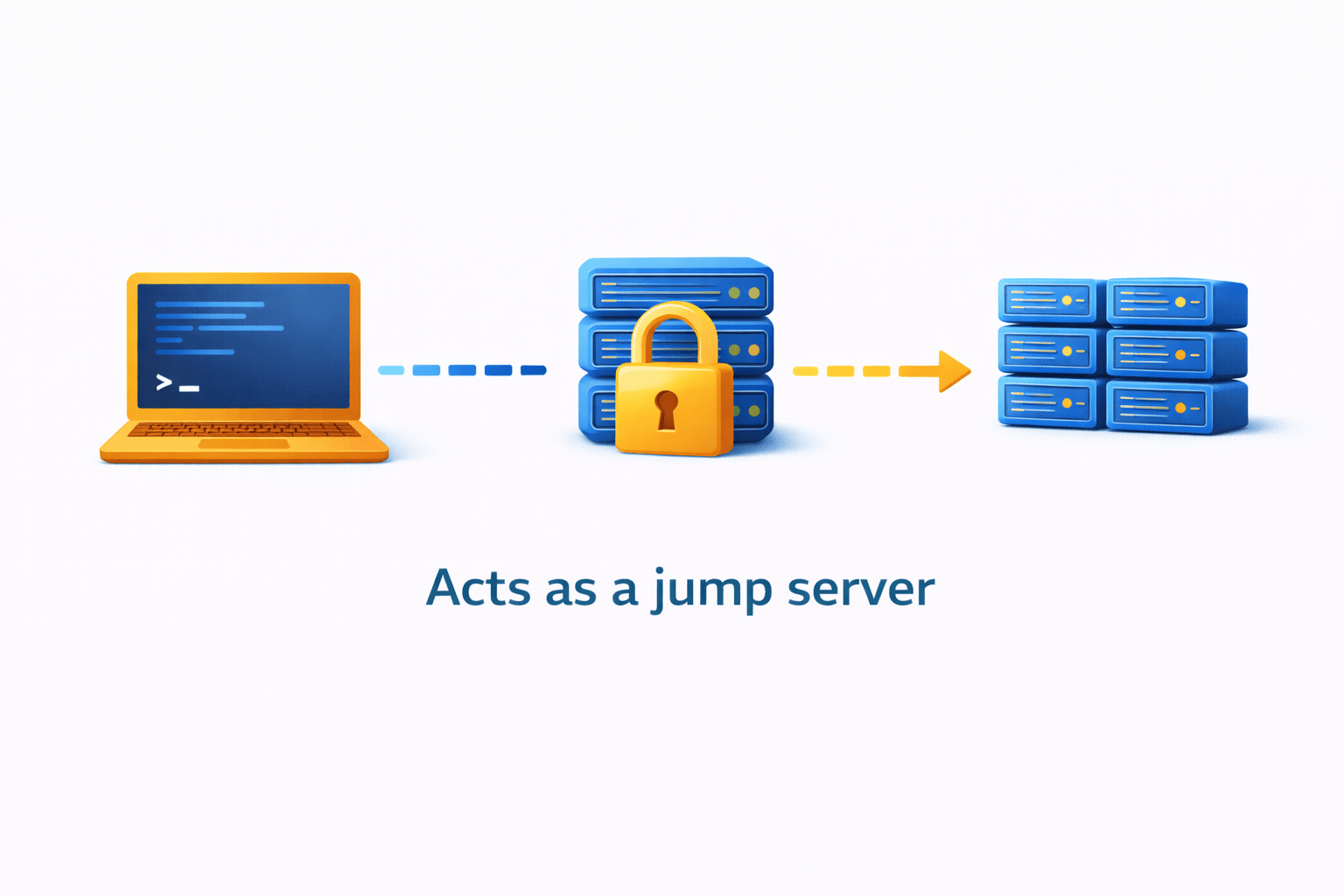
Bastion Host
Acts as a jump server
A public EC2 instance
Used to access private EC2 instances securely
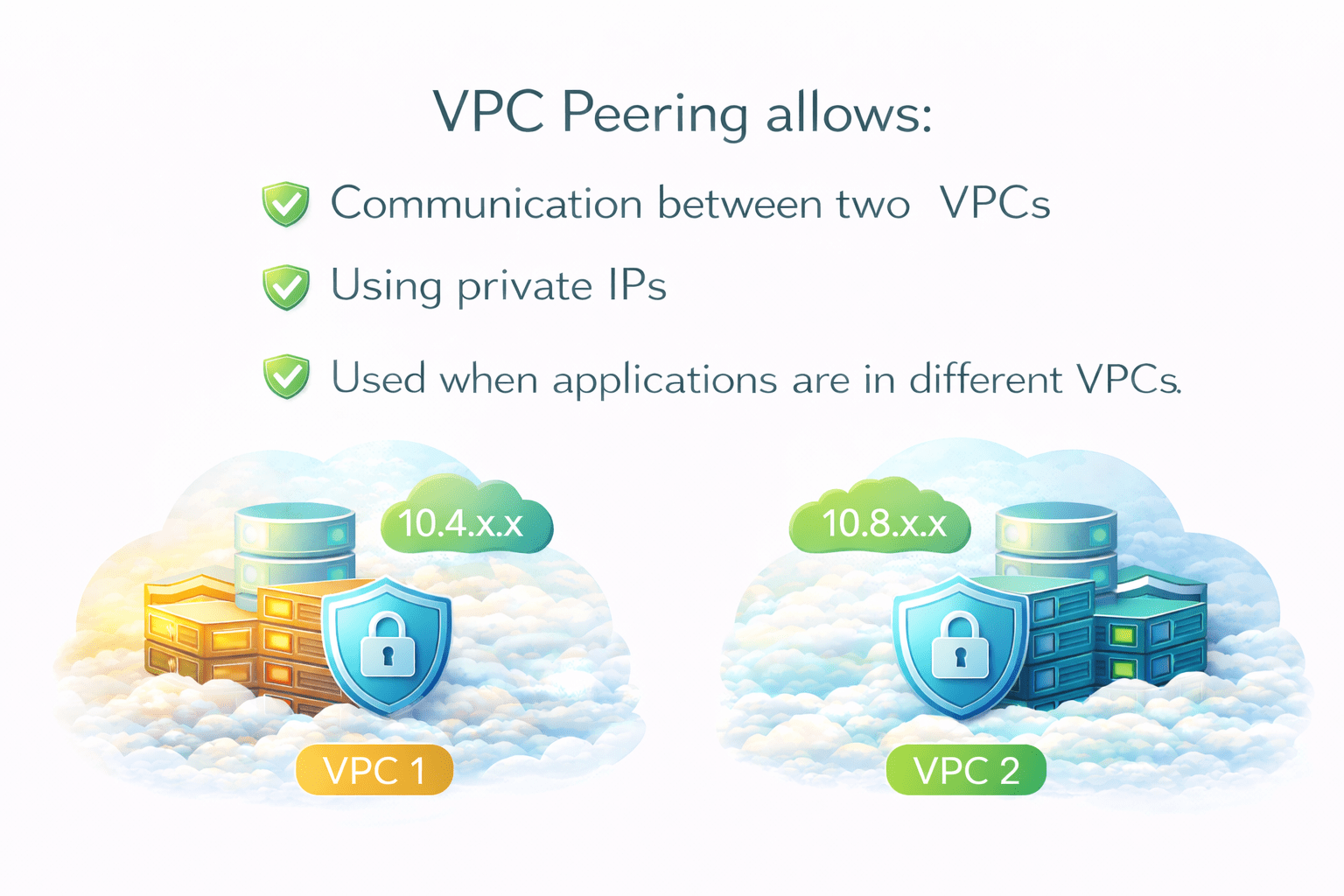
VPC Peering
VPC Peering allows
Used when applications are in different VPCs
Communication between two VPCs
Using private IP
Security in VPC
Acts at instance level
Works at subnet level
Primary security for EC2
Secondary layer of security
Return traffic must be explicitly allowed
Allow and deny rules
Return traffic is automatically allowed
Only allow rules
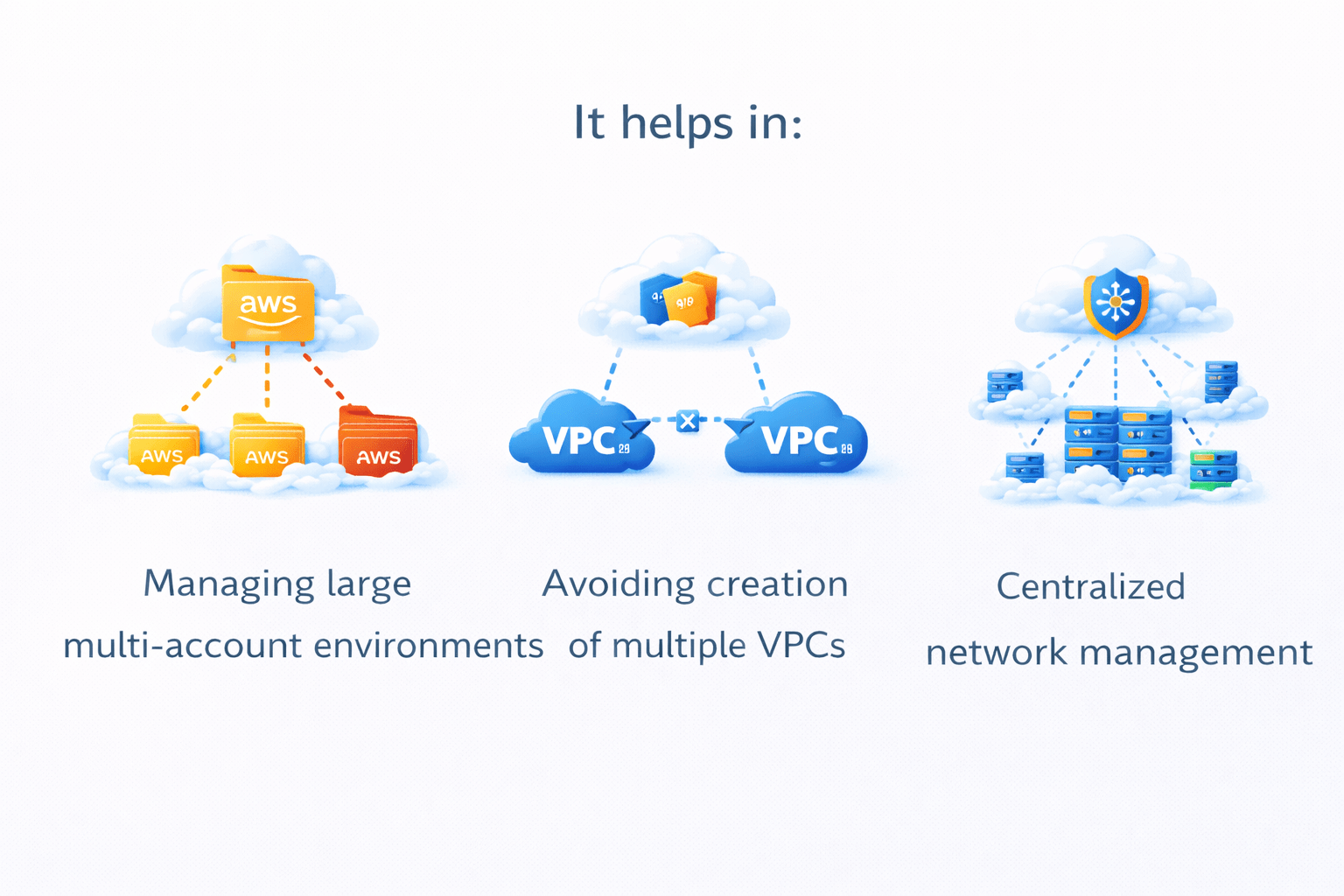
VPC Sharing / Connections
It helps in:
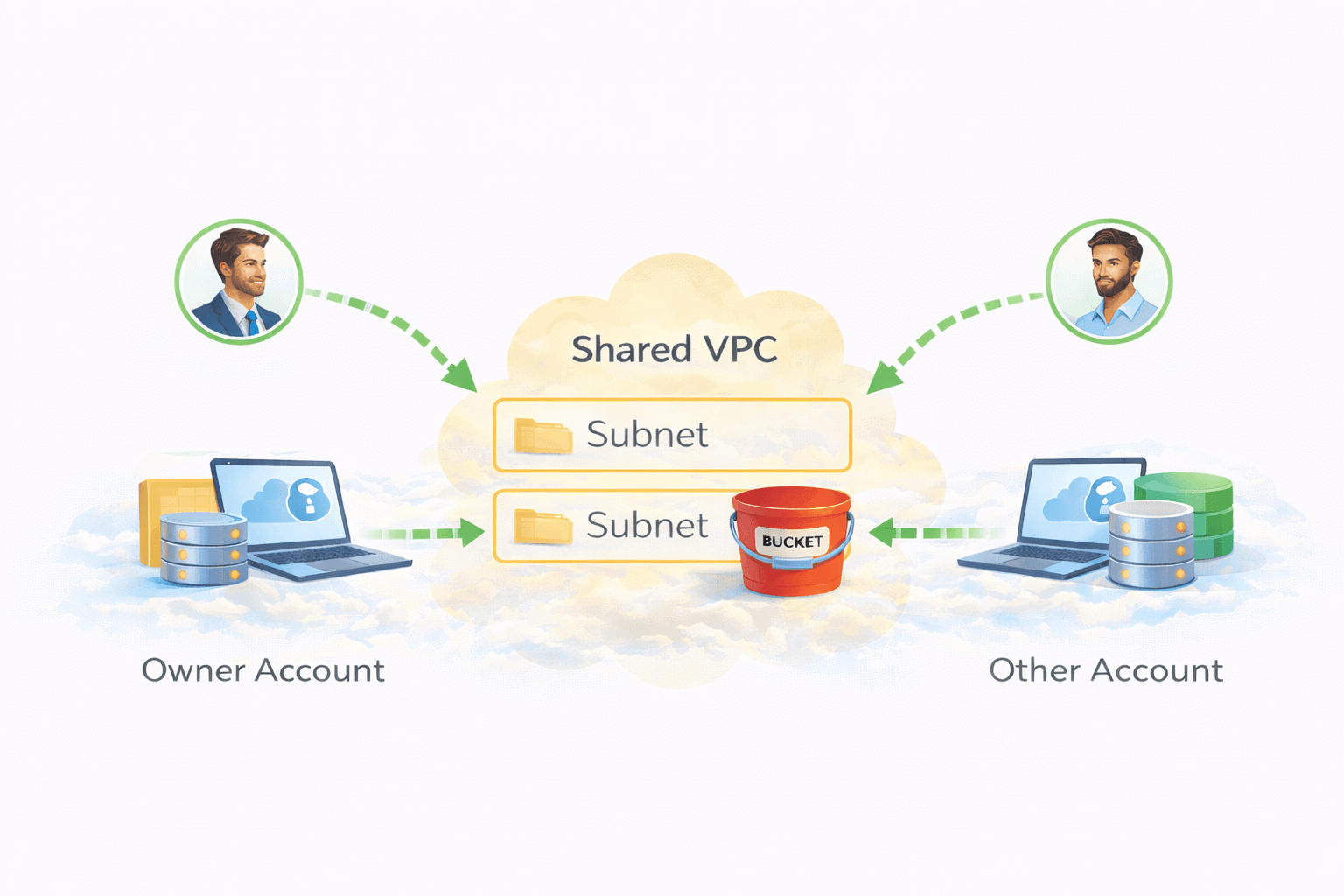
VPC Sharing allows multiple AWS accounts to use the same VPC
One account owns the VPC, and other accounts can use its subnets
Managing large multi-account environments
Avoiding creation of multiple VPCs
Centralized network management
VPC Endpoints
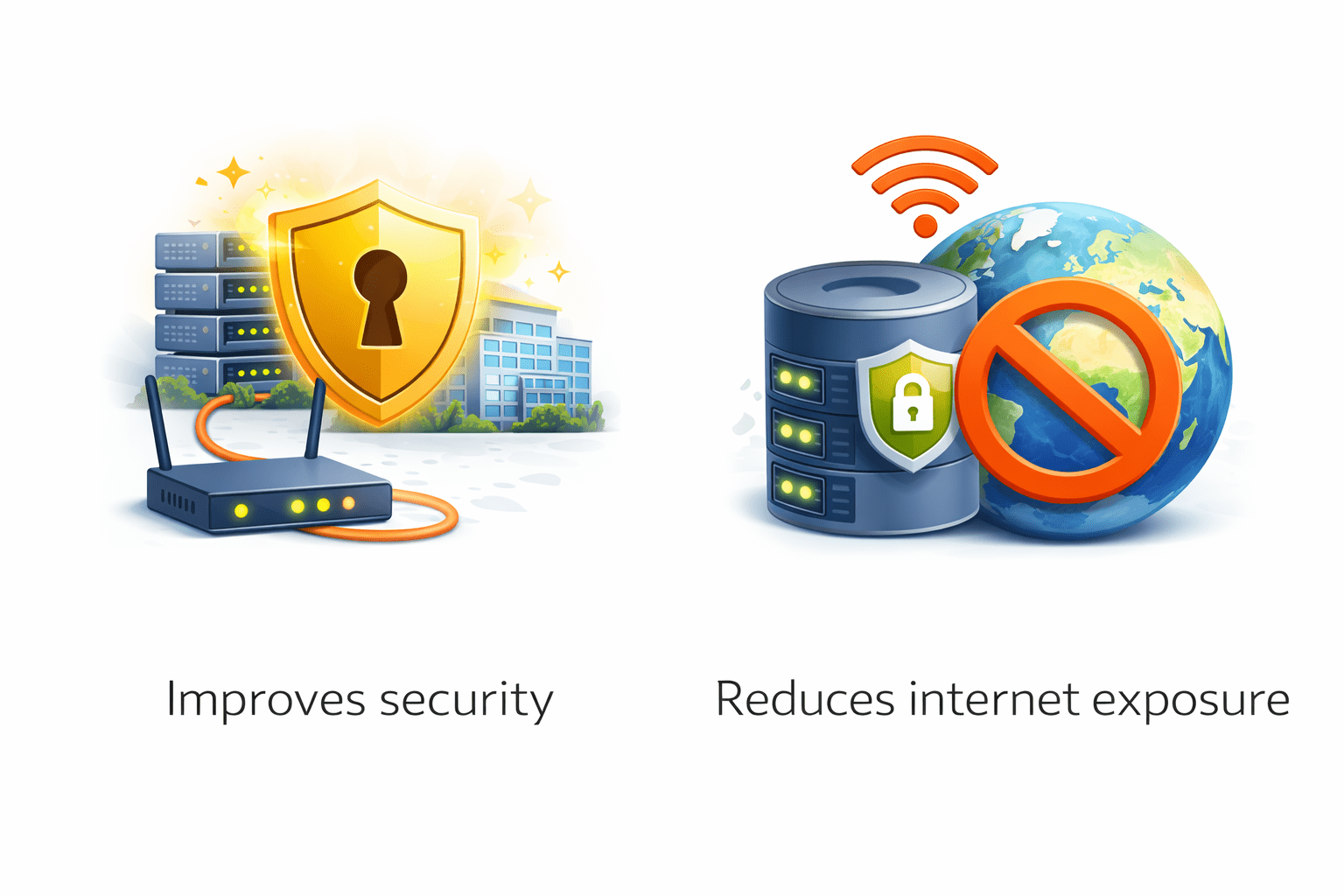
Improves security
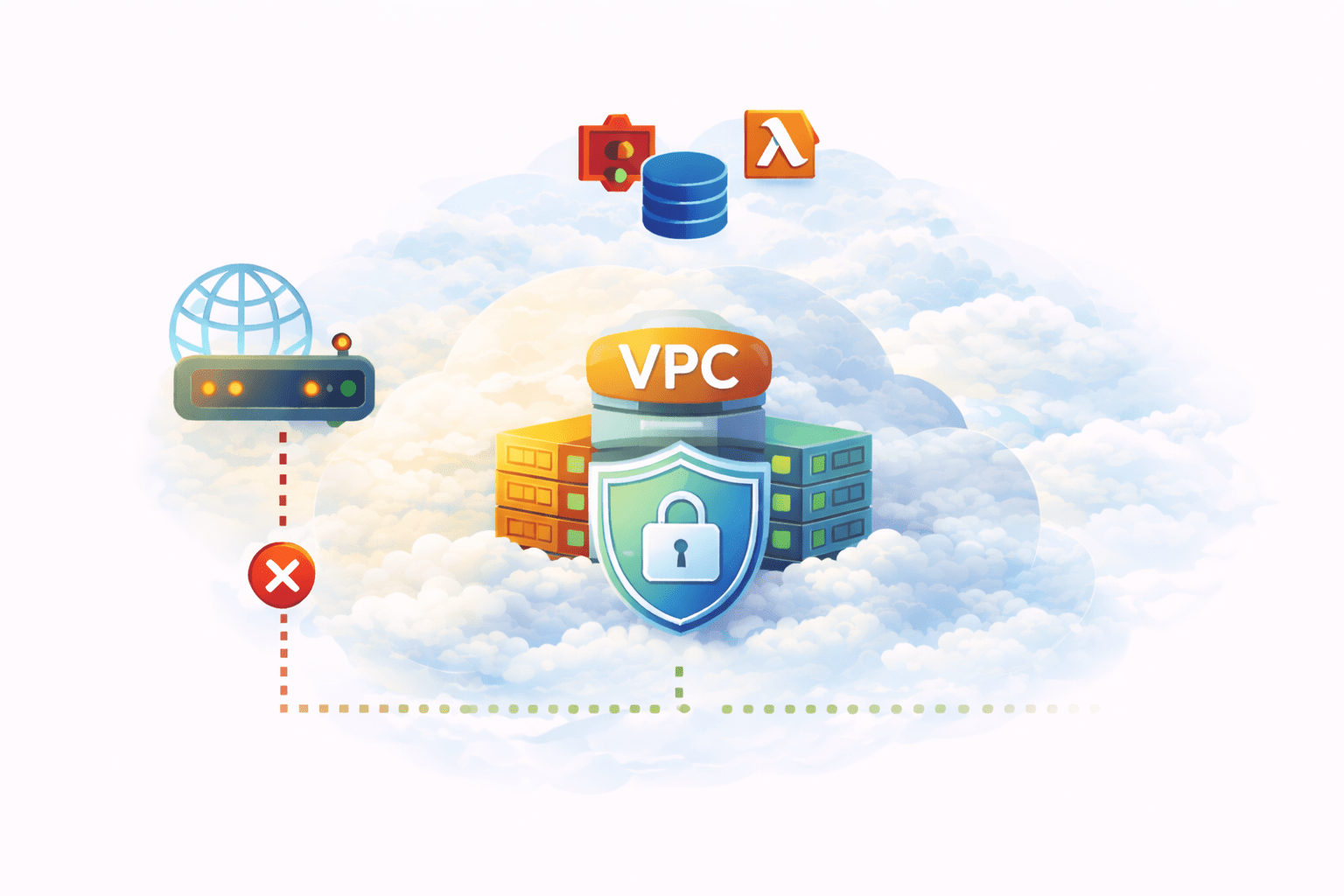
A VPC Endpoint allows private access to AWS services
without using the public internet
Traffic stays inside the AWS network, which:
Reduces internet exposure
Hands-On: Amazon VPC Practical
Go to VPC → Create VPC
Name: my-custom-vpc
CIDR block: 10.0.0.0/16
Create VPC
CIDR: 10.0.1.0/24
Enable auto-assign public IP
CIDR: 10.0.2.0/24
No public IP
Create Internet Gateway
Attach it to the VPC
Enables internet access.
Destination: 0.0.0.0/0
Target: Internet Gateway
Associate with public subnet.
Launch EC2
Select public subnet
Enable public IP
Test:
SSH or HTTP access works
Confirms internet connectivity.
Connect to EC2
Run:
ping google.com
Internet access confirmed.
Launch new EC2 in private subnet
No public IP
Observation:
No internet access
Now:
Create NAT Gateway in public subnet
Update private route table:
0.0.0.0/0 → NAT Gateway
Private EC2 can now access internet outbound only.
How EC2, S3 & VPC Work Together
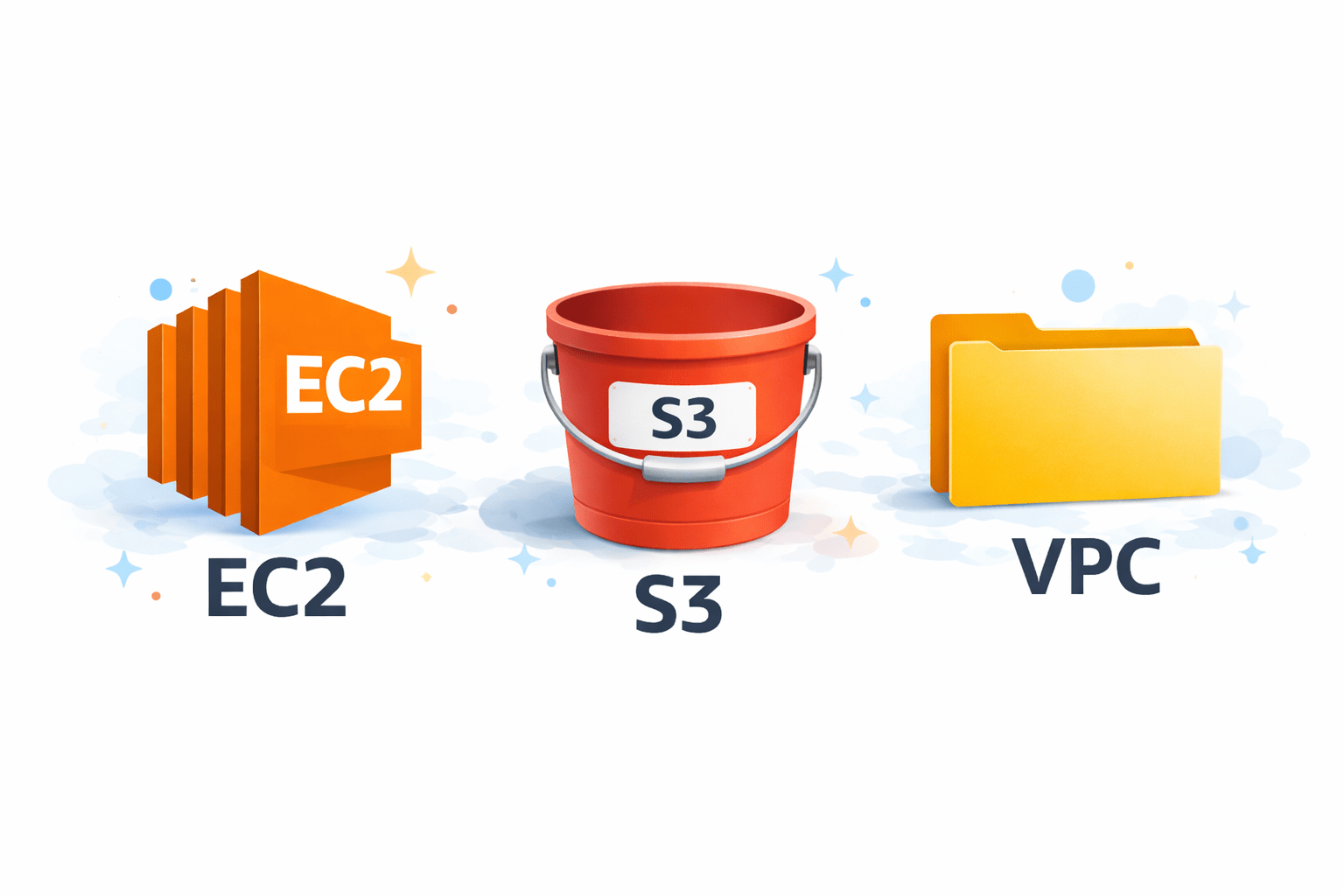
EC2, S3, and VPC are never used alone
In real-world AWS architectures
They work together to build secure, scalable applications
A VPC provides a private network
Inside the VPC, subnets are created
EC2 instances are launched inside these subnets
Typical Architecture Flow
VPC → Subnets → EC2
This ensures:
Network isolation
Controlled access
Better security
How EC2 and S3 Interact
Instead of storing data on EC2 disk:
EC2 reads data from S3
EC2 writes data to S3
EC2 runs applications
S3 stores data
S3 acts as central and durable storage, while EC2 focuses only on compute
Common Real-World Use Cases
EC2 runs the web server
Static content (images, videos) stored in S3
VPC controls inbound and outbound traffic
Result: Better performance and scalability.
Common Real-World Use Cases
EC2 generates important data
Data is backed up to S3
S3 provides high durability
Used for disaster recovery.
Common Real-World Use Cases
EC2 generates system and application logs
Logs are stored in S3
Logs can be kept long-term for analysis
Useful for auditing and troubleshooting.
Conceptual Demo Flow
EC2 instance runs inside a VPC
EC2 is given permission using IAM role
A file is uploaded from EC2 to S3
Shows EC2 → S3 write access.
Conceptual Demo Flow
Content is stored in S3
EC2 reads content from S3
EC2 serves content to users
Shows EC2 → S3 read access.
Summary
5
Build strong branding
4
Use different marketing channels
3
Target the right audience
2
Create and communicate value
1
Understand customer needs
Quiz
Which platform is mainly used for professional networking and B2B marketing ?
A. Facebook
B. Instagram
C. LinkedIn
D. Snapchat
Quiz-Answer
Which platform is mainly used for professional networking and B2B marketing ?
A. Facebook
B. Instagram
C. LinkedIn
D. Snapchat
By Content ITV